
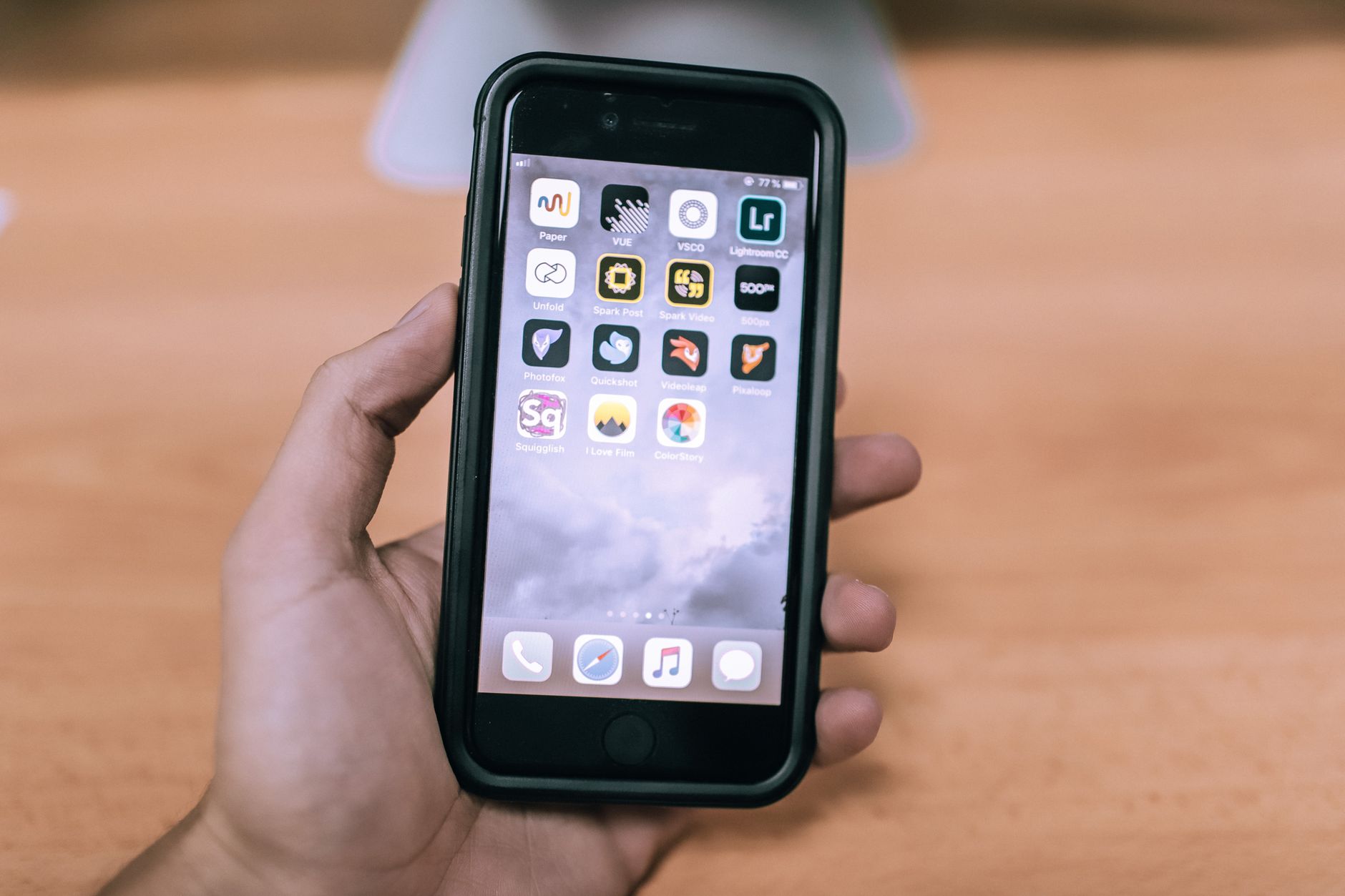
If you’re looking to create an eye-catching collage on your iPhone, you’re in luck. Nowadays, there are numerous apps available that can help you craft beautiful collages with ease. Not only can you combine multiple images, but you can also enhance them with stickers, text, and filters. This guide covers everything you need to know about making a collage on your iPhone—from choosing an app to finalizing your masterpiece.
In this article, we will explore various popular apps, provide step-by-step instructions for creating collages, suggest layouts, and offer tips to help you achieve the best possible results. Whether you are preparing for a special occasion or simply wish to showcase your favorite memories, you’ll be ready to go.
How to Make a Collage on iPhone?
You can make a collage on your iPhone using various apps designed for photo editing and collage-making. Popular options include Canva, Pic Collage, and Google Photos. Each app offers a unique set of features and layouts; therefore, selecting the right one can enhance your collage-making experience.
Choosing the Right App for Collage Making
Selecting the right app to make a collage on your iPhone is crucial. Here are some of the most popular apps, along with their key features:
- Canva: A versatile design tool with numerous templates, graphics, and editing options. Ideal for users who want detailed customization.
- Pic Collage: Known for its user-friendly interface, Pic Collage offers a variety of stickers, templates, and text tools.
- Google Photos: Offers simple collage creation with basic layouts and automatic collage options from selected images.
- Layout from Instagram: A free app that allows you to create collages easily for Instagram sharing, with intuitive grouping features.
- Fotor: A powerful editing app that includes tools for both collages and photo enhancements, simplifying the editing process.
Step-by-Step Instructions to Create a Collage on iPhone
While the specific steps may vary slightly based on the app you choose, we’ll demonstrate how to create a collage using a popular option, Canva, as an example:
1. Download and Open Canva
- Go to the App Store and search for “Canva.”
- Download the app and open it.
- If you already have a Canva account, log in. If not, create a free account.
2. Start a New Project
- Tap on the “+” icon to create a new design.
- Scroll down and select “Photo Collage” from the options provided.
3. Choose a Template
- Browse through the available templates.
- Select one that suits your style and theme by tapping on it.
4. Add Photos
- Tap on each photo placeholder to add images from your Camera Roll.
- You can upload multiple photos at once by selecting them together.
- Adjust the size and position as needed to fit your design.
5. Customize Your Collage
- Add text by tapping the “Text” option. Choose font styles and colors to match your aesthetic.
- Incorporate stickers, shapes, and backgrounds by exploring the editing tools provided.
- Make adjustments to the images, such as filters or cropping for a more polished look.
6. Save Your Collage
- Once you are satisfied with your collage, tap on the “Download” button in the top right corner.
- Select your preferred file format (e.g., PNG or JPEG).
- Save the collage to your Camera Roll or share it directly on social media.
Alternative Methods to Create a Collage on iPhone
If you prefer to explore other options, here are quick guides for creating a collage using additional apps:
Using Pic Collage
- Download and open Pic Collage from the App Store.
- Select “Grid,” “Freestyle,” or “Template” based on your preferred style.
- Add photos from your camera roll, adjusting them as necessary within the selected layout.
- Use text, stickers, and backgrounds to enhance your design.
- Save or share your collage once completed.
Using Google Photos
- Open Google Photos and tap on the “Photos” tab.
- Select the images you want to include in your collage.
- Tap on the “+” icon and select “Collage.”
- Edit your collage with filters if desired and then save or share it.
Using Layout from Instagram
- Download Layout from the App Store.
- Open the app and select images from your Camera Roll.
- Choose your preferred layout, then drag and drop images into the designated areas.
- Adjust the images, and save your completed collage to your device or share it directly on Instagram.
Exploring Layout Options for Your Collages
When creating a collage, choosing the right layout can enhance visual appeal. Here are some popular layout options to consider:
- Grid Layout: Perfect for a clean, organized look where all image sizes are equal.
- Freeform Layout: Allows for creative freedom, enabling you to place images wherever you want.
- Symmetrical Layout: Balances the visual weight of the collage and is pleasing to the eye.
- Asymmetrical Layout: Adds a modern touch, perfect for artistic presentations.
- Overlay Layout: Layers images on top of each other with transparency to create a unique effect.
Advanced Tips for Creating Stunning Collages
To elevate your collage-making skills, keep these advanced tips in mind:
- Focus on a Theme: Choose a specific theme or color palette to create a cohesive look.
- Utilize White Space: Don’t cram too many images into one collage; leave some margins for visual balance.
- Incorporate Text Wisely: Use text sparingly to not overwhelm the photos; select fonts that complement the theme.
- Experiment with Filters: Applying filters uniformly to all images can enhance the overall aesthetic.
- Use High-Quality Images: Ensure that the photos you use are high-resolution for the best outcome.
Common Issues and Troubleshooting Tips
While creating a collage on your iPhone, you may encounter some common issues. Below are solutions to potential problems:
- App Crashes: If an app crashes repeatedly, try closing and reopening it. Ensure it is up-to-date.
- Images Not Uploading: Check your internet connection or try restarting the app. Make sure the images are available in your Camera Roll.
- Lagging Performance: If the app is lagging, it might be worth restarting your iPhone to free up resources.
- Unsatisfactory Output Quality: Always use high-resolution images and select the right export settings to maintain quality.
Why These Apps Stand Out for Collage Making
Each collage-making app discussed offers unique features that can cater to different user needs:
- Canva: Best for customization; perfect for users who enjoy design.
- Pic Collage: Great for quick and fun collages; ideal for social media sharing.
- Google Photos: Excellent for automatic collages, which save time.
- Layout: Perfect for Instagram users wanting to share images immediately.
- Fotor: Offers powerful photo editing tools in addition to collage-making.
Conclusion
Creating a collage on your iPhone is a straightforward process with the right tools at your disposal. Apps like Canva, Pic Collage, and Google Photos offer various functionalities that cater to different user preferences and expertise levels. By following the steps outlined in this guide, you can craft stunning collages that capture your favorite memories or reflect your creative vision.
Ready to create your first collage? Download your chosen app and start experimenting today! For further insights, explore tutorials on removing backgrounds from images or recording audio on your iPhone.