
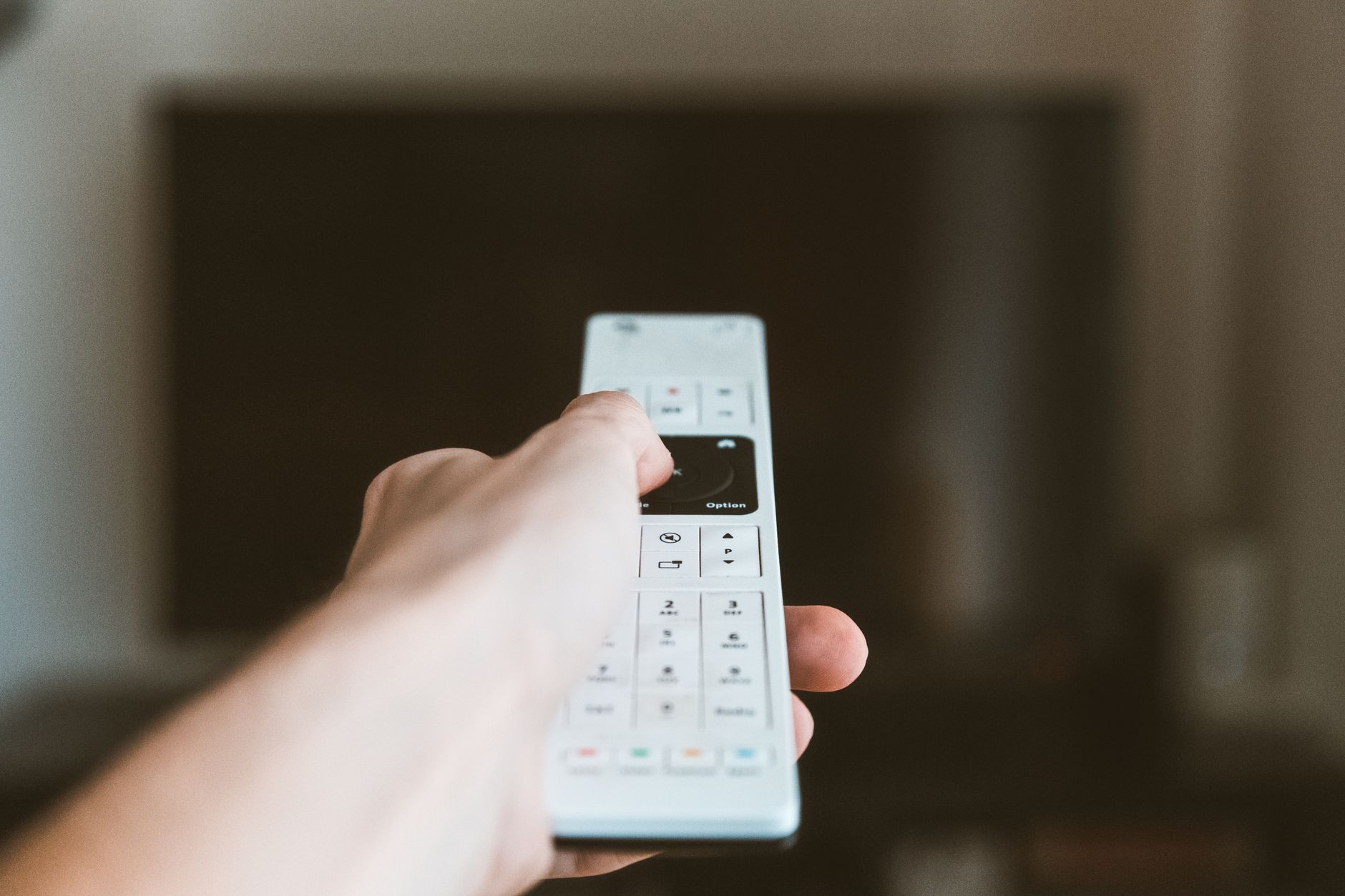
The Amazon Fire Stick is a popular streaming device that allows you to access a wide variety of content from streaming services. Pairing the Fire Stick remote to your TV is essential for seamless navigation and control. In this guide, you will learn how to pair your Fire Stick remote to your TV and troubleshoot any issues that may arise during the process.
Whether you’re setting up a new Fire Stick or trying to reconnect your remote, this article provides step-by-step instructions and helpful tips. By the end of this guide, you will be able to control your Fire Stick using its remote effortlessly.
How to Pair Firestick Remote to TV?
To pair a Firestick remote to your TV, you should follow the proper setup and pairing procedures. This process typically includes ensuring that your Fire Stick is properly connected to your TV, the remote is charged, and using the pairing button on the remote. If executed correctly, pairing should take just a few minutes.
Prerequisites for Pairing Your Firestick Remote
Before you start the pairing process, ensure you have the following:
- Amazon Fire Stick device connected to your TV.
- Power source for your Fire Stick.
- A compatible TV with HDMI port.
- Fire Stick remote with fresh batteries.
- TV remote (to switch input and access settings if needed).
Step-by-Step Instructions to Pair Your Firestick Remote
- Ensure Your Fire Stick is Powered On: First, make sure your Amazon Fire Stick is powered on and connected to your TV. The power indicator on the device should be lit up.
- Insert Batteries in the Remote: If you haven’t already done so, insert fresh batteries into your Fire Stick remote. Make sure the batteries are correctly oriented with respect to the positive (+) and negative (-) terminals.
- Enable TV Input: Use your TV remote to switch to the HDMI port where your Fire Stick is connected. Look for an “Input” or “Source” button on your TV remote.
- Wait for the Introductory Screen: After switching inputs, wait for the Fire Stick’s introductory screen to display. This might take a few moments.
- Pair the Remote: Once the introductory screen appears, the Fire Stick should automatically search for the remote. You’ll see a message indicating that your remote is pairing. If it doesn’t automatically pair, hold down the “Home” button on the remote for about 10 seconds.
- Confirm Pairing: When the remote successfully pairs, you will see a confirmation message. If the pairing fails, try repeating the previous step.
- Test the Remote: Use the remote to navigate the Fire Stick menu to ensure that it is functioning correctly. You can use the directional buttons to move around and select options.
Troubleshooting Common Pairing Issues
If your Fire Stick remote is not pairing or functioning properly, you might encounter some common issues. Here are steps to resolve them:
Remote Not Pairing
- Check Batteries: Make sure the batteries in your remote are fresh and installed correctly.
- Restart Fire Stick: Power cycle your Fire Stick by unplugging it from the power source for 30 seconds, then plug it back in.
- Reset Remote: If pairing is still unsuccessful, reset the remote by pressing the “Home” button and the “Menu” button simultaneously for about 10 seconds.
- Use the Fire TV App: If the remote remains unresponsive, consider using the Fire TV app available for iOS and Android as a temporary remote solution.
Remote Controls TV Functions but Not Fire Stick
If your Fire Stick remote controls your TV but fails to navigate the Fire Stick, follow these troubleshooting steps:
- Check Compatibility: Ensure your Fire Stick remote is compatible with the specific Fire Stick model you are using.
- Reboot Your Devices: Restart both your Fire Stick and TV to reset any connection issues.
- Disconnect and Re-Pair: Remove the remote’s pairing and try the pairing process again, ensuring you hold the Home button during the process.
General Troubleshooting Steps
For any other issues, consider the following general tips:
- Ensure there are no obstructions between the remote and the Fire Stick.
- Move closer to the Fire Stick while trying to pair the remote.
- Remove any additional devices that might interfere with the wireless connection.
Advanced Pairing Options
If you are looking for more advanced pairing options, you should know that certain types of remotes and setups can provide additional functionality or shortcuts:
Pairing a Compatible Universal Remote
If you prefer to use a universal remote that supports Amazon Fire Stick, follow the instructions provided by the manufacturer of the universal remote. Usually, this process involves entering a specific code for the Fire Stick.
Using the Fire TV Mobile App
The official Fire TV app for iOS and Android devices can be used as a remote if you encounter persistent issues with the physical remote. The app lets you control your Fire Stick via your smartphone using Wi-Fi.
Software Updates and Their Impact
Occasionally, outdated software may hinder the pairing process or performance of your Fire Stick and remote. Here’s how to check for updates:
- Open Settings: From the main Fire Stick menu, navigate to “Settings.”
- Select My Fire TV: Scroll down and select “My Fire TV” to access system settings.
- Select About: In this menu, select “About” and then click on “Check for Updates.”
- Install Updates: If updates are available, download and install them. Restart your device afterward to apply changes.
Alternative Pairing Methods
If you are still facing difficulties with pairing, consider the following alternative pairing methods:
Using Voice Commands
If your Fire Stick remote is voice-enabled, use voice commands to initiate functionality. Simply press the voice button and say “Pair remote.” The device will attempt to recognize the remote through your voice.
Factory Resetting Your Remote
If all else fails, a factory reset of the remote might resolve the issue:
- Hold down the “Left” button, “Menu,” and “Back” for 12 seconds.
- Wait for the LED light to flash rapidly, then return it to pairing mode using the previous steps.
Conclusion
Pairing your Firestick remote to your TV is generally a straightforward process, and with the steps outlined above, you should have no problem getting everything set up. Be patient, check for common issues, and don’t hesitate to explore alternative options if you encounter difficulties. Understanding the basics of the pairing process will enhance your overall experience while using the Fire Stick.
For more information on pairing your Firestick remote and troubleshooting, check out the detailed guides on how to pair a Firestick remote and how to reset your Firestick remote. These resources provide additional insights and solutions to ensure a smooth and enjoyable streaming experience.