
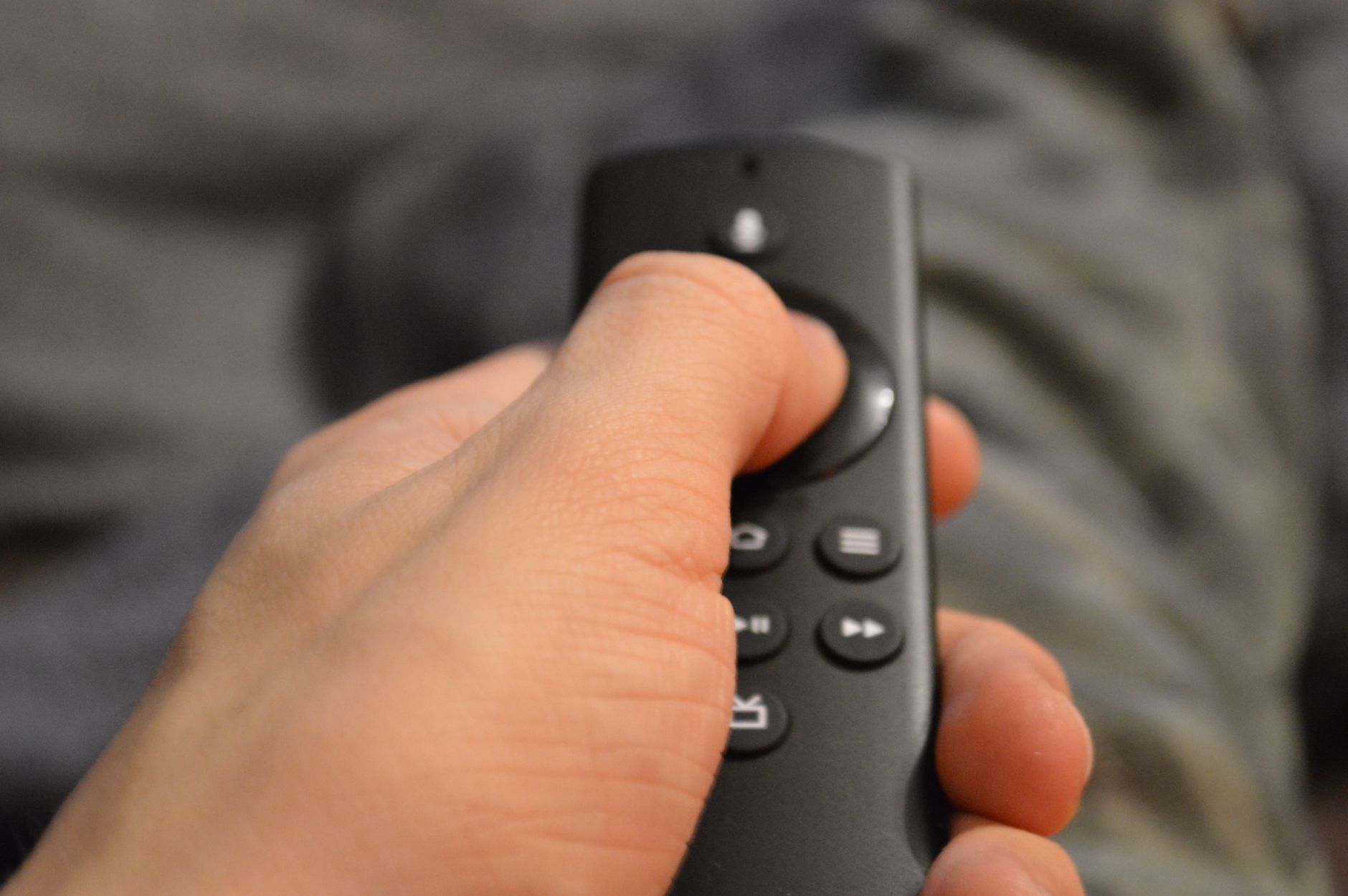
The Amazon Firestick remote is a handy device that allows users to navigate through their favorite streaming apps and services seamlessly. Sometimes, you might need to program the Firestick remote to work with your TV or fix any pairing issues. This guide will walk you through the necessary steps to accomplish this, ensuring you have all the tools at your disposal for an optimal viewing experience.
Whether you are a tech enthusiast or just someone wanting an easier way to control your Firestick, understanding how to program your remote is essential. You can enhance your overall experience with setup options that encompass various functionalities of the remote and troubleshooting techniques.
How to Program Firestick Remote?
To program the Firestick remote, you typically follow a set of straightforward instructions that allow you to pair it with your Amazon Fire TV device or even other devices. First, ensure that the remote has fresh batteries and is compatible with your version of Firestick. Below are the detailed steps.
Prerequisites: What You Need Before Programming
- An Amazon Fire TV Stick.
- A compatible Firestick remote.
- Fresh batteries for the remote.
- An active TV with HDMI compatibility.
Step-by-Step Guide to Program Your Firestick Remote
- Insert Batteries:
Open the battery compartment on the back of the Firestick remote. Insert two new AAA batteries with the correct polarity (+ and -) to ensure proper functionality.
- Power On Your TV:
Turn on your TV and ensure it is set to the correct HDMI input where your Firestick is connected.
- Connect the Fire TV Stick:
If you haven’t already, connect your Firestick to the TV’s HDMI port and power it on using the provided power adapter. Wait for the Fire TV interface to load.
- Pair the Remote:
The Firestick remote should automatically pair with your Fire TV Stick. If it doesn’t, press and hold the
Homebutton for about 10 seconds. The remote should display a pairing message on the TV screen. - Check for Confirmation:
Once the remote is paired, you should see a confirmation message on your TV. The remote should now control the Fire TV functions like navigating menus and changing settings.
Troubleshooting: How to Fix Common Pairing Issues
Sometimes, you might encounter issues while trying to program your Firestick remote. Below are common problems and their corresponding solutions:
Remote Not Pairing
- Check Batteries: Ensure the batteries are fresh and installed correctly.
- Restart Your Fire TV Stick: Unplug the Firestick from the power outlet, wait for 10 seconds, and plug it back in.
- Remove Obstacles: Ensure there are no physical barriers between the remote and the Firestick.
- Use the Fire TV App: If the remote still does not pair, consider downloading the Fire TV app on your smartphone for temporary control.
Remote is Unresponsive
- Check for Interference: Move any devices that could be causing interference away from the Firestick.
- Reset the Remote: To reset your remote, press and hold the
Home,Back, andRightbuttons simultaneously for about 10 seconds.
Remote Functions Inaccurately
- Reconnect Remote: Try the pairing process again by pressing and holding the
Homebutton for 10 seconds. - Reboot Your TV: Sometimes rebooting your TV can fix control issues.
Advanced Features of the Firestick Remote
The Firestick remote is more than just a basic device; it comes with an array of advanced features. Understanding these functions can help you make the most out of your experience:
- Voice Control: With the built-in Alexa feature, you can control your Fire TV Stick using voice commands. Simply press the voice button and say your command.
- Volume Control: Some Firestick remotes come with volume control buttons, allowing you to adjust your TV’s volume without switching remotes.
- Quick Access Buttons: Use the programable buttons to set shortcuts to your favorite apps or channels.
- Remote Finder Feature: Forget where your remote is? Some Fire TV remotes come with a finder feature that emits a sound so you can locate it.
Alternative Methods to Control Your Firestick
If you are facing persistent issues with your Firestick remote, several alternatives exist for controlling your device:
- Fire TV App: This app, available on iOS and Android, mirrors the functionalities of the Firestick remote, allowing you to navigate your Fire TV Stick through your smartphone.
- Universal Remotes: Many universal remotes are compatible with Fire TV. Just ensure they support HDMI-CEC (Consumer Electronics Control) for seamless operation.
- Smart Home Integration: If you own smart home devices compatible with Alexa, you can use voice commands from devices like Echo or Echo Dot to control your Firestick.
Resetting Your Firestick Remote
If you face considerable difficulties with your Firestick remote or it becomes unresponsive, resetting the remote can help. Follow these steps to perform a reset:
- Remove the batteries from the remote.
- Unplug the Firestick from the power source.
- Wait for about 60 seconds.
- Reconnect the Firestick to the power and wait for it to fully boot.
- Reinsert the batteries into the remote and press the
Homebutton for 10 seconds to restart pairing.
How to Program Your Firestick Remote with a TV
If you would like to control your TV using your Firestick remote, you can go through a few settings adjustments. Here’s how to program your Firestick remote to control your TV:
- From the Fire TV home screen, navigate to
Settingsusing your remote. - Select
Equipment Control. - Choose
Add Equipment. - Select
TVto set up your TV. - Follow the on-screen instructions to identify your TV brand.
- After it detects the TV, you can test the volume control to ensure it works correctly.
Common Errors and How to Fix Them
During the programming and pairing process, you might encounter common errors. Here’s how to address them effectively:
Error: Remote Not Found
If the Fire TV Stick cannot find the remote, this often indicates a pairing issue. Restart both the remote and Firestick, then attempt to pair again.
Error: Television Not Responding
If your TV is not responding to the Firestick remote functions, ensure that the HDMI-CEC feature is enabled on your TV, which allows devices connected through HDMI to control each other.
Error: Interference from Other Devices
Interference from other electronic devices may lead to performance issues. Move other devices away from the Firestick and remote.
Buying Guide: Choosing the Right Firestick Remote
If you find that the default remote does not meet your needs, consider these factors when looking to buy a new or additional Firestick remote:
- Compatibility: Ensure that the remote is compatible with your specific Firestick model.
- Features: Look for features that enhance usability, such as voice commands and backlighting.
- Ergonomics: Choose a remote that feels comfortable in your hand and has easily accessible buttons.
- Price: Compare prices to ensure you are getting a fair deal without compromising on quality.
Conclusion
Programming your Firestick remote is a simple process that can enhance your media consumption experience. Ensuring you understand its features, troubleshooting common issues, and exploring alternatives can significantly improve your enjoyment while using streaming services.
To further enhance your understanding of the Firestick and maximize its potential, consider exploring the following guides: how to reset your Firestick remote and how to pair your Firestick remote. Each of these guides can help you troubleshoot and optimize your remote for the ultimate viewing experience.