
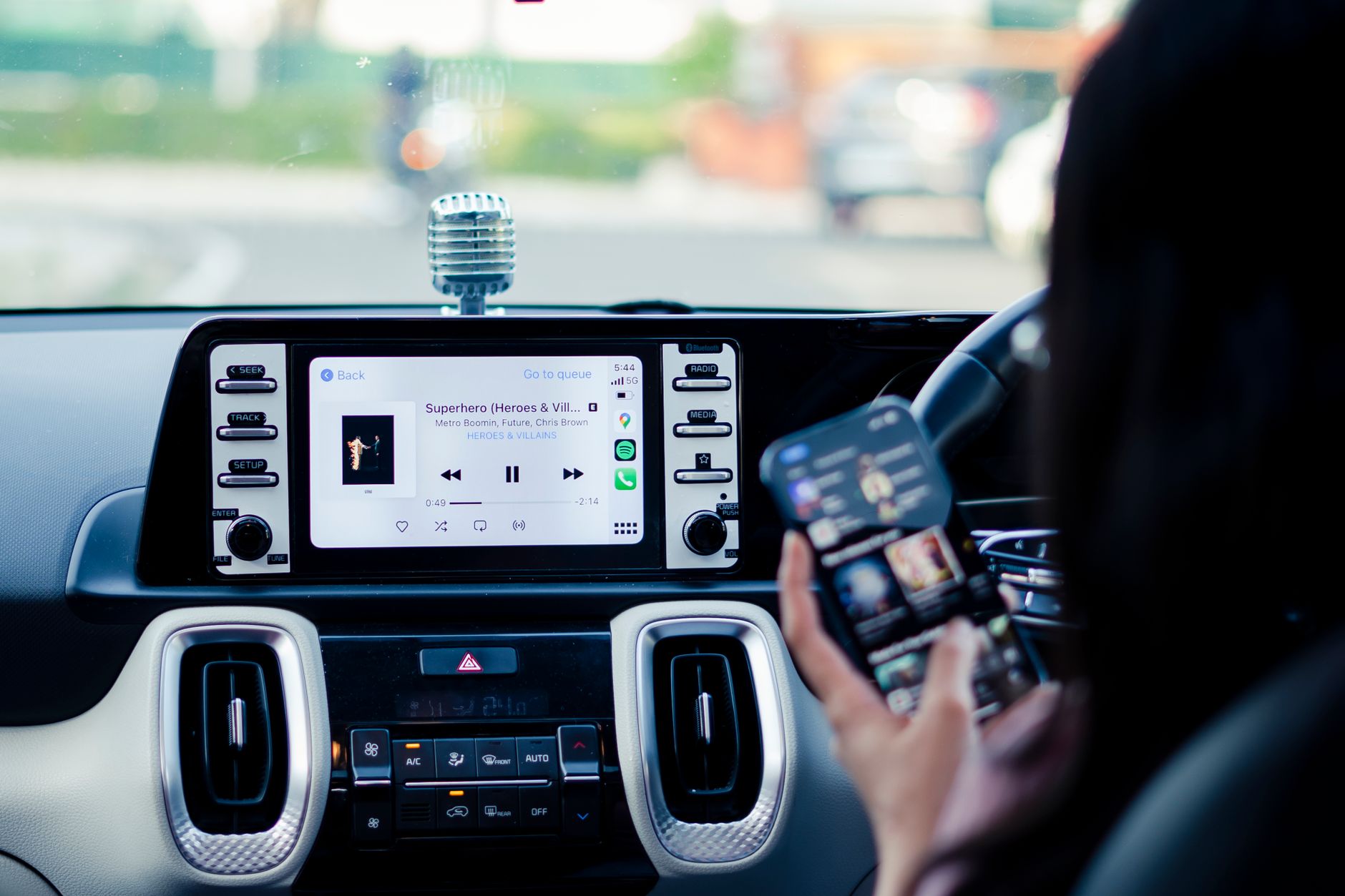
CarPlay has revolutionized the way we interact with our vehicles, allowing seamless integration of iPhone functionality into the car. However, there are times when you may want to turn off CarPlay, either temporarily or permanently, depending on your needs. This guide will provide you with detailed instructions on how to turn off CarPlay using both device settings and hardware controls.
By the end of this article, you will understand the steps required to disable CarPlay on your iPhone and your vehicle, along with troubleshooting tips and alternative options. Whether you’re looking to disconnect temporarily or simply prefer driving without CarPlay, this guide has you covered.
How to Turn Off CarPlay?
To turn off CarPlay, you can either disable it directly from your iPhone’s settings or adjust settings within your car’s infotainment system. Both options are straightforward and can be done in a few steps.
Understanding CarPlay
Before we dive into the steps to turn off CarPlay, let’s clarify what it is. CarPlay is an Apple software feature that connects your iPhone to your car’s infotainment system, allowing you to access apps, navigation, messages, and music hands-free. While this feature enhances driving convenience, you may find it unnecessary at times. Knowing how to disable it allows you to choose when to use this connectivity.
Prerequisites
- An iPhone running iOS 7.1 or later.
- A compatible vehicle with CarPlay integration.
How to Disable CarPlay on iPhone
Turning off CarPlay on your iPhone can be done through the device settings. Follow these steps:
- Open the Settings app on your iPhone.
- Scroll down and tap General.
- Select CarPlay.
- You will see a list of connected vehicles. Tap on the car you want to disconnect.
- Press Forget This Car to disable CarPlay for this vehicle.
Once you have forgotten the car, your iPhone will no longer automatically connect to the car for CarPlay. If you want to reconnect in the future, you will need to set it up again.
Disabling CarPlay from Your Vehicle’s Infotainment System
If you would prefer to turn off CarPlay from your car instead, the steps may vary based on the make and model of your vehicle. Here are general instructions that should apply to most vehicles with CarPlay:
- Access your car’s infotainment system.
- Navigate to the Settings menu or Connect section. This can vary; you may need to check your owner’s manual.
- Look for the option related to Smartphone Integration or Apple CarPlay.
- Toggle the option to disable CarPlay.
After completing these steps, CarPlay will no longer activate when you connect your iPhone. If you wish to use it again, you can repeat the process to re-enable it.
Common Issues and Troubleshooting
If you encounter any difficulties while trying to turn off CarPlay, consider the following troubleshooting tips:
- Device Connection: Ensure that your iPhone is not connected to the vehicle via Bluetooth or USB when attempting to turn off CarPlay.
- Infotainment System Reset: Some cars may require a reset of the infotainment system if the settings are not applying correctly. Refer to your vehicle’s manual for instructions on how to perform a reset.
- Software Updates: Ensure both your iPhone and vehicle’s software are up to date. Outdated software can lead to connectivity issues.
Alternative Options to Consider
If turning off CarPlay isn’t the solution you desire, consider these alternative options for a more personalized driving experience:
- Do Not Disturb While Driving: Enabling Do Not Disturb can silence notifications without having to turn off CarPlay completely.
- Using Airplane Mode: Activating Airplane Mode on your iPhone will disable all wireless connections. However, this will prevent calls and messages as well.
- Changing CarPlay Settings: If you find certain apps distracting, adjust which apps are available within CarPlay settings instead of turning it off entirely.
Conclusion
Turning off CarPlay is a simple process that can provide you with a more controlled driving experience. Whether you choose to disable it via your iPhone’s settings or through your vehicle’s infotainment system, the steps are straightforward. Remember to perform troubleshooting if needed and explore alternative options to make the most out of your driving experience. For further understanding of CarPlay, feel free to explore our articles on how to use Apple CarPlay and what CarPlay is.