
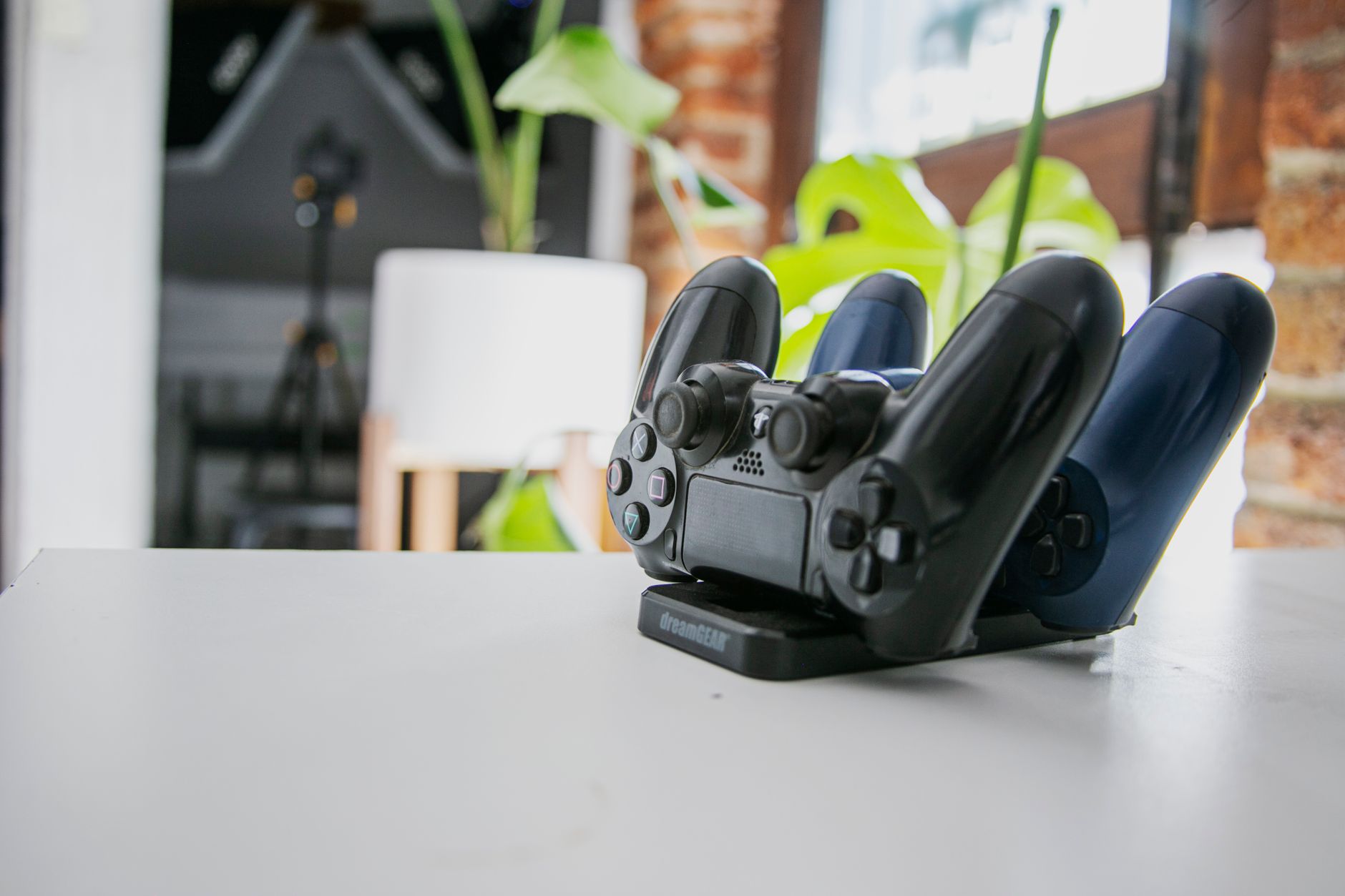
Turning off your PS5 controller may seem simple, but it can be a bit confusing for many users. The DualSense controller, with its innovative features, comes with multiple ways to power it down, both through software settings and physical buttons. Understanding these methods will enhance your gaming experience while ensuring your controller’s battery is used efficiently.
This article will guide you through different ways to turn off your PS5 controller, troubleshoot common issues, and cover tips for optimizing your gaming setup. By the end, you’ll know exactly how to handle your controller’s power settings, from quick access to in-depth options.
How to Turn Off PS5 Controller?
To turn off your PS5 controller, you can either use the system settings or a simple button combination. Both methods are straightforward and designed to give users flexibility in managing their controller settings.
Turning Off Using the PS5 Console
One of the most common methods to turn off your PS5 controller is through the console itself. Here’s a step-by-step guide on how to do it:
- Start your PS5 console and make sure you’re on the home screen.
- Press the PlayStation button on your controller to open the control center.
- Navigate to the “Accessories” icon, which resembles a gamepad.
- Select your DualSense controller from the list.
- Choose the option labeled “Turn Off.” This will power down your controller.
After completing these steps, the controller’s light bar should turn off, indicating that it is no longer powered on.
Turning Off the Controller Using the Controller Itself
If you want a quick way to turn off your controller without accessing the console, use the following method:
- Press and hold the PlayStation button (the circular button with the PlayStation logo) for about 10 seconds.
- The controller will vibrate and then turn off after the light bar goes dark.
This method can be convenient if you’re stepping away from the game quickly.
Turning Off the Controller Through Motion Sensor Settings
The PS5 DualSense controller has motion sensor capabilities that can sometimes keep it active longer than necessary. To reduce battery consumption and ensure it turns off automatically:
- Navigate to the Settings menu on your PS5.
- Select “Accessories.”
- Choose “Controllers.”
- Select “Controller Power Saving.”
- Adjust the option that sets how long the controller should remain idle before it turns off. You can set it to 10, 20, or 30 minutes.
With this configured, your controller will automatically turn off based on the idle time you set, saving battery life when it’s not in use.
Why You Should Turn Off Your PS5 Controller
One of the critical aspects of managing your PS5 controller is ensuring it does not drain its battery unnecessarily. Here are a few reasons why it’s important to turn off your controller:
- Battery Conservation: The DualSense controller is equipped with a rechargeable battery. Turning it off when not in use helps preserve battery life.
- Preventing Accidental Inputs: Leaving the controller on can lead to accidental inputs, which can be frustrating during gameplay or while navigating menus.
- Improving Longevity: Regularly turning off your controller can help extend its overall lifespan by minimizing wear and tear.
Troubleshooting Common Issues
Sometimes you may encounter problems with turning off your PS5 controller, such as it not responding to the commands properly. Here are some common issues and their solutions:
Controller Not Turning Off
If your controller fails to turn off using the methods described above, try the following:
- Check if the controller is charged. A dead battery can prevent it from responding.
- Reset the controller by locating the small reset button on the back, near the L2 button. Use a pin to press it for 5 seconds.
- Re-pair the controller with your PS5 by connecting it with a USB cable and pressing the PlayStation button.
Controller Powering On by Itself
Sometimes, your controller may turn on automatically. This can happen due to:
- Accounts with Active Settings: If your PS5 is set up to wake from rest mode or it detects input from the controller, it will turn on automatically.
- Bluetooth Connection: If someone else nearby has a compatible device, it may mistakenly activate your controller.
To resolve this issue, navigate to the Settings menu, select “System,” and disable options that allow the console to wake from rest mode.
Best Practices for Controller Maintenance
Caring for your controller goes beyond just turning it off. Here are best practices to maintain your controller:
- Keep it Clean: Regularly clean your controller to prevent dirt and grime from building up in the buttons and sticks.
- Use a Protective Case: Invest in a case to protect your controller from accidental drops or spills.
- Monitor Battery Health: Keep an eye on the battery level in the accessory menu so you can charge it promptly.
Comparing the DualSense with Other Controllers
The DualSense controller offers a unique set of features compared to other gaming controllers, such as those from Xbox or PC gaming. Here’s a brief comparison:
| Feature | PS5 DualSense | Xbox Series X Controller | PC Controller |
|---|---|---|---|
| Adaptive Triggers | Yes | No | Varies by model |
| Haptic Feedback | Yes | Limited | Varies by model |
| Integrated Microphone | Yes | No | No |
| Built-in Speaker | Yes | No | Varies by model |
While other controllers may excel in certain areas, the DualSense’s features enhance gameplay in unique ways, notably with immersion and interaction.
Conclusion
Understanding how to turn off your PS5 controller is essential for maintaining battery life and keeping your gaming setup efficient. Whether using the console’s settings, the controller itself, or adjusting power saving features, you have multiple options at your disposal. Remember, you can also troubleshoot any issues and adopt best practices for maintaining your controller to enhance your gaming experience.
Now that you know how to turn off your controller, explore additional topics, such as how to reset your PS5 controller or how to turn off your PS5. These guides can further assist you in managing your gaming hardware effectively.