
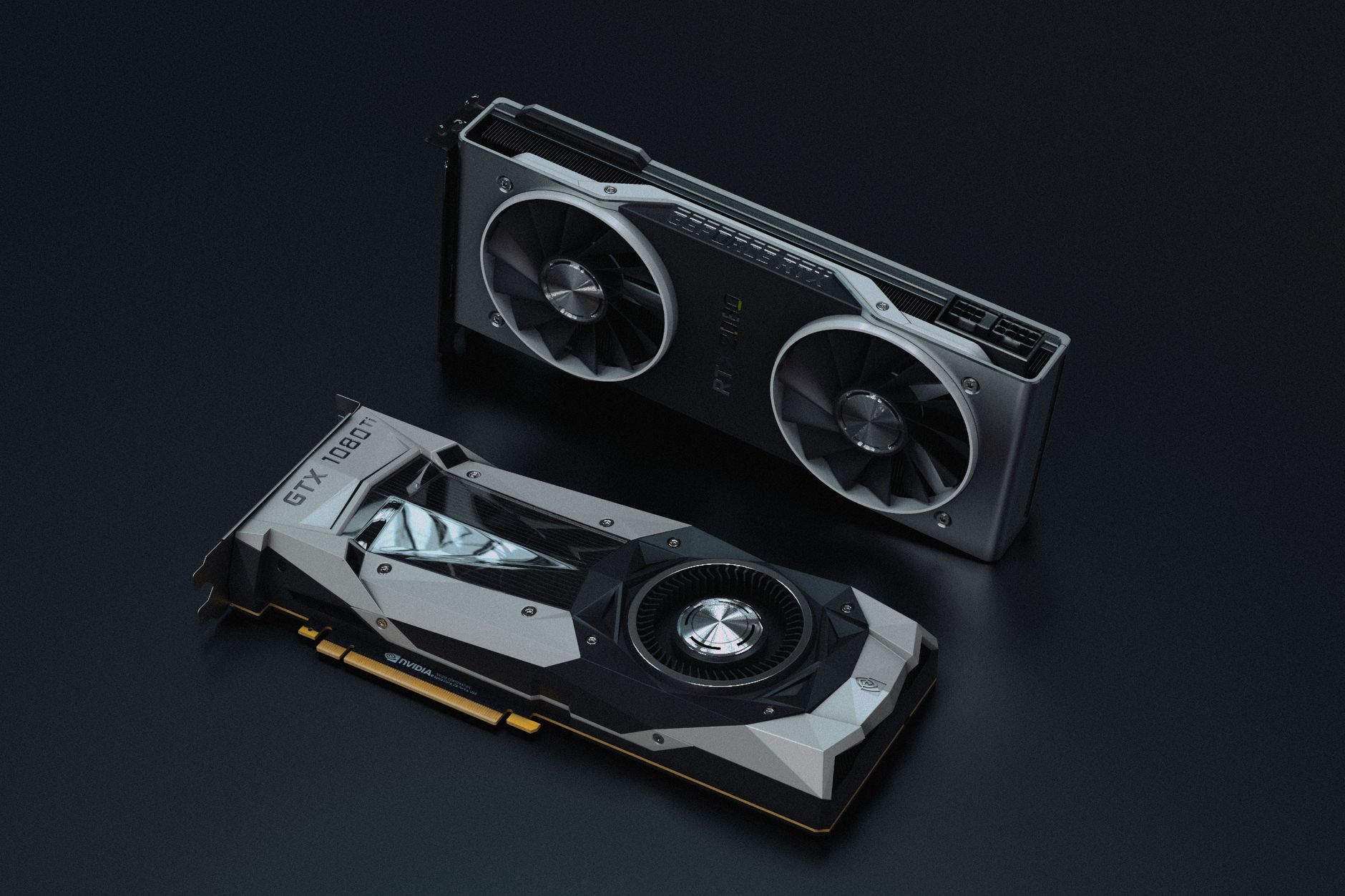
Updating your Nvidia drivers is essential for optimal performance, compatibility, and overall system stability, especially for gaming and graphic-intensive applications. This guide will help you understand how to efficiently update your Nvidia drivers, ensuring that your system benefits from the latest enhancements and fixes.
In this article, we’ll cover the requirements you need before updating, the steps involved in the updating process, and some common troubleshooting tips in case you experience any issues during the update process.
How to Update Nvidia Drivers?
To update Nvidia drivers, you will typically download the latest driver version from the official Nvidia website or use the GeForce Experience application. Following these methods will ensure that your graphics card operates effectively and efficiently.
Understanding Nvidia Driver Updates
Nvidia regularly releases driver updates to address performance issues, add new features, improve game compatibility, and enhance security. Before proceeding with the update, it’s important to understand:
- What a Driver Is: A driver is a piece of software that allows your operating system to communicate with hardware components like your graphics card. An updated driver helps optimize performance and stability.
- When to Update: You should update your Nvidia drivers when you encounter issues like poor game performance, graphical glitches, or after upgrading your operating system. Additionally, for gamers, updating drivers aligned with new game releases is beneficial.
- Version Numbers: Nvidia drivers have version numbers that reference their release date and updates. It’s a good habit to familiarize yourself with this numbering system when monitoring driver updates.
Requirements for Updating Nvidia Drivers
Before proceeding with the update, ensure you meet the following requirements:
- Compatible Nvidia Graphics Card: Confirm that your graphics card is supported by the driver you are planning to install. You can check compatibility on Nvidia’s website.
- Operating System Support: Ensure your operating system is compatible with the driver version. Nvidia drivers support various OS versions like Windows 10, Windows 11, and some Linux distributions.
- Admin Rights: You need administrative privileges on your computer to install or update drivers. Make sure you’re logged in as an administrator.
- Backup Important Data: It’s wise to back up your important data before installing new drivers, as there can be occasional unforeseen issues during the installation process.
- Internet Connection: An active internet connection is needed to download the latest drivers from the Nvidia website or to use the GeForce Experience application.
Steps to Update Nvidia Drivers
Method 1: Updating via Nvidia GeForce Experience
The Nvidia GeForce Experience application makes it easy to update drivers. Follow these steps:
- Download and Install GeForce Experience: If you haven’t installed the GeForce Experience application, download it from the official Nvidia website and install it.
- Sign In: Upon launching the application, sign in with your Nvidia account. If you don’t have one, you can create it for free.
- Check for Updates: In the GeForce Experience interface, navigate to the “Drivers” tab. The application will automatically check for the latest driver updates.
- Select the Driver Update: If a new driver is available, click on the “Download” button. Wait for the download to complete.
- Install the Driver: After downloading, you will see an “Express Installation” option. Click on it to start the installation process. Follow the instructions on the screen to complete the installation.
- Restart Your Computer: For the changes to take effect, restart your computer once the installation is complete.
Method 2: Manually Updating Drivers from the Nvidia Website
If you prefer to install the driver without using GeForce Experience, you can download it directly from the Nvidia website. Here are the detailed steps:
- Visit the Nvidia Driver Download Page: Go to the Nvidia Driver Download page.
- Specify Your Graphics Card: Use the dropdown menus to select your graphics card model, operating system, and download type (Game Ready Driver or Studio Driver). Click the “Start Search” button.
- Download the Driver: From the search results, locate the appropriate driver and click “Download.” Save the driver file to a known location on your computer.
- Run the Installer: Navigate to the downloaded driver file, double-click it to run the installer.
- Choose Installation Type: When prompted, select either “Express Installation” (recommended for most users) or “Custom Installation” (if you wish to specify certain options).
- Follow the Prompts: Proceed through the installation prompts until it completes. You may need to restart your computer to finalize the installation.
Method 3: Using Windows Device Manager
You can also use Windows Device Manager to update your Nvidia drivers, though this method may not always install the latest drivers. Here’s how:
- Open Device Manager: Right-click the “Start” button and select “Device Manager” from the context menu.
- Locate Display Adapters: In Device Manager, expand the “Display Adapters” section to see your Nvidia graphics card.
- Update Driver: Right-click on your Nvidia graphics card and select “Update driver.” Then, choose “Search automatically for updated driver software.”
- Follow Instructions: If Windows finds an update, follow the on-screen instructions to complete the update process.
Common Errors and Troubleshooting Tips
Even with a straightforward process, you may encounter some issues. Here are some common errors and their solutions:
- Installation Failed: If the installation fails, restart your computer and try again. Ensuring no background applications are running can help.
- Blue Screen of Death (BSOD): If you experience a BSOD after updating, you can try booting in Safe Mode and uninstalling the new driver. Then, revert to the previous version.
- Driver Not Found: If you get a message saying the driver cannot be found, double-check that you’ve selected the correct model on the Nvidia website and that the download completed successfully.
- Performance Issues: If performance problems persist post-update, consider rolling back to the previous driver version through Device Manager.
- GeForce Experience Not Detecting Card: If GeForce Experience is not recognizing your Nvidia card, ensure the application is fully updated and restart the application.
Reverting Drivers and Additional Options
In certain situations, you may want to revert back to a previous driver version. This can be achieved through Device Manager:
- Open Device Manager: Right-click the “Start” button and choose “Device Manager.”
- Locate Your Graphics Card: Expand the “Display Adapters” section and right-click on your Nvidia graphics card.
- Select Properties: Click on “Properties” and navigate to the “Driver” tab.
- Roll Back Driver: If available, click the “Roll Back Driver” option. Follow the prompts to revert to the previous driver version.
Conclusion
Updating your Nvidia drivers is a crucial step for maintaining and optimizing your graphics performance. With the Nvidia GeForce Experience application, manual downloads from the Nvidia site, or even Windows Device Manager, you have various methods at your disposal. Regular updates not only improve performance but also provide necessary bug fixes and security enhancements.
As a next step, ensure your system is running the most current drivers. For additional resources on managing your PC hardware, consider reading about updating BIOS and installing RAM.