
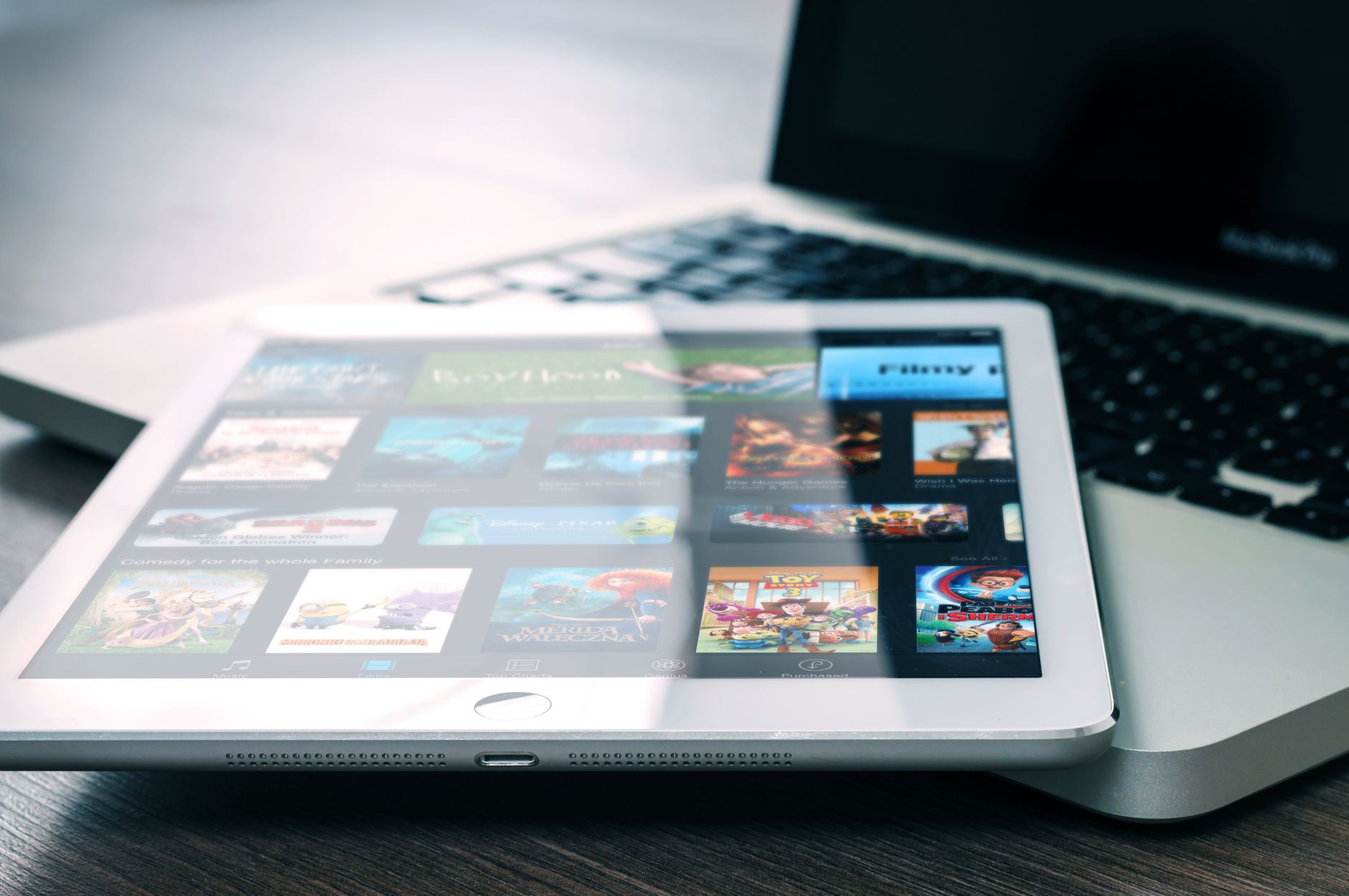
Using an iPad as a second screen can greatly enhance your productivity by providing additional screen real estate. Whether you’re working on a complex project, giving a presentation, or simply want to multitask more effectively, the iPad can serve as an excellent companion display. This guide will walk you through the steps to set up your iPad as a second screen using Apple’s Sidecar feature.
By utilizing Sidecar, you can easily extend or mirror your Mac’s display on an iPad. This allows you to use your iPad for various tasks, including video conferencing, creative work, and much more. In this article, you will learn about the prerequisites for Sidecar, how to set it up, and some troubleshooting tips in case you encounter any issues.
How to Use an iPad as a Second Screen (Sidecar Setup)
To use your iPad as a second screen, follow these steps outlined in the sections below. First, ensure that your equipment meets the necessary requirements.
Prerequisites for Sidecar
Before diving into the setup process, it is important to understand the requirements for using Sidecar:
- Compatible Mac: Sidecar requires a Mac running macOS Catalina (10.15) or later.
- Compatible iPad: You need an iPad running iPadOS 13 or later.
- Apple ID: You must be signed in with the same Apple ID on both devices.
- Connectivity: You can connect your iPad to your Mac either wirelessly (Wi-Fi) or through a USB cable.
- Bluetooth and Wi-Fi: Both devices must have Bluetooth and Wi-Fi enabled.
Setting Up Your iPad as a Second Screen
Now that you have checked the prerequisites, let’s proceed with the setup process.
Step 1: Connect Your iPad and Mac
- Ensure both your iPad and Mac are updated to the latest operating systems.
- On your Mac, go to
System Preferences>Displays. - Select the
Arrangementtab to see how your displays are organized. This will help you arrange them how you want. - If using a USB cable, connect your iPad to your Mac via the Lightning or USB-C cable. If using a wireless connection, ensure both devices are connected to the same Wi-Fi network.
Step 2: Activate Sidecar
- On your Mac, go to the top menu bar and click the
AirPlayicon (which looks like a rectangle with a triangle). If you don’t see this icon, check to make sure your iPad is turned on and within range. - From the dropdown menu, select your iPad. You should see options such as
Use as Separate DisplayorMirror Display. - If you choose
Use as Separate Display, your iPad will extend your Mac’s display. - If you select
Mirror Display, your iPad will show exactly what’s on your Mac screen.
Step 3: Adjust Settings
Once you have activated Sidecar, you may want to adjust the display settings:
- To rearrange the positioning of your displays, go back to
System Preferences>Displaysand drag the iPad display to your desired position. - Check the option to enable
Show mirroring options in the menu bar when availablefor easier access in the future.
Step 4: Using Your iPad as a Second Screen
Now that your iPad is set up as a second screen, here are some tips on how to utilize it effectively:
- Drag windows from your Mac to your iPad to work on multiple applications simultaneously.
- Utilize Apple Pencil with compatible applications on your iPad for drawing or marking up documents.
- Use your iPad for video calls or presentations while keeping your Mac clear for other tasks.
Troubleshooting Common Issues
Even with a straightforward setup, you may encounter some issues along the way. Below are some common problems and their solutions.
Issue 1: Unable to Connect
If you are having trouble connecting your iPad to your Mac, consider these steps:
- Ensure both devices are updated to the latest software versions.
- Check that Bluetooth and Wi-Fi are enabled on both devices.
- Restart both your iPad and Mac to refresh connections.
- If using a USB connection, ensure the cable is functioning and securely connected.
Issue 2: Lag or Performance Issues
Experiencing lag or slow performance can be frustrating. Here are actions you can take:
- For wireless connections, ensure you are within a good range of your Wi-Fi router.
- Close unused applications on both devices to free up system resources.
- Try using a wired connection if you continue to experience performance issues.
Issue 3: Display Incorrectly Arranged
If your displays appear in the wrong order or orientation, you can easily adjust this:
- Go to
System Preferences>Displayson your Mac. - Select the
Arrangementtab and click and drag the display icons to rearrange them. - Make sure the iPad display is positioned relative to your Mac’s main display as desired.
Advanced Features and Tips
Once you are comfortable using your iPad as a second screen, you might want to explore some advanced functionalities:
Using Apple Pencil
If you own an Apple Pencil, you can take full advantage of your iPad as a creative tool:
- Use it for drawing in design applications, such as Adobe Photoshop and Illustrator.
- Annotate documents or presentations while connected to your Mac.
Leverage Touch Bar Features
For Macs with Touch Bar, you can enable Touch Bar functionality on your iPad:
- This allows you to utilize the additional controls tailored for various applications, enhancing your workflow.
- Simply access the
Sidecarpreferences to enable Touch Bar on your iPad.
Use Keyboard Shortcuts
Maximize your productivity by knowing keyboard shortcuts:
- For example, use
Command + Tabto quickly switch between applications. - Familiarize yourself with shortcuts related to Sidecar to streamline tasks further.
Alternatives to Sidecar
While Sidecar is an excellent option for many users, it is not the only way to use an iPad as a second screen. Here are some alternatives:
- Duet Display: A third-party app that enables you to use your iPad as a second monitor with various operating systems.
- Splashtop: Allows remote access to your Mac, functioning similarly to a second screen.
- Air Display: Another third-party option for extending your display across devices.
Conclusion
Using your iPad as a second screen through Sidecar can significantly enhance your workflow and productivity. By following the steps outlined in this guide, you can easily set up and troubleshoot your iPad as an external display for your Mac. Familiarizing yourself with the basic and advanced features will further improve your user experience.
To deepen your understanding, consider exploring other related tutorials such as how to split screen on iPad or how to screen record on iPad. These resources can help you unlock the full potential of your iPad and Mac setup.