
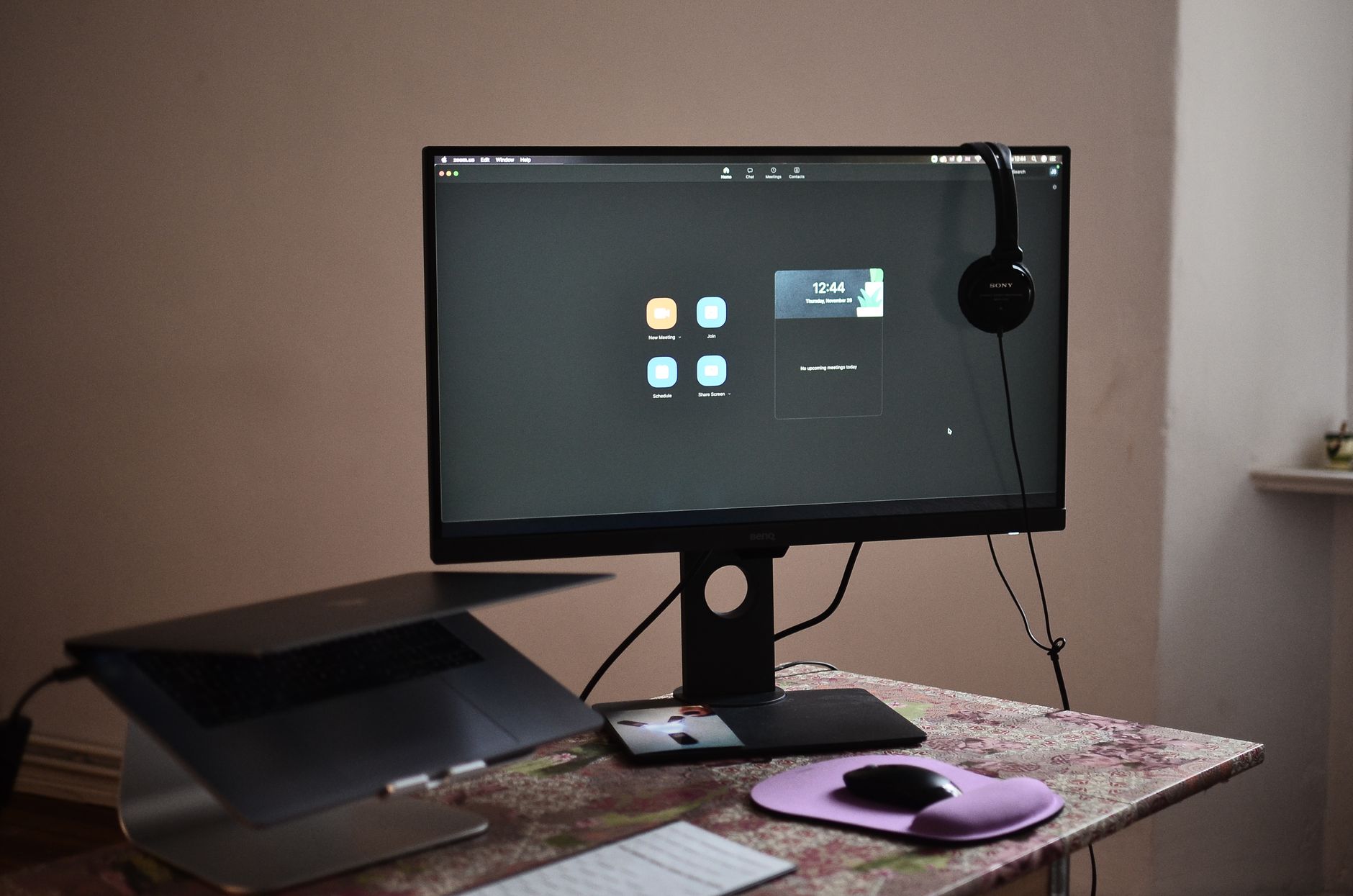
Zoom has become a staple tool for virtual meetings, video calls, and more. Understanding how to use Zoom effectively can enhance communication in both personal and professional settings. This guide provides detailed instructions on getting started with Zoom, navigating its features, and troubleshooting common issues.
Whether you’re using Zoom for remote work, online classes, or social gatherings, this article will illustrate the essential steps to maximize your experience. Let’s explore how you can join meetings, make video calls, and share your screen seamlessly.
How to Use Zoom?
Using Zoom involves downloading the application, creating or joining meetings, and utilizing various features such as video calls and screen sharing. By following this guide, users can become proficient in leveraging Zoom’s capabilities for effective communication.
Prerequisites for Using Zoom
- A computer, tablet, or smartphone with internet access.
- A Zoom account (free or paid).
- A Zoom application or web browser capable of running Zoom.
Getting Started with Zoom
1. Downloading the Zoom Application
- Visit the official Zoom website at
zoom.us. - Click on the “Resources” tab and select “Download Zoom Client.”
- Select the correct version for your operating system (Windows, macOS, or mobile).
- Once downloaded, open the installer and follow the prompts to complete the installation.
2. Creating a Zoom Account
- Open the Zoom application or go to the Zoom website.
- Click on “Sign Up, It’s Free” at the top right corner.
- Follow the prompts to enter your email, create a password, and verify your account.
- Once verified, log in with your new credentials.
3. Joining a Meeting
You can join a Zoom meeting through the Zoom desktop client, mobile app, or web browser.
Joining through the Desktop Client
- Open the Zoom application.
- Click on “Join a Meeting.”
- Enter the Meeting ID or Personal Link Name provided by the host.
- Click “Join.” You might need to enter a password if required by the host.
Joining through the Mobile App
- Open the Zoom app on your mobile device.
- Tap on “Join.”
- Enter the Meeting ID and tap “Join.”
Joining through a Web Browser
- Click on the meeting link shared by the host.
- If prompted, download and install the Zoom extension or app.
- Follow the on-screen instructions to join the meeting.
4. Hosting a Meeting
Hosting a meeting allows you to control the discussion and features available to participants.
Scheduling a Meeting via Desktop
- Open the Zoom application.
- Click on “Schedule.”
- Fill in the meeting details: date, time, duration, and any necessary settings.
- Click “Save” and share the meeting link with participants.
Scheduling a Meeting via Mobile
- Open the Zoom app.
- Tap on “Schedule.”
- Enter the meeting information, then tap “Save.”
Understanding Zoom Features
Zoom provides various features that enhance virtual meetings. Here are some you should be familiar with:
1. Video and Audio Controls
Upon joining a meeting, you’ll be prompted to connect your audio and video.
- Click “Join with Computer Audio” to use your device’s microphone and speakers.
- Click the video camera icon to enable or disable your video.
2. Participant Management
As a host, you can manage participants effectively.
- View participants by clicking on “Participants” in the meeting controls.
- Mute/unmute participants to minimize background noise.
- Use the “Make Host” option to assign hosting rights to another participant.
3. Screen Sharing
Screen sharing is a powerful tool for collaboration.
How to Share Your Screen
- Click the “Share Screen” button in the meeting controls.
- Select the screen or application window you want to share.
- Click “Share,” and ensure you’ve granted necessary permissions on your operating system.
4. Using the Chat Feature
Participants can communicate using the chat feature.
- Access the chat by clicking on “Chat” in the meeting controls.
- Type your message and press “Enter” to send.
5. Recording Meetings
You can record your meetings for future reference.
How to Record a Meeting
- Click on the “Record” button in the meeting controls.
- Select “Record on this Computer” or “Record to the Cloud” if available.
- To stop recording, click the “Stop Recording” button.
Troubleshooting Common Zoom Issues
Encountering problems while using Zoom is not uncommon. Here are some common issues and their resolutions.
1. Audio Issues
If participants cannot hear you or you cannot hear them, consider the following:
- Check if your microphone is muted and unmute it if necessary.
- Ensure you have selected the correct audio source (computer audio, phone call, etc.).
- Test your audio settings under “Settings” > “Audio.”
2. Video Issues
If your video is not displaying correctly:
- Make sure your video is enabled by clicking on the video camera icon.
- Check if your webcam works properly by testing it in another app.
- Ensure you have selected the correct video source in the “Settings” > “Video” section.
3. Connection Problems
If you experience connectivity issues:
- Check your internet connection. You may need a stable Wi-Fi connection.
- Reconnect by leaving the meeting and joining again.
- Try restarting your device if problems persist.
4. Zoom Crashes or Freezes
In case of app crashes:
- Ensure your Zoom application is up to date.
- Close any unnecessary applications that may be using system resources.
- Reinstall the Zoom application if the problem continues.
Advanced Features of Zoom
After mastering the basic features, consider exploring the more advanced tools offered by Zoom.
1. Breakout Rooms
Breakout Rooms allow you to split participants into smaller groups for discussions.
How to Create Breakout Rooms
- Click on “Breakout Rooms” in the meeting controls.
- Select how many rooms you want and whether to assign participants automatically or manually.
- Click “Create Rooms.” You can join rooms as the host and move between them.
2. Virtual Backgrounds
Zoom enables you to use virtual backgrounds to enhance your video presence.
How to Use a Virtual Background
- Go to “Settings” and select “Background & Filters.”
- Select one of Zoom’s presets or upload your image or video.
- Ensure you have a good lighting setup for the best results.
3. Polling and Surveys
Engage your audience using polls during meetings.
How to Create a Poll
- Advanced accounts can create polls from the Zoom web portal.
- Navigate to “My Meetings,” select your meeting, and click “Polls.”
- Click “Add” to create your poll questions and options.
Best Practices for Using Zoom Effectively
To ensure a seamless experience, consider adhering to these best practices.
- Test your audio and video settings before meetings.
- Maintain a stable internet connection to avoid disruptions.
- Use headphones to minimize echo and distractions.
- Close other programs to maximize your device’s performance.
- Prepare any presentations or materials in advance to streamline communication.
Zoom Security and Privacy
As with any online platform, understanding security and privacy settings is crucial.
1. Meeting Passwords
Always enable passwords for meetings to prevent unauthorized access.
2. Waiting Rooms
Utilize waiting rooms to control who joins your meeting.
3. Managing Participants
As a host, you can mute participants, remove disruptive users, and control screen sharing permissions.
Conclusion
Using Zoom effectively for meetings, video calls, and screen sharing enhances collaboration and connectivity. By mastering the features mentioned above, troubleshooting issues, and practicing good habits, you can have productive virtual interactions.
Next steps include diving deeper into specific advanced elements within Zoom. Exploring topics like setting meeting reminders, integrating with other applications, or using keyboard shortcuts can further refine your Zoom experience.
Feel free to check out related tech tutorials, explainers, and guides on various tech subjects to enhance your skills in navigating digital communication tools.