
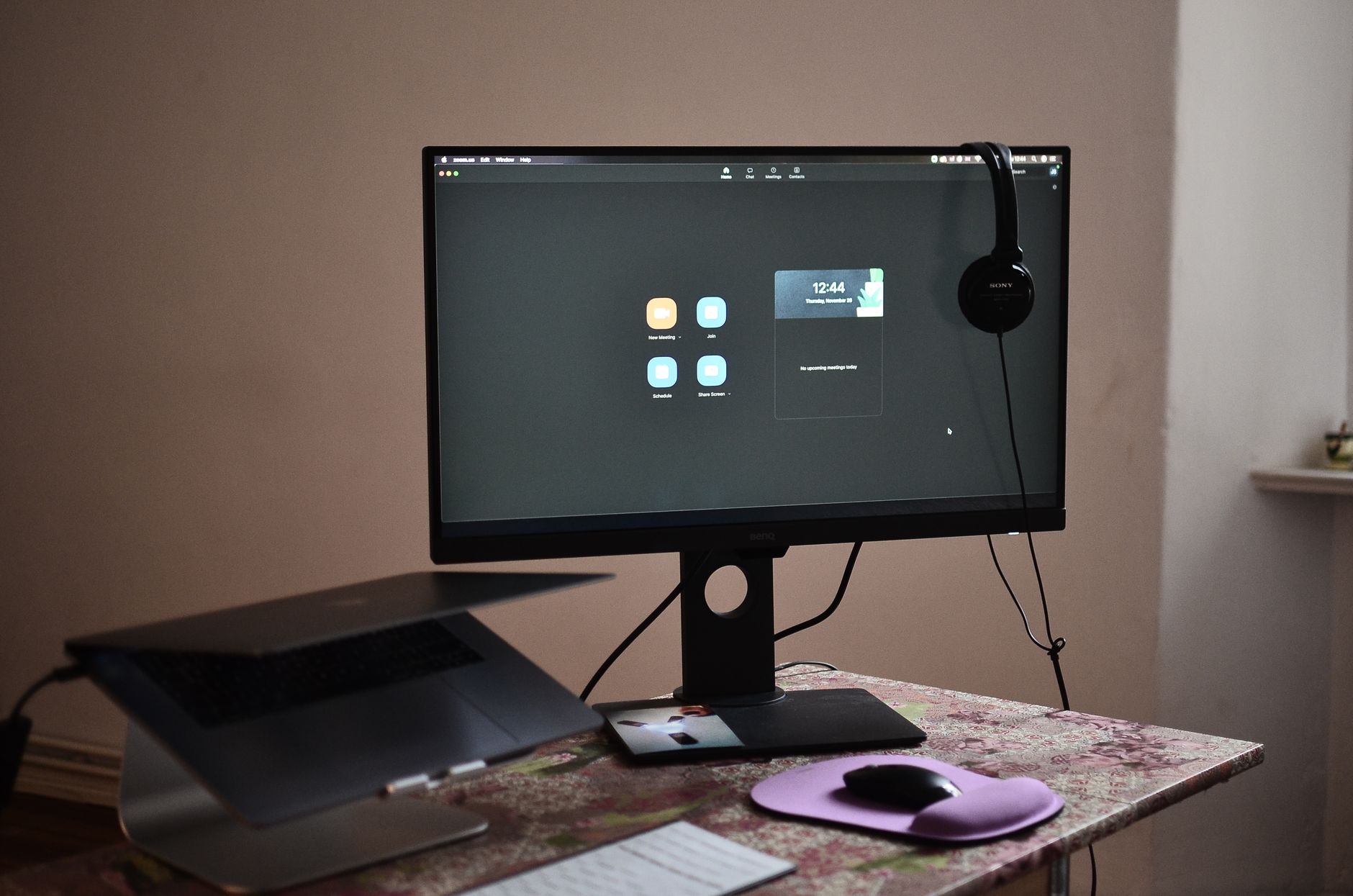
In a world increasingly defined by digital experiences, the ability to control your view on a computer screen can significantly enhance your productivity and comfort. One common action is zooming out, which allows users to see more of their workspace or to fit entire documents on the screen. Understanding how to zoom out on Windows not only improves your navigation but can also ease eye strain and help you make the most of your display.
This guide provides detailed instructions on various methods to zoom out on Windows, covering keyboard shortcuts, menu options, and system settings. Whether you’re in a web browser, using productivity software, or exploring graphics applications, the techniques discussed here will make the process seamless.
How to Zoom Out on Windows?
To zoom out on Windows, you can utilize keyboard shortcuts, specific application menus, or adjust system settings. Most applications have built-in zoom functionality, making it easy to reduce your view for better navigation. This guide will help you learn all the methods you need.
Using Keyboard Shortcuts to Zoom Out
Keyboard shortcuts are one of the quickest ways to zoom out without needing to navigate through menus. Here are the primary shortcuts applicable in most applications:
Ctrl +- (Minus Key): This shortcut zooms out in most browsers and applications.Ctrl +0 (Zero Key): Resets the zoom level to 100% in web browsers or applications like Microsoft Office.- In some graphics applications, zooming out can also be done using
Alt +Scroll Down on the mouse or touchpad.
Browser-Specific Shortcuts
While the general shortcuts are widely applicable, be aware that different web browsers can have variations:
- In Google Chrome, use
Ctrl +- to zoom out andCtrl +0 to reset. - In Mozilla Firefox, the same shortcuts apply. You can also adjust zoom from the menu under View > Zoom.
- In Microsoft Edge, similar shortcuts are available; additionally, you can adjust zoom from the settings menu.
Zooming Out Using Menus
If you prefer a more visual method, many applications include options to zoom out through their menus. Here are a few examples:
Microsoft Office Applications
In applications like Word and Excel, you can zoom out using the following steps:
- Open your document in Microsoft Word or Excel.
- Look for the zoom slider in the bottom-right corner of the window.
- Drag the slider left to zoom out, or click on the percentage to enter a specific zoom level.
Windows Photo Viewer and Image Applications
When viewing images in the default Windows Photo Viewer or other photo editing software:
- Open the photo you wish to view.
- Select the View menu at the top.
- Choose Zoom out or utilize any provided zoom controls.
Settings for Zooming Out on Windows
If you want to adjust the overall display settings in Windows to zoom out the entire interface, you can do so by adjusting the display scaling:
- Right-click on your desktop and select Display settings.
- Scroll down to the Scale and layout section.
- Select a lower percentage from the Change the size of text, apps, and other items dropdown.
Using the Magnifier Tool
Windows includes a built-in Magnifier tool which can help with both zooming in and out:
- Open the Magnifier by pressing
Windows +Plus (+) to start it. - To zoom out, press
Windows +Minus (-). - To close the Magnifier, you can press
Windows +Esc.
Customizing the Magnifier Settings
Additionally, you can customize magnifier settings for a better experience:
- Press
Windows +I to open the settings menu. - Navigate to Ease of Access and select Magnifier.
- Here, you can tweak options like zoom level and view modes.
Common Issues When Zooming Out
While zooming out is generally straightforward, users may encounter some challenges. Here are a few common issues and how to resolve them:
Application Not Responding to Shortcuts
If shortcuts don't work in a specific application, ensure:
- The application is in focus and is not maximized on the screen.
- You are using the correct keyboard shortcut for that particular application.
Zoom Not Adjusting in Specific Software
Some applications may not support zoom functionality at all. In these cases:
- Check the application's settings for view control options.
- Refer to the official documentation of the software for zoom capabilities.
Display Scaling Issues
If you experience blurriness or misalignment after changing the display scale in Windows:
- Try restarting your computer.
- Return to the display settings and experiment with other scaling percentages that may provide a clearer view.
Advanced Zoom Options
For users who frequently need to zoom in or out, especially in a professional context, consider exploring third-party zoom tools:
- Screen magnification software can offer enhanced features.
- Applications such as ZoomText provide advanced screen reading functionalities.
Adjusting Browser Settings for Zoom
If you primarily zoom out on web pages, it might be beneficial to adjust your browser's zoom settings as follows:
- Open your browser’s settings.
- Find the section for Appearance or Accessibility.
- Set a default zoom level that suits your viewing preferences.
Tips for Efficient Zooming Out
Here are some practical tips to enhance your zooming out experience:
- Regularly reset zoom levels to meet your current viewing needs.
- Utilize zoom settings in apps to avoid constant adjustments.
- Familiarize yourself with shortcuts and settings to reduce time spent navigating.
Conclusion
Understanding how to zoom out on Windows using various methods can significantly enhance your computer experience. By mastering keyboard shortcuts, utilizing application menus, and adjusting system settings, you ensure that your screen is optimized for your tasks. Remember to explore the Magnifier tool for further control and consider third-party options for advanced functionality.
Now that you have the knowledge to zoom out effectively, check out related guides like how to turn on Bluetooth on Windows 10 or how to change language in Windows to further enhance your Windows experience.