
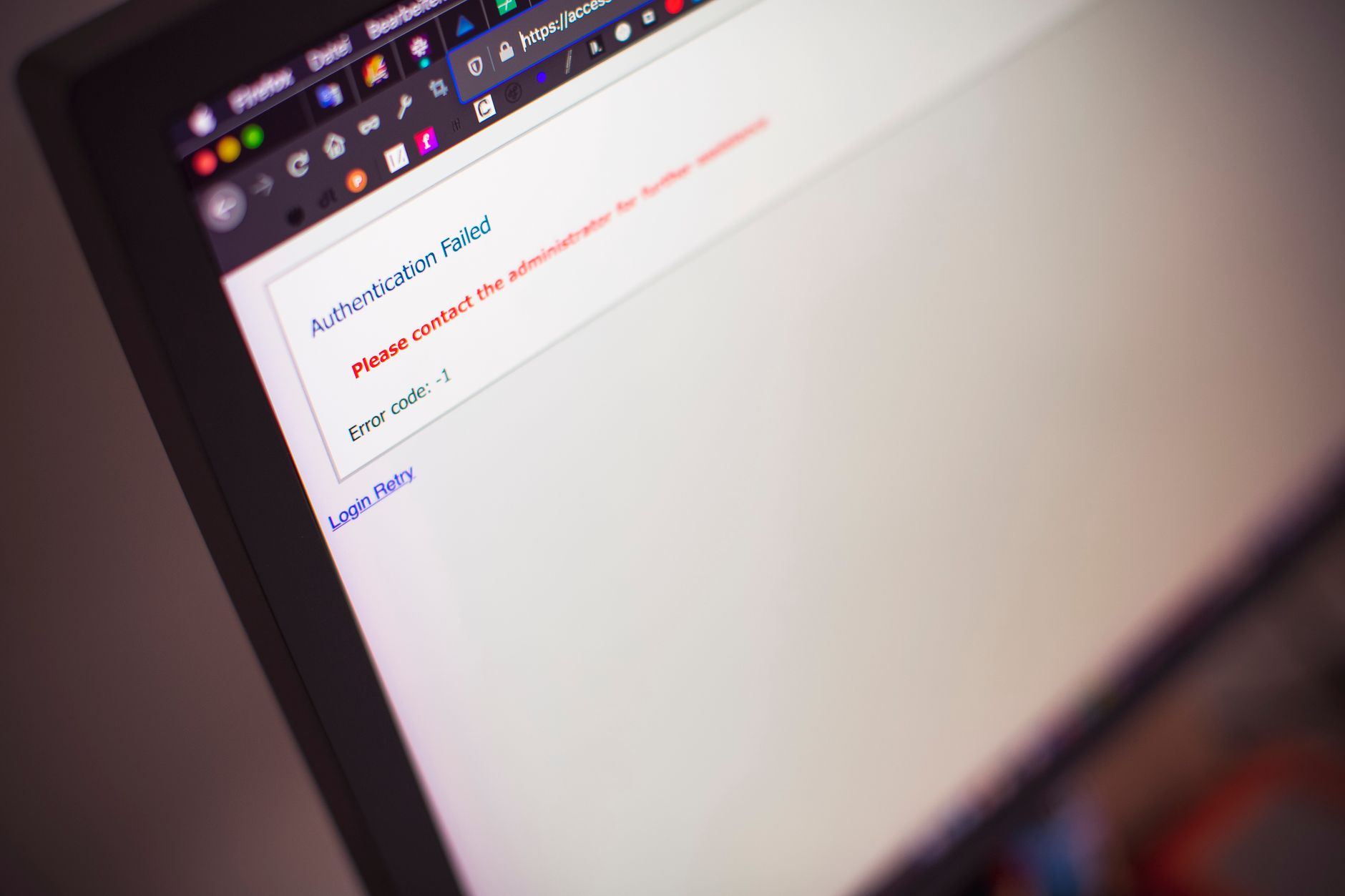
Encountering a “403 Forbidden” error can be frustrating, especially when you’re trying to access a webpage. This error typically signifies that the server is refusing to allow your request, which leaves many users puzzled about its meaning and implications. In this article, we will explore the meaning of a 403 Forbidden error, its common causes, and potential fixes.
Understanding this error will not only help you troubleshoot issues when they arise but also enhance your knowledge of web interactions. Let’s delve into what a 403 Forbidden error is, how it occurs, and ways to resolve it.
What Does 403 Forbidden Mean?
A 403 Forbidden error indicates that your request to access a particular resource on a server is understood, but the server is refusing to authorize it. In simple terms, you don’t have permission to view the requested page. This can happen for various reasons, which we will discuss in detail below.
Common Causes of 403 Forbidden Errors
- Insufficient Permissions: The most common cause of a 403 error is that the resource or file you are trying to access requires certain permissions that your user account lacks.
- Incorrect File Permissions: On web servers, file and directory permissions control who can view files. If these permissions are set incorrectly, users may encounter a 403 error.
- Misconfigured .htaccess Files: The .htaccess file on Apache servers can control access to directories. If it is misconfigured, it may block access to certain files or directories, resulting in a 403 error.
- Blocked IP Address: Some servers may block specific IP addresses due to previous misuse or security settings, leading to a 403 error for those addresses.
- Content and Security Policies: Certain security configurations, such as a web application firewall (WAF), may prevent access to resources based on content policy violations.
- Firewall Restrictions: Firewalls can restrict access based on a variety of factors, including geographic location or perceived threat levels.
- Geographical Restrictions: Some websites may restrict access based on the user’s geographical location, resulting in a 403 error for users from certain regions.
How to Identify a 403 Forbidden Error
When you encounter a 403 Forbidden error, it will manifest as a web page displaying the error message. This may differ according to the web server but usually appears as:
- 403 Forbidden
- 403 Error
- Access Denied
- You don’t have permission to access [URL]
In most cases, you will also see a standard error page provided by the web server or a custom message configured by the website owner. To confirm that the issue is indeed a 403 error, you can check the browser’s address bar for the status code.
Steps to Fix 403 Forbidden Errors
If you are the end-user trying to access a website, here are some steps you can take to troubleshoot and possibly resolve a 403 Forbidden error:
- Refresh the Page: Sometimes, the error may be a temporary glitch. Simply refreshing the page (press F5 or Ctrl+R) might resolve the issue.
- Check the URL: Ensure that the URL you are entering is correct. A typing mistake or missing part of the URL could lead to a 403 error.
- Log In: If the resource requires user authentication, check if you are logged in. If it is a private page, log in with the necessary credentials.
- Clear Browser Cache: Outdated or corrupted cache data may cause access issues. Clear your browser cache and cookies as follows:
- In most browsers, go to Settings > Privacy > Clear Browsing Data.
- Select “Cached images and files” and “Cookies and other site data.”
- Click “Clear data.”
- Disable Browser Extensions: Sometimes, browser extensions may interfere with site permissions. Temporarily disable extensions, especially security-related ones, to see if the error persists.
- Try a Different Browser: Switching browsers can help identify whether the issue is browser-specific. If another browser successfully loads the site, consider clearing or resetting the original browser settings.
- Check with the Website: If you suspect a specific website’s misconfiguration, contacting the website administrator or support team can provide insights or corrections.
- Use VPN Services: If geographical restrictions are causing the issue, using a Virtual Private Network (VPN) may help you access the resource bypassing these restrictions.
If You Are the Site Administrator
For website owners or administrators, fixing a 403 Forbidden error may require additional technical steps:
- Verify File Permissions: Ensure your web directories and files have the correct permissions. The following permissions are typically recommended:
- Files: 644
- Directories: 755
You can change permissions using an FTP client or command line.
- Inspect the .htaccess File: If you’re using an Apache server, check your .htaccess file for any errors or invalid directives that may restrict access. Look for lines that block access or direct to incorrect paths.
- Check Ownership Settings: Verify that the user running the web server has the correct ownership over the files and directories. Mismatched user permissions can trigger a 403 error.
- Review Security Plugins: If you utilize security plugins or firewalls, review their settings to ensure they aren’t inadvertently blocking access to sections of your website.
- Audit Your IP Whitelist: Check if your server has IP whitelisting configurations that inadvertently block valid users while allowing malicious ones.
- Update Firewall Settings: Be sure your firewall isn’t blocking legitimate traffic. Adjust its settings according to best practices for web traffic security.
Advanced Troubleshooting Techniques
If the standard troubleshooting steps do not resolve the 403 Forbidden error, consider these advanced techniques:
- Review Server Logs: Analyzing server logs can provide insights into why requests are being denied. Look for access and error logs to pinpoint permission-denial messages.
- Server Misconfigurations: If you’re using a web server like Nginx or Apache, ensure you check for misconfigurations in the server configuration files.
- Check Content Security Policy (CSP): CSP might deny access to resources based on terms you’ve set. Review your CSP headers for proper settings.
Preventing 403 Forbidden Errors
Preventive measures can be taken to reduce the risk of encountering 403 errors. Here are some recommended practices:
- Regularly Audit Permissions: Periodically review and adjust file and directory permissions based on the principle of least privilege.
- Backup Configurations: Always keep backups of your .htaccess and configuration files to avoid data loss after accidental misconfigurations.
- Educate Users: If you run a website with multiple users, educate them about how to avoid actions that may result in access denial.
- Implement Best Practices: Following website development and server management best practices can minimize 403 errors during updates or migrations.
Conclusion
Understanding and navigating a 403 Forbidden error may seem daunting at first, but with the right knowledge and troubleshooting steps, it can often be resolved quickly. The key is to recognize the possible causes and methodically work through potential fixes, whether you’re a user or a website administrator.
For further assistance, if you suspect issues with your DNS, consider reviewing our guide on how to flush DNS. Alternatively, if you want to learn more about web security, check our article on what a firewall is to help enhance your online safety.