
Universal Serial Bus (USB) is a standard used to connect various devices and transfer data. The technology has evolved significantly since its inception, offering various types and features that streamline compatibility and power delivery for consumer electronics and computing.
In this article, we will explore what USB stands for, its history, the different types of USB connections, their features, and how they function in various applications.
What Does USB Stand For?
USB stands for Universal Serial Bus. It is a standard designed to facilitate communication and power supply between devices, enabling the connection of peripherals such as keyboards, mice, printers, and mass storage devices to computers and other hosts.
The Evolution of USB: A Brief History
The first USB standard, USB 1.0, was introduced in 1996. It aimed to simplify the connection process and replace multiple types of connectors and ports with a more uniform solution. With the rapid advancement in technology, several versions of USB have emerged over the years:
- USB 1.0 and 1.1: Released in 1996 and 1998, respectively, these versions offered speeds of up to 1.5 Mbps (Low Speed) and 12 Mbps (Full Speed). They primarily supported peripherals like keyboards and mice.
- USB 2.0: Released in 2000, USB 2.0 increased data transfer rates to 480 Mbps (High Speed) and introduced support for a broader range of devices, including external hard drives and digital cameras.
- USB 3.0: Launched in 2008, USB 3.0 improved performance significantly, offering data transfer rates up to 5 Gbps (SuperSpeed). It also enhanced power efficiency and introduced more robust power management features.
- USB 3.1: Released in 2013, this version doubled the data transfer rate to 10 Gbps (SuperSpeed+). It also introduced the USB Type-C connector, which allowed for reversible connections.
- USB 3.2: Introduced in 2017, it further enhanced data transfer speeds by allowing multiple data lanes. It can achieve up to 20 Gbps when using the appropriate cabling.
- USB4: Announced in 2019, USB4 can reach speeds of up to 40 Gbps and builds on the Thunderbolt 3 protocol. It aims to unify the USB ecosystem while maintaining compatibility with previous versions.
Types of USB Connectors
Over the years, various types of USB connectors have been developed to accommodate the different requirements of devices. Here is a breakdown of the main types of USB connectors:
USB Type-A
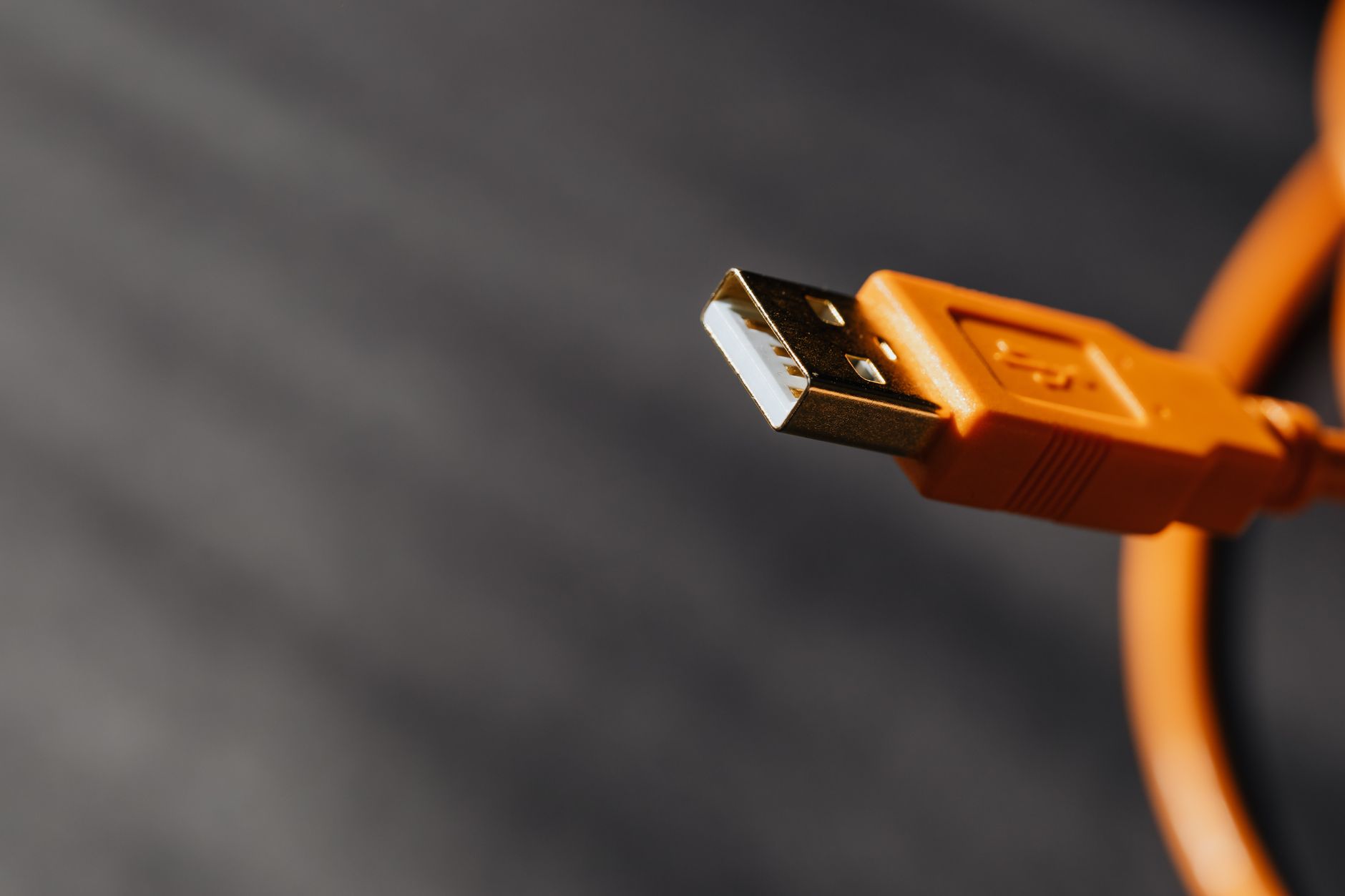
USB Type-A is the most recognizable USB connector, commonly found on host devices like computers, laptops, and chargers. It has a rectangular shape and is used primarily for connecting peripherals.
USB Type-B
USB Type-B connectors are typically found on devices like printers and scanners. They have a square shape with beveled corners and are usually used for connecting to Type-A ports.
USB Mini
USB Mini connectors were popular in early mobile devices and cameras. Although they are now largely obsolete, they come in several types:
- Mini-USB Type-A: Used for older devices.
- Mini-USB Type-B: Typically used in some portable devices like cameras.
USB Micro
USB Micro connectors are smaller versions of the standard USB connectors and became popular in smartphones and tablets. They include:
- Micro-USB Type-A: Commonly used in various devices.
- Micro-USB Type-B: Frequently used in chargers and data cables for smartphones.
USB Type-C
USB Type-C is the latest connector type that is becoming the industry standard. It offers several advantages:
- Reversible design: It can be plugged in either way.
- Higher data transfer rates: Supports USB 3.1 and USB4 speeds.
- Power delivery: Can deliver up to 100 watts, enabling fast charging for laptops and other power-hungry devices.
- Versatility: Capable of supporting multiple protocols, including DisplayPort and Thunderbolt, allowing for audio, video, and data transfer through a single cable.
Key Features of USB Technology
USB technology encompasses several key features that contribute to its widespread adoption:
- Plug and Play: USB devices are designed for easy connectivity. Users can connect and disconnect devices without requiring complex setups or reboots.
- Hot Swapping: USB allows users to plug in and unplug devices without needing to power down the host computer.
- Power Supply: USB provides power to connected devices, enabling charging and operation without needing separate power cables in many cases.
- Data Transfer: USB facilitates high-speed data transfer, making it suitable for bulk data transfer and real-time multimedia applications.
- Compatibility: USB is supported by a wide range of devices, ensuring interoperability across platforms and manufacturers.
How USB Works
Understanding how USB works involves knowing its architecture and the roles of different components:
- Host: Typically a computer or similar device that manages communications through USB ports and controls the attached peripherals.
- Device: Any hardware connected to the host, such as external drives, printers, or cameras. Each device communicates with the host through a USB controller.
- USB Hub: A device that expands the number of USB ports available on a host, allowing multiple devices to connect simultaneously without affecting data transfer speeds.
The communication between the host and the devices occurs through a set of defined protocols, enabling data transfer and device management. Each USB device has a unique identifier, allowing the host to recognize and interact with it appropriately. The data is transmitted in packets, with error checking performed to ensure accurate data transfer.
Common Uses of USB Technology
USB technology has a broad range of applications across various devices and industries. Here are some common uses:
- Data Transfer: USB is widely utilized for transferring files between computers and external storage devices like USB flash drives, external hard drives, and memory cards.
- Charging: Many smartphones, tablets, and electronic gadgets leverage USB for charging, especially with the USB Type-C standard allowing for higher power delivery rates.
- Peripheral Connectivity: USB is the default choice for connecting peripherals such as keyboards, mice, printers, and webcams to computers.
- Audio/Video Transmission: Devices like digital cameras, camcorders, and projectors use USB to transfer audio and video content or to display them on other devices.
- Networking: USB can also facilitate network connections, particularly with USB adapters, which enable Wi-Fi or Ethernet connections for devices lacking these ports.
USB Data Transfer Speeds Explained
Understanding the various USB standards is essential to grasp data transfer speeds. Here’s a detailed view:
- USB 1.0: 1.5 Mbps (Low Speed), 12 Mbps (Full Speed)
- USB 2.0: 480 Mbps (High Speed)
- USB 3.0: 5 Gbps (SuperSpeed)
- USB 3.1: 10 Gbps (SuperSpeed+)
- USB 3.2: 20 Gbps (SuperSpeed+)
- USB4: 40 Gbps
Choosing the Right USB Device
When selecting USB devices, consider the following factors:
- Compatibility: Ensure the device is compatible with the intended host, taking care to check the required USB version and connector type.
- Speed Requirements: Choose devices supporting appropriate USB standards based on your data transfer needs. For example, a USB 3.0 flash drive will transfer files much faster than a USB 2.0 drive.
- Power Delivery: If the device will be using significant power, such as a laptop, look for options that support USB Type-C Power Delivery.
- Durability: Evaluate the build quality and ruggedness of the device to ensure it meets your usage environment.
Common USB Problems and Troubleshooting
Despite its reliability, USB connections may occasionally face issues. Here are some common problems and troubleshooting steps:
1. Device Not Recognized
If a USB device is not recognized by the host, follow these steps:
- Check the physical connection. Ensure the USB cable is securely connected to both the device and the computer.
- Try connecting the device to a different USB port.
- Reboot the computer and reconnect the USB device.
- Ensure that device drivers are installed and up to date. Access the Device Manager and update the drivers as needed.
- If the problem persists, test the device on another computer to determine whether it’s a device or a port issue.
2. Slow Data Transfer Speeds
Experiencing slow data transfer on USB devices can be frustrating. To troubleshoot:
- Confirm that the USB device and the port support the same USB version. Using a USB 3.0 device on a USB 2.0 port will limit speed.
- Disconnect other USB devices that may be consuming bandwidth from the host.
- Check the condition of the USB cable; a damaged or low-quality cable can bottleneck data transfer speeds.
- Run a disk check on the USB drive to address any potential file system issues.
3. Power Issues
USB devices may encounter power problems, particularly if they rely on the USB port for charging or operation:
- Verify that the USB device is connected to a powered USB port, providing adequate power.
- Inspect for any damages to the cable, as this may affect power delivery.
- Test the device with a different power adapter or port.
The Future of USB Technology
The USB standard continues to evolve, with ongoing developments in speed and efficiency. USB4 aims to unify and simplify device connections, paving the way for a more streamlined user experience. The adoption of USB Type-C is also rising, reinforcing the trend towards versatility and standardization in tech.
As devices become increasingly interconnected, USB’s role will be pivotal in accommodating various technology needs, allowing seamless transitions between charging, data transfer, and multimedia applications.
In summary, Universal Serial Bus (USB) has become an integral aspect of modern technology, establishing itself as a reliable mechanism for data transfer and power delivery across an array of devices. Understanding its various types, functions, and troubleshooting methods enhances user preparedness for the challenges associated with USB connections.
For more specialized insights, check out our articles on USB-C technology and learn about different charging standards in our explanation of Magsafe technology.