
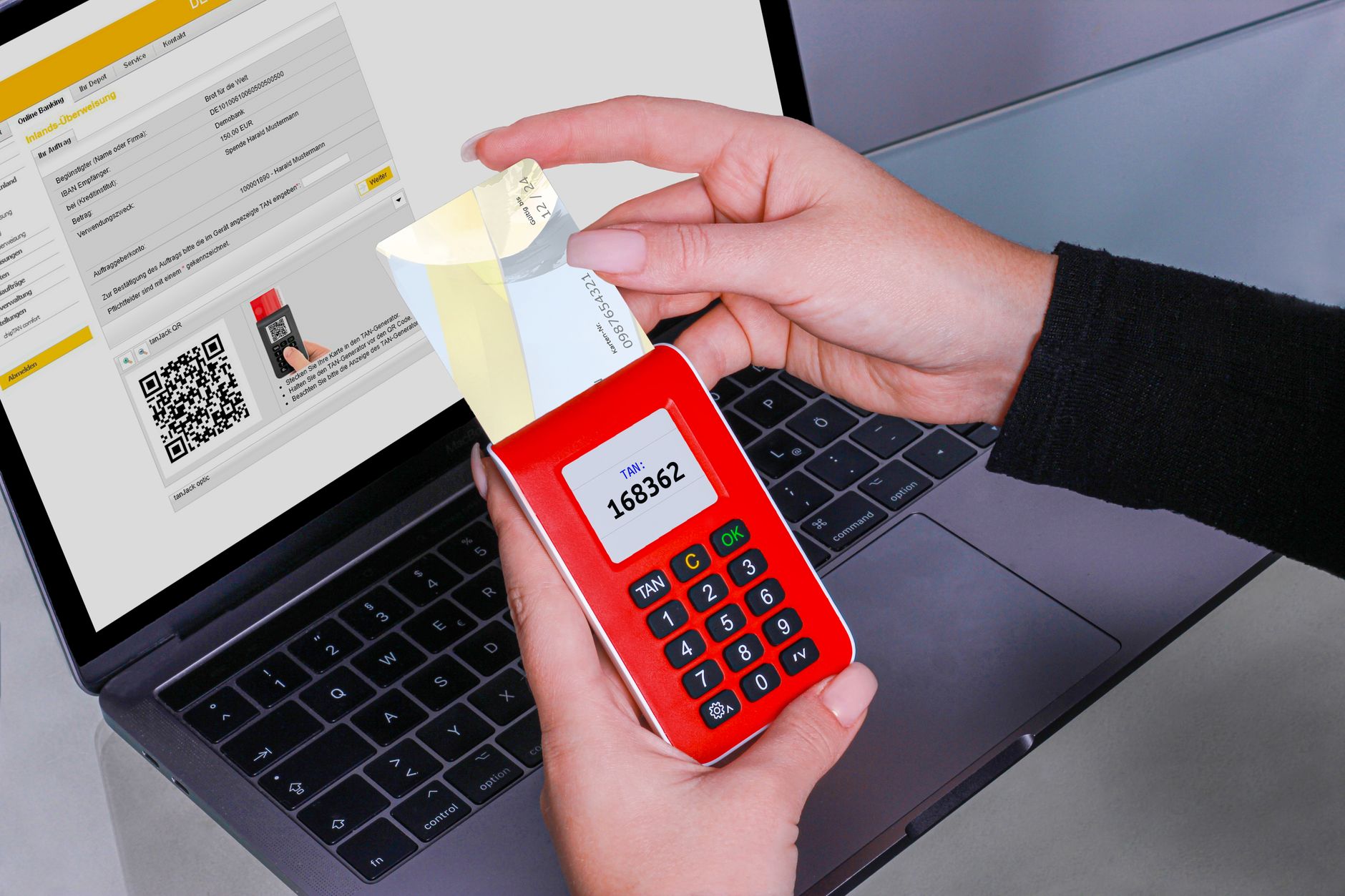
Two-factor authentication (2FA) has become a critical component in modern cybersecurity. It adds an extra layer of protection beyond just a username and password. Understanding its importance, methods, and examples can empower users and organizations to secure their digital assets effectively.
This article will explore various examples of two-factor authentication, how they work, and steps on how to set them up on different platforms. By the end, you will have a clear understanding of 2FA and its practical applications.
Which Of The Following Is An Example Of Two Factor Authentication?
Examples of two-factor authentication include receiving a verification code via SMS, using authentication apps like Google Authenticator, or physical security tokens like a YubiKey. Each of these methods utilizes two separate factors for identity verification: something you know (your password) and something you have (a code or token).
Understanding Two-Factor Authentication
Two-factor authentication is a security measure that requires two different forms of identification before granting access. It significantly reduces the risk of unauthorized access even if a password is compromised.
The two factors are often categorized as follows:
- Knowledge factors: Something the user knows, like a password or PIN.
- Possession factors: Something the user has, such as a mobile device or hardware token.
Why Is Two-Factor Authentication Important?
Cybersecurity threats are rising, with hackers becoming increasingly sophisticated. Two-factor authentication can minimize risks by:
- Enhancing security: Even if a password is stolen, the account remains secure.
- Reducing fraud: Thwarting identity theft and unauthorized transactions.
- Boosting user confidence: Users feel safer knowing additional verification is in place.
Common Examples of Two-Factor Authentication
Here are some common examples of two-factor authentication methods:
1. SMS-based Authentication
This is perhaps the most recognized form of 2FA. Users receive a one-time code via SMS after entering their password. To log in, users must enter both their password and the code.
How to Set Up SMS-based Authentication:
- Log into the account where you want to enable 2FA.
- Navigate to the security settings.
- Select the option for two-factor authentication or two-step verification.
- Enter your phone number to receive the SMS codes.
- Verify your phone by entering the code sent to you.
2. Authentication Apps
Authentication apps like Google Authenticator, Authy, or Microsoft Authenticator generate time-sensitive codes. These codes have a limited validity period, typically around 30 seconds.
Advantages of Authentication Apps:
- More secure than SMS as they are not susceptible to SMS spoofing.
- Works offline and generates codes without internet access.
How to Set Up an Authentication App:
- Download an authentication app from your device’s app store.
- Log into your account and navigate to the security settings.
- Select the option for two-factor authentication.
- Choose to set up an authentication app.
- Scan the QR code displayed on the website using your app.
- Enter the code generated by the app to complete the setup.
3. Hardware Tokens
Hardware tokens such as YubiKey or RSA SecurID are physical devices that generate a code or connect to a device to authenticate a user. Many enterprises use these for enhanced security.
How to Set Up a Hardware Token:
- Purchase the hardware token and follow the manufacturer’s instructions for setup.
- Log into your account and navigate to the security settings.
- Select the option for two-factor authentication.
- Register your hardware token by inserting it into your USB port or tapping it against your mobile device if it’s NFC-enabled.
- Follow on-screen prompts to complete the registration process.
4. Email-based Codes
Some websites send a one-time code to your registered email that you need to enter after providing your password. While convenient, this method is generally considered less secure.
How to Set Up Email-based Authentication:
- Log into your account and go to the security settings.
- Select the option for two-factor authentication.
- Verify that your registered email is correct.
- Complete the verification process by entering the code sent to your email.
5. Biometric Authentication
Biometric authentication uses unique biological traits, like fingerprints or facial recognition, to verify identity. Many devices and applications now support this technology.
How to Set Up Biometric Authentication:
- Go to your device’s settings and find the security section.
- Select biometric authentication (such as fingerprint or facial recognition).
- Follow on-screen instructions to register your biometric data.
- Test the biometric verification to ensure it works correctly.
Integrating Two-Factor Authentication on Platforms
Now that we’ve covered various methods of 2FA, let’s look at how to implement them across different popular platforms.
1. Google Accounts
Google offers robust two-factor authentication options via both SMS and authentication apps. Here’s how to set it up:
- Log in to Google Account settings.
- Go to the Security section.
- Navigate to “2-Step Verification” and click “Get Started.”
- Choose your preferred method (SMS or authenticator app) and follow the prompts.
2. Facebook
Facebook provides options for using SMS and authentication apps:
- Log into your Facebook account.
- Go to Settings and then Security and Login.
- Find “Two-Factor Authentication” and click “Edit.”
- Choose to set it up with SMS or an authentication app.
3. Microsoft Accounts
You can enable 2FA for Microsoft accounts as follows:
- Sign in to your Microsoft account.
- Go to the “Security” tab.
- Select “Advanced security options.”
- Scroll down to “Two-step verification” and click “Set up.”
- Choose your preferred method and follow the instructions on screen.
Common Issues and Troubleshooting
While setting up or using two-factor authentication, users may encounter some issues. Here are a few common problems along with their solutions:
Problem: Not Receiving SMS Codes
If you are not receiving SMS codes, consider these potential causes:
- Ensure your phone is within signal range and not in airplane mode.
- Verify that your phone number is correctly registered with the service.
- Check with your carrier to ensure that there are no service outages.
Problem: App-generated Codes Not Working
App-generated codes may fail for several reasons:
- Check that the time on your device is synchronized correctly. Code generation relies on accurate timekeeping.
- Ensure you have scanned the correct QR code during setup.
- Confirm that you are entering codes promptly, as they expire quickly.
Problem: Losing Access to Authentication Methods
If you lose access to your authentication method, here’s what to do:
- Utilize backup codes often provided when you set up 2FA.
- Check if you have recovery options set up, like an alternate email or phone number.
- Contact customer support for assistance in regaining access.
Best Practices for Using Two-Factor Authentication
To maximize the effectiveness of two-factor authentication, consider the following best practices:
- Enable 2FA on all important accounts: Make it a habit to activate 2FA wherever possible.
- Use a password manager: Combine complex passwords with 2FA for enhanced security.
- Update your recovery options: Keep recovery emails and phone numbers current to avoid access issues.
- Be cautious with SMS: If possible, prefer authenticator apps or hardware tokens over SMS, as they are more secure.
Conclusion
Two-factor authentication is a vital tool in today’s digital landscape. By employing methods such as SMS codes, authentication apps, hardware tokens, email verification, and biometric authentication, users can significantly bolster their security.
Taking the time to set up and maintain 2FA not only protects your accounts but also instills confidence in your online activities. Explore related tech tutorials to deepen your understanding of cybersecurity, such as what is a hash function and what is tokenization. These concepts further enhance your knowledge of secure online practices and data protection strategies.