
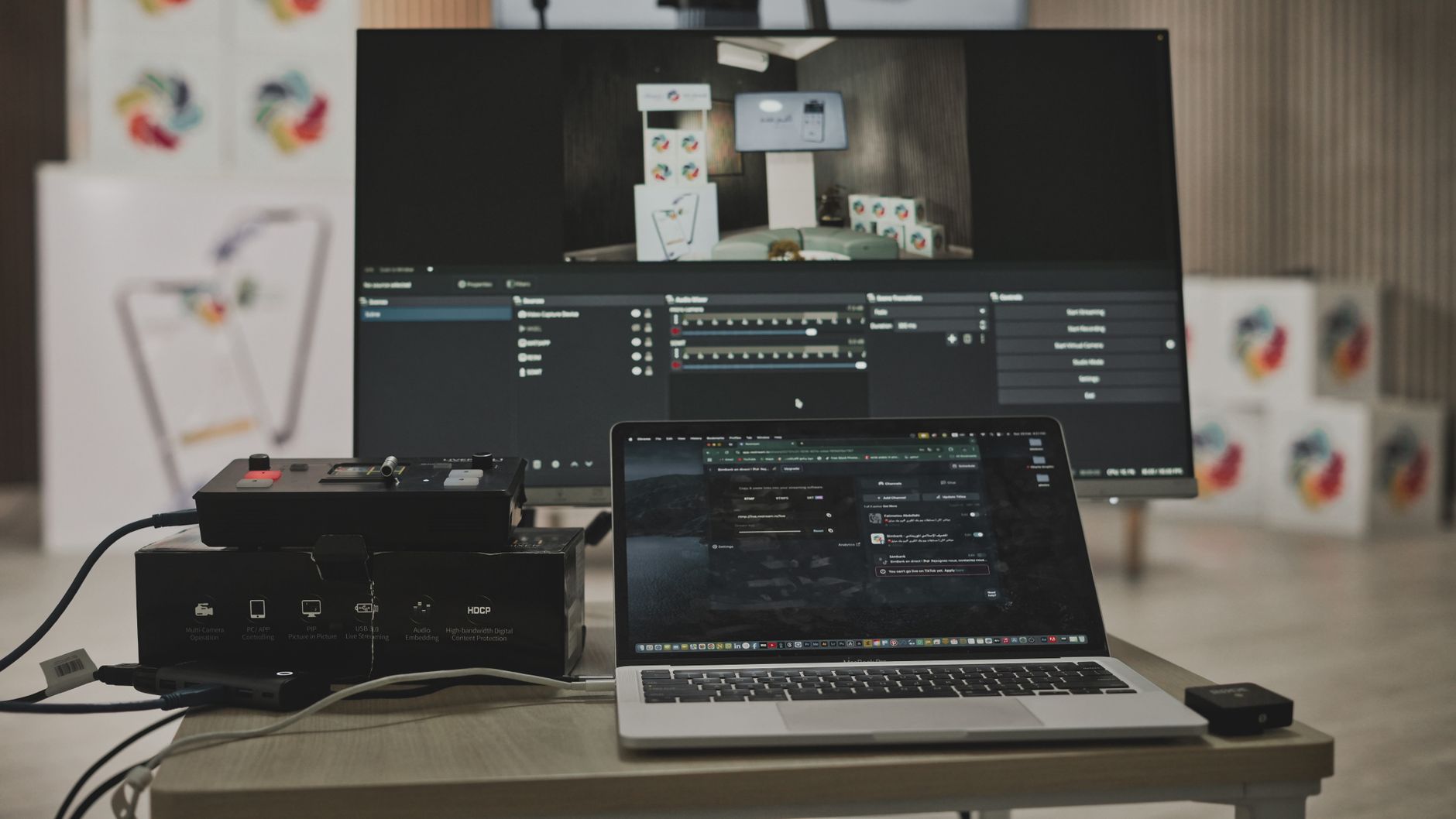
OBS Studio (Open Broadcaster Software) is a free, open-source tool that is widely used for video recording and live streaming. Its versatility and robust features make it the go-to choice for many content creators. In this article, we will explore how to effectively use OBS Studio for recording, streaming, and managing audio.
Whether you are recording a tutorial, streaming a game, or conducting a live discussion, understanding OBS Studio can significantly enhance your production quality. Let’s dive into how to set it up and use its various functionalities.
How to Use OBS Studio?
To use OBS Studio, you will need to install the software on your computer, configure your settings, set up your scenes and sources, and finally, either record or stream your video. This process involves several steps but can be accomplished easily with a bit of guidance.
Prerequisites for Using OBS Studio
- A computer running Windows, MacOS, or Linux.
- OBS Studio installed (download from the official website).
- A microphone and/or camera if recording or streaming live.
- An internet connection if you’re planning to stream online.
1. Installing OBS Studio
- Visit the official OBS Studio website.
- Select your operating system (Windows, MacOS, Linux).
- Download the installer and run it.
- Follow the installation prompts to complete the setup.
2. Initial Configuration
Upon launching OBS Studio for the first time, you will be prompted to run the Auto-Configuration Wizard. The wizard will help optimize the settings based on your use case, whether for streaming or recording.
- Select “Auto-Configuration Wizard” from the “Tools” menu.
- Choose whether you want to optimize for streaming or recording.
- Follow the on-screen prompts to adjust your settings according to your hardware specifications.
3. Setting Up Scenes and Sources
OBS Studio uses a concept called “Scenes,” which is primarily where you organize everything being captured. Sources are the components within a scene, such as video sources, images, and text.
Creating a Scene
- Click the “+” button in the “Scenes” box to create a new scene.
- Give your scene a descriptive name and click OK.
Adding Sources
- Select the newly created scene.
- Click the “+” button in the “Sources” box to add sources.
- Choose the type of source you want to add. Common sources include:
- Display Capture: Captures your entire screen.
- Window Capture: Captures a specific application window.
- Video Capture Device: Adds a webcam or other video device.
- Audio Input Capture: Captures audio from your microphone.
- Media Source: To play video files in your stream.
- After selecting a source type, click OK and configure the settings as prompted.
4. Configuring Audio Settings
To ensure that your audio quality meets expectations, you’ll need to set up the audio properly within OBS Studio.
Setting Up Microphone and Desktop Audio
- Click on “Settings” at the bottom-right corner.
- In the settings menu, select the “Audio” tab.
- Configure the following settings:
- Desktop Audio: Select your speakers or audio output device.
- Mic/Auxiliary Audio: Select your microphone or audio input device.
- Click OK to save your audio settings.
Monitoring Audio Levels
To monitor your audio levels, look at the audio mixer section at the bottom of the OBS interface. If the levels are peaking into the red zone, you may need to adjust the volume settings of your audio sources.
5. Recording with OBS Studio
Now that you have set up your scenes, sources, and audio, let’s move on to recording.
Recording Settings
- Click on “Settings”.
- Select the “Output” tab.
- In the “Recording” section, choose the “Recording Path” where your video files will be saved.
- Select a recording format; commonly used formats are MP4, FLV, or MKV.
- Adjust the recording quality and encoder settings as needed.
- Click OK to save your settings.
Starting a Recording
- Make sure your desired scene is selected.
- Click the “Start Recording” button on the main OBS interface.
- When finished, click “Stop Recording”.
- Navigate to the folder you designated to find your recorded video.
6. Streaming with OBS Studio
Streaming on platforms like Twitch, YouTube, and Facebook Live is made easy with OBS Studio.
Configuring Streaming Settings
- Click on “Settings”.
- Select the “Stream” tab.
- Choose your streaming service from the dropdown menu (e.g., Twitch, YouTube).
- For custom services, enter the Stream Key and Server URL provided by your streaming service.
- Click OK to save your settings.
Starting Your Stream
- Select the desired scene for your stream.
- Click the “Start Streaming” button in the main interface.
- Your stream will now start on the selected platform.
- To end the stream, click “Stop Streaming”.
7. Enhancing Your Stream with Filters and Effects
OBS Studio offers several filtering options that allow you to enhance your video and audio quality.
Adding Video Filters
- Right-click on the source you want to apply a filter to.
- Select “Filters” from the context menu.
- In the Filters window, click the “+” button to add a new filter.
- Choose from various effects such as Chroma Key (for green screen effects), Color Correction, or Image Mask/Blend.
- Adjust the settings accordingly and apply them.
Adding Audio Filters
- Go to the Audio Mixer and find the audio source you want to filter.
- Right-click on it and select “Filters”.
- Add filters like Noise Gate, Noise Suppression, or Gain to improve audio quality.
- Configure the settings for each filter to tailor them to your needs.
8. Troubleshooting Common Issues
While using OBS Studio, you may encounter some common issues. Here are some troubleshooting tips.
No Audio or Video
- Ensure that you have selected the correct audio and video sources in your scenes.
- Check your audio output settings directly in your operating system to ensure that audio is not muted.
- Make sure that OBS Studio is allowed to access your microphone and camera in system settings.
Lagging or Poor Quality Streams
- Lower the output resolution in OBS settings under the “Video” tab.
- Check your internet connection speed; consider using a wired connection for more stable streaming.
- Reduce bitrate settings in the “Output” tab of OBS settings.
Recording Issues
- If recordings are not saving, check if the designated folder path is correct and writable.
- Ensure you have enough disk space to store your recordings.
- Verify that OBS Studio has the necessary permissions to write to the specified path.
9. Useful Tips for OBS Studio Users
- Regularly update OBS Studio to ensure you have the latest features and security updates.
- Consider using hotkeys to quickly switch between scenes and start/stop recordings or streams.
- Leverage the OBS Studio community by accessing forums and tutorials for additional guidance and inspiration.
Conclusion
Using OBS Studio effectively requires some initial setup, but once configured, it provides a powerful platform for recording and streaming content. Regularly experiment with your scenes, sources, and audio settings to improve your overall production quality. Don’t forget to troubleshoot and utilize community resources as needed.
Now that you know how to use OBS Studio, you might want to explore more related guides such as how to record your screen or how to use Zoom for enhancing your online broadcasting skills.