
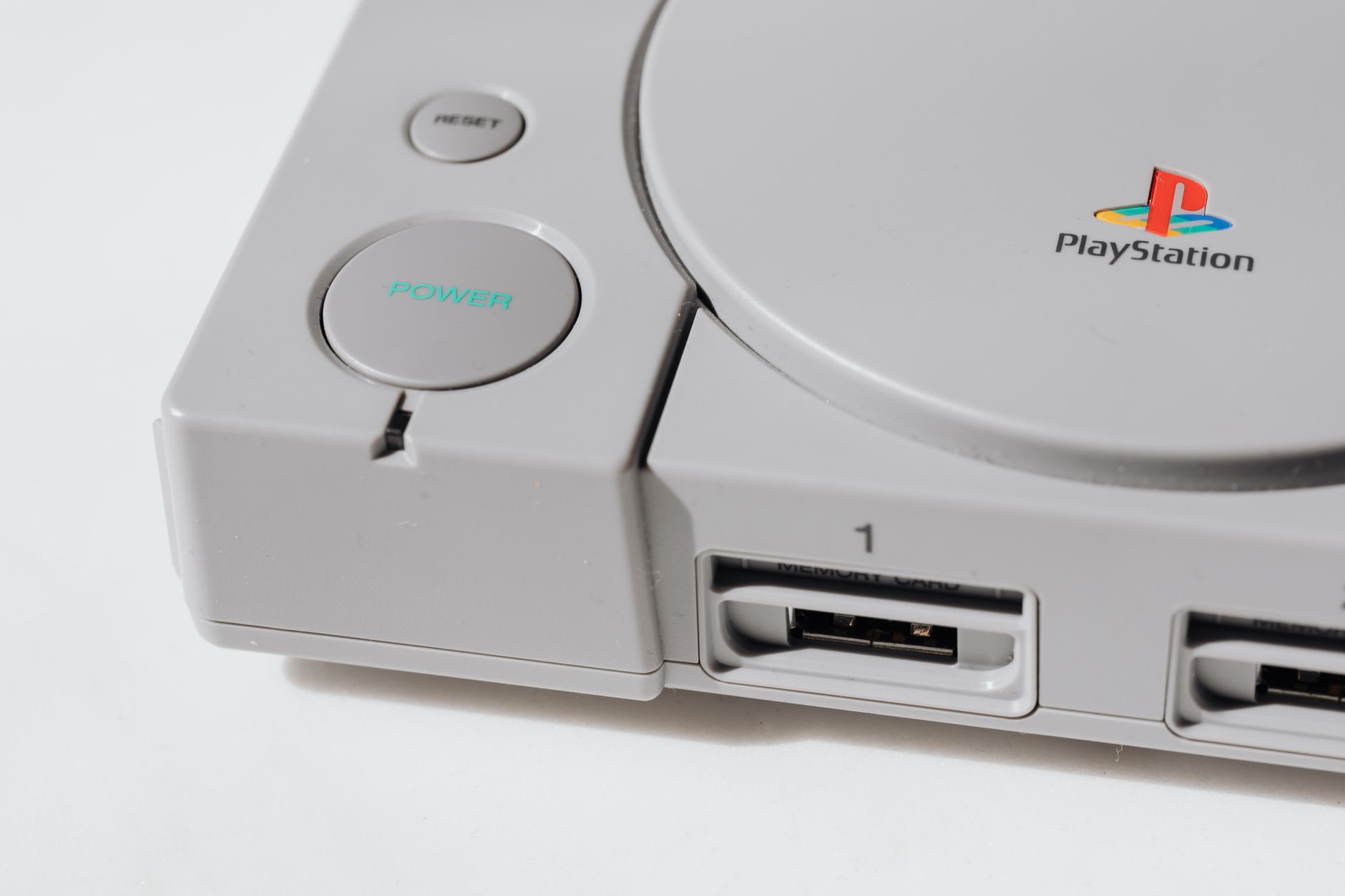
The PlayStation 5 (PS5) is a powerful gaming console that offers a spectacular gaming experience. However, whether you want to save power, reduce wear on the console, or simply take a break from gaming, knowing how to turn off your PS5 properly is crucial. In this guide, we will provide a comprehensive overview of the methods available for turning off your PS5, ensuring you can enjoy your device while also managing its power effectively.
Throughout this article, we will cover various methods to turn off your PS5 through both hardware and software controls, along with troubleshooting tips and common issues you may encounter. By the end of this guide, you will have a clear understanding of how to turn off your PS5 safely and efficiently.
How to Turn Off PS5?
Turning off your PS5 can be accomplished using different methods. You can choose to use the power button on the console, the controller, or the system menu. Each method is straightforward, allowing you to turn off your console based on your preference.
Methods to Turn Off Your PS5
1. Using the Power Button on the Console
- Locate the power button on your PS5 console. The power button is located on the front of the console, slightly towards the bottom.
- Press and hold the power button until you hear a beep. This beep will occur after about seven seconds.
- Once you hear the second beep, release the power button. The PS5 will enter Rest Mode by default.
- If you want to completely turn off the console, press and hold the power button again until you hear a beep, then release it.
2. Using the DualSense Controller
- Ensure your controller is powered on. You can do this by pressing the PS button located at the center of the controller.
- Navigate to the “Control Center” by pressing the PS button on the controller.
- Scroll to the far right and select the “Power” icon.
- You will see options for “Enter Rest Mode,” “Turn Off PS5,” and “Restart PS5.”
- Select “Turn Off PS5.”
3. From the PS5 Settings Menu
- Turn on your PS5 and log into your user profile.
- Navigate to the home screen and select the “Settings” icon, which looks like a gear.
- Scroll down and choose the “System” option.
- Select “Power Saving.” You will see further options related to power management.
- Choose “Rest Mode.” Here, you can set preferences for when your PS5 enters Rest Mode, or you can select “Turn Off PS5.”
Understanding Rest Mode vs. Turn Off
It’s essential to understand the difference between Rest Mode and completely turning off your PS5. When you put your PS5 in Rest Mode, the console enters a low-power state while still allowing background downloads and updates. This means you can quickly resume your gaming session without waiting for boot-up times.
In contrast, turning off your PS5 completely powers down the console, stopping all functions. This can help save more power and ensure that the console is not getting overworked, especially during long periods of inactivity.
Common Issues and Troubleshooting Tips
While turning off your PS5 is generally a simple process, users may encounter various issues. Here are some common problems and helpful solutions:
1. PS5 Not Responding
If your PS5 is unresponsive, the typical methods to turn it off may fail. In such cases, the hardware power button can be of assistance:
- Press and hold the power button on the console for about 10 seconds. This forces it to shut down.
- Regardless of the reason for the unresponsiveness, if you resort to a hard shutdown this way, it is advisable to check for any potential system errors or corruption once you reboot.
2. Error Messages Upon Restart
When turning your PS5 back on after a hard shutdown, you may receive error notifications:
- If prompted with errors, such as “Repair the Storage” or “Data Corrupted,” follow the on-screen instructions for repair.
- You can also boot your PS5 in Safe Mode by holding the power button until you hear a beep, then connecting a controller via USB cable to troubleshoot various issues.
3. Power Issues
If your PS5 has trouble powering on or off, double-check the following:
- Ensure that the console is plugged in and that the power cable is secure.
- Verify that your power outlet is functional by plugging in another device.
- Inspect the power cable for any damage or signs of wear.
4. Unwanted Rest Mode Behavior
Occasionally, your PS5 might enter Rest Mode unexpectedly:
- Check if your Power Saving settings are configured to automatically enter Rest Mode after a set period of inactivity. You can adjust these settings in the System menu.
- To turn off unwanted behavior, navigate to “Settings” > “System” > “Power Saving” and modify your preferences accordingly.
Best Practices for Power Management
To ensure a long and healthy lifespan for your PS5, consider implementing the following best practices regarding power management:
- Regularly update your PS5 software and firmware to improve functionality and address any bugs related to power issues.
- Performing routine restarts can help refresh system performance and resolve potential glitches.
- If you do not plan to use the PS5 for an extended period, consider completely turning it off instead of leaving it in Rest Mode to reduce potential wear and tear.
- Ensure adequate airflow around your console to prevent overheating, especially during long gaming sessions.
Conclusion
Understanding how to turn off your PS5 safely is important for maintaining its performance and longevity. With methods of turning off through the power button, controller, or settings menu, you can choose the most convenient option for you. Troubleshooting common issues and adhering to best practices in power management can enhance your gaming experience for years to come.
To further improve your technology knowledge, explore related tutorials such as how to turn off the touchscreen on a Chromebook or learn about factory resetting a Chromebook. Each link will guide you to useful information on different tech topics.