
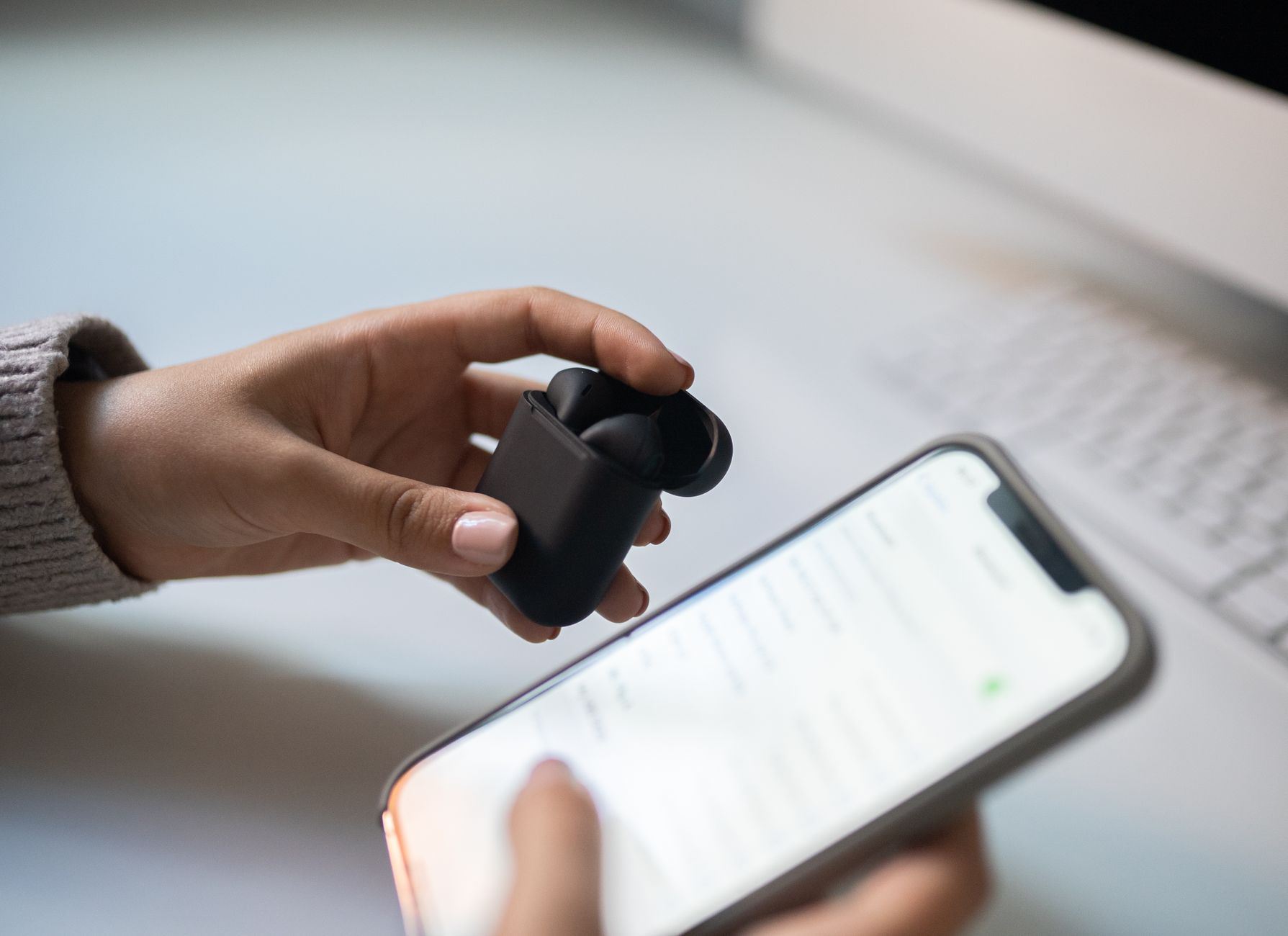
AirPods have become a staple accessory for Apple users. Their convenience and ease of use are celebrated, but what happens when you encounter connection issues? If you’re having trouble with your AirPods not connecting, don’t worry. This guide will help you troubleshoot common problems to get your AirPods back in working order.
This article covers various reasons why your AirPods might not connect, ranging from simple pairing issues to more complex settings or hardware problems. By following the steps outlined here, you’ll be able to diagnose and fix connection issues effectively.
Why Are My AirPods Not Connecting?
AirPods may fail to connect due to several factors: Bluetooth settings, device compatibility, battery levels, and even physical damage. Understanding these factors can assist you in isolating the issue quickly.
Common Causes for Connection Issues
- Bluetooth Issues: The most common problem is related to Bluetooth settings on your device.
- Battery Levels: If your AirPods or the device you’re trying to connect to is low on battery, they may not connect.
- Software Updates: Using outdated software on either your AirPods or the connecting device can lead to compatibility issues.
- Damage to AirPods: Physical damage or defects in your AirPods can prevent them from connecting properly.
- Multiple Devices: Occasionally, AirPods can get confused when multiple devices they are paired to are nearby.
Prerequisites for Troubleshooting
Before diving into troubleshooting steps, ensure you have the following:
- Your AirPods, fully charged.
- The device you are trying to connect to (iPhone, iPad, Mac, etc.) with Bluetooth enabled.
- Access to the settings menu of your device.
Step-by-Step Troubleshooting Guide
1. Check Bluetooth Settings
- Open the Settings app on your connecting device.
- Navigate to Bluetooth settings.
- Ensure Bluetooth is turned on. If it is already on, turn it off and then back on.
If Bluetooth was off, turning it back on might prompt your device to discover nearby devices, including your AirPods.
2. Make Sure AirPods Are Charged
Check if your AirPods have sufficient battery. Place them in the charging case and connect the case to a power source for at least 15 minutes. Open the lid and observe the indicator light:
- If the light is green, they are charged.
- If the light is amber, they need charging.
3. Restart Your Device
Sometimes, simply restarting your device can resolve connectivity issues. Here are the steps:
- Hold down the power button on your device.
- Slide to power off.
- Wait a few seconds, then turn your device back on.
After restarting, try connecting your AirPods again.
4. Forget and Reconnect Your AirPods
- If your AirPods show up in your Bluetooth settings but do not connect, you may need to “forget” them.
- Open Bluetooth settings on your device.
- Find your AirPods in the list and tap on the “i” or “info” icon.
- Select “Forget This Device.”
- Confirm the action.
Now, place your AirPods back in their case, wait a few seconds, and then connect them again:
- Open the lid of the case.
- Press and hold the setup button on the back of the case until the light flashes white.
- Go back to your Bluetooth settings and select your AirPods from the list.
5. Reset Your AirPods
If your AirPods are still not connecting, resetting them might help:
- Put your AirPods in the charging case and close the lid.
- Wait 30 seconds, then open the lid.
- Press and hold the setup button on the back of the case for about 15 seconds until the status light flashes amber and then white.
This process resets your AirPods, and you should reconnect them using the steps mentioned earlier.
6. Update Device Software
Outdated software can cause connection problems:
- For iPhone/iPad: Go to Settings > General > Software Update.
- For Macs: Go to System Preferences > Software Update.
Ensure both your device and AirPods firmware are updated. Keep in mind that AirPods update automatically when connected to an iOS device, so ensure you are using the latest version of iOS.
7. Check Device Compatibility
Not all Bluetooth devices are compatible with AirPods. Ensure that your AirPods are compatible with your device by checking the manufacturer’s specifications.
If necessary, consult the Apple website for a list of compatible devices.
8. Use One AirPod at a Time
If you still experience issues, try using just one AirPod at a time. This can help you determine if a specific AirPod is faulty. To do this:
- Take one AirPod out of the case and place it in your ear.
- Check if it connects to the device.
If one AirPod connects successfully while the other does not, you may be experiencing a hardware issue.
9. Inspect for Physical Damage
Look over your AirPods for any signs of damage, such as cracks or water exposure. If physical damage is suspected, you may need to replace them or seek warranty service from Apple. Ensure your device also has no cracks or defects that might hinder connectivity.
Advanced Troubleshooting Steps
If you’ve gone through the basic troubleshooting steps and still can’t connect your AirPods, consider the following advanced steps.
1. Check for Interference
Other electronic devices can cause interference with Bluetooth signals. Ensure other devices (e.g., microwaves, routers) are not causing connectivity issues by moving away from them. If your AirPods are still not connecting, try turning off other Bluetooth devices nearby.
2. Reset Network Settings
Resetting network settings on your device can solve underlying connectivity issues:
- For iPhone/iPad: Go to Settings > General > Reset > Reset Network Settings.
- For Android devices: The path may vary, but generally, go to Settings > System > Reset options > Reset Wi-Fi, mobile & Bluetooth.
Note that this process will erase all saved Wi-Fi networks and Bluetooth connections; you will need to reconnect to all networks afterward.
3. Contact Apple Support
If none of the above fixes work, consider reaching out to Apple Support. Technical support can help identify potential hardware issues that require professional assistance. You can either chat, call, or visit an Apple Store for a device evaluation.
When to Replace Your AirPods
If you encounter persistent connectivity issues, it may be time to consider replacing your AirPods. Factors to consider include:
- Age: AirPods have a lifespan based on usage. If they’re several years old, they might be showing signs of wear and tear.
- Battery Life: If either AirPod or the case no longer holds a charge, this can impact performance.
- Repairs: If repairs are cost-prohibitive and your devices are out of warranty, replacement may be smarter.
Conclusion
AirPods connectivity issues can be frustrating, but by following the steps outlined in this article, you can effectively diagnose and resolve many common problems. From checking battery levels to resetting your devices, this guide provides comprehensive troubleshooting methods that should help in restoring functionality.
If you’re still experiencing challenges, you may also want to explore related tech tutorials such as why your AirPods keep disconnecting or how to connect AirPods to iPhone. These resources can provide further insights into maintaining and troubleshooting your AirPods.