
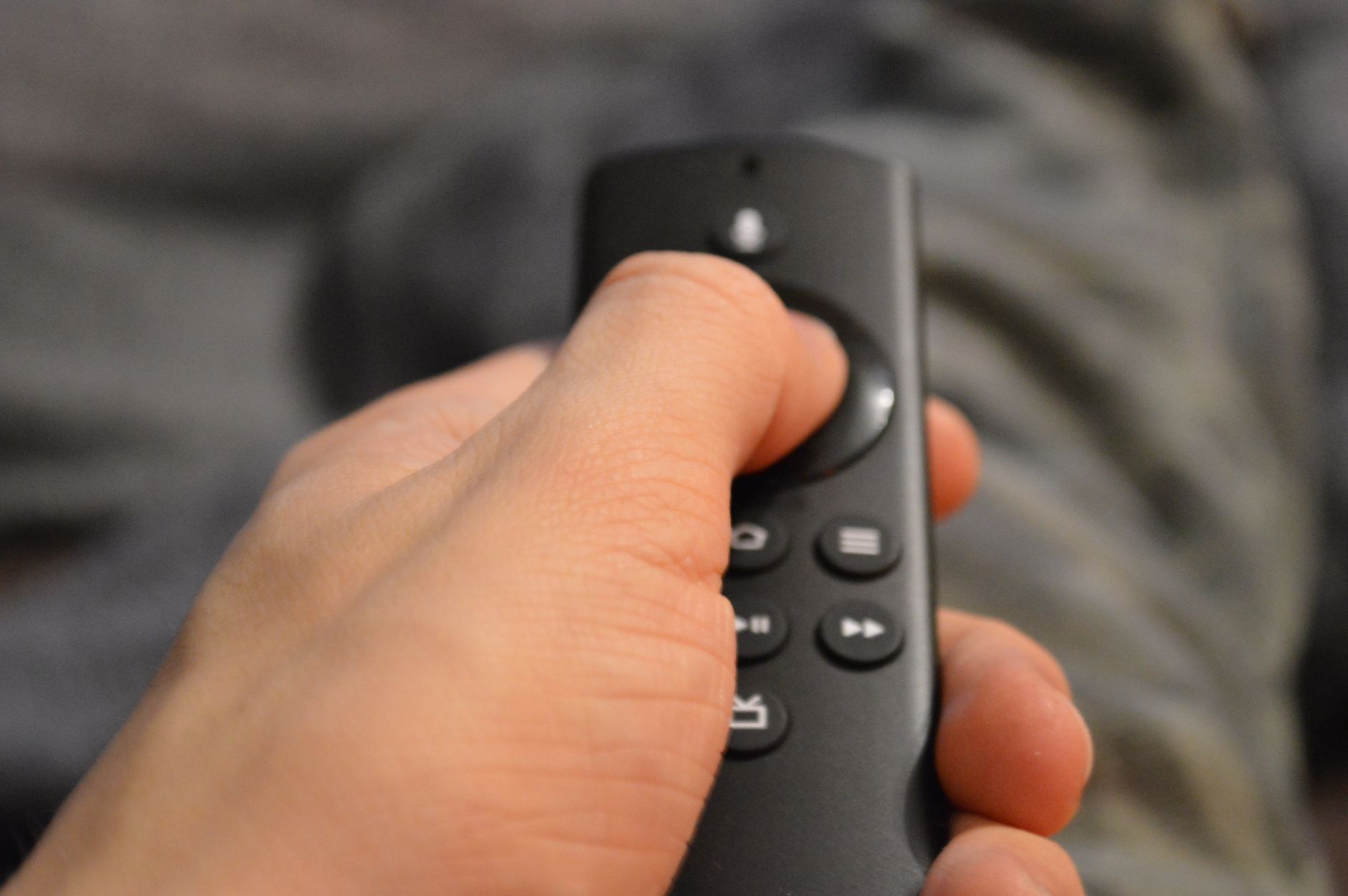
Resetting your Firestick remote can be a straightforward task, especially if you’re facing connectivity issues or if the remote becomes unresponsive. This guide will walk you through the necessary steps to reset your Firestick remote and help you pair it seamlessly with your device.
We’ll cover different types of Firestick remotes, the reasons you might need to reset your remote, and detailed instructions on how to accomplish it effectively. Let’s get started!
How to Reset Firestick Remote?
To reset a Firestick remote, you typically need to unpair it from your Fire TV Stick first. Each remote may have specific button combinations to facilitate this process. Once unpaired, you can easily pair it again to your device. This procedure is essential for troubleshooting issues like connectivity problems or malfunctioning buttons.
Understanding Firestick Remote Types
Before diving into the reset process, it’s important to understand the different types of Firestick remotes:
- Standard Firestick Remote: This is the basic remote that comes with most Firestick devices. It features shortcut buttons for popular streaming services.
- Fire TV Remote with Voice Control: This remote includes a voice button for Alexa, allowing voice commands for easy navigation.
- Fire TV Game Controller: A gaming remote that offers enhanced control for gaming experiences on Firestick.
Each of these remotes can face similar issues but may require different methods of resetting. Most users will be concerned with the Standard Firestick Remote and the Voice Control Remote, so our instructions will mainly focus on these types.
Common Reasons to Reset Your Firestick Remote
Before you proceed with the reset, it’s essential to identify why you might need to perform this action. Some common issues that may lead to resetting your Firestick remote include:
- Unresponsive buttons on the remote.
- Issues with the Firestick device not recognizing the remote.
- Incorrect pairing of the remote with the Firestick.
- Connectivity problems after software updates.
Prerequisites for Resetting Your Firestick Remote
To successfully reset your Firestick remote, you should have the following:
- Your Firestick device connected to a TV and powered on.
- Fresh batteries installed in the remote.
- Access to the Firestick user interface to confirm the pairing status.
How to Reset Firestick Remote – Step-by-Step Guide
Follow these detailed steps to reset your Firestick remote efficiently:
- Check Your Remote’s Batteries: Ensure the remote has fresh batteries. Weak batteries can cause communication issues with the Firestick.
- Unpair the Remote:
- Press and hold the
Homebutton for about 10-15 seconds. This will initiate the unpairing process. - Alternatively, if the remote does not respond, press and hold the
BackandHomebuttons simultaneously for around 10 seconds. - Once the remote is unpaired, you should see a notification on your television screen.
- Press and hold the
- Pair the Remote Again:
- Go to the Firestick home screen and navigate to
Settings. - Select
Controllers & Bluetooth Devices. - Choose
Amazon Fire TV Remotes, and then selectAdd New Remote. - To pair your remote, press and hold the
Homebutton until the LED light on the remote starts to blink. - Your Firestick should detect the remote. Follow any on-screen prompts to complete the pairing process.
- Once paired successfully, you should see a confirmation on your TV.
- Go to the Firestick home screen and navigate to
After following these steps, your Firestick remote should be reset and ready for use. Make sure to test all buttons to ensure functionality.
Troubleshooting Common Issues Post-Reset
If you encounter issues even after resetting your Firestick remote, consider the following troubleshooting tips:
- Check Battery Orientation: Make sure the batteries are installed correctly within the remote.
- Reduce Distance: The Firestick remote works via infrared and Bluetooth. Make sure you are within 30 feet of the Firestick for an optimal connection.
- Avoid Interference: Ensure no obstacles are blocking the connection between the remote and the Firestick. Try resetting your remote without other electronic devices around.
- Software Update: Verify that your Firestick is updated to the latest software version. Updating may resolve remote connectivity issues.
Alternative Reset Method: Factory Reset Firestick
In more complicated scenarios where the remote is still malfunctioning, you can perform a factory reset on your Firestick. Please note, however, this will erase all your data, apps, and preferences.
- Navigate to
Settingson your Firestick home screen. - Select
My Fire TV. - Scroll down to
Reset to Factory Defaultsand select it. - Confirm the action to begin the factory reset process.
- Wait until the device restarts. You will need to set up your Firestick again.
This method should be your last resort, as it would completely wipe your Firestick and require reinstallation of applications and settings.
Frequently Asked Questions
What do I do if the remote still won’t pair?
If your remote refuses to pair even after following the steps above, try replacing the batteries again to rule out battery issues. If the problem persists, consider using the Fire TV mobile app as a temporary remote.
Can I use my phone as a Firestick remote?
Yes! Amazon offers a Fire TV app for iOS and Android. Downloading this app can provide you with remote functionalities, including navigation through your Firestick interface, voice commands, and keyboard input.
How often should I reset my Firestick remote?
Resetting your Firestick remote isn’t a routine task. Consider it only when you encounter persistent issues that troubleshooting methods fail to resolve.
Final Tips
To maintain a well-functioning Firestick remote, consider these practices:
- Keep your Firestick remote away from extreme temperatures and moisture.
- Regularly check battery status and replace batteries when needed.
- Periodically update your Firestick to enhance compatibility and performance.
Conclusion
Resetting your Firestick remote can be a simple yet effective way of troubleshooting various issues. With the steps outlined in this guide, you should be able to reset and re-pair your remote with ease. Always ensure your remote is functioning correctly to maximize your streaming experience.
If you continue to face challenges, consider exploring related tech tutorials such as how to fix stick drift on PS5 or resetting network settings for a better connectivity experience.