
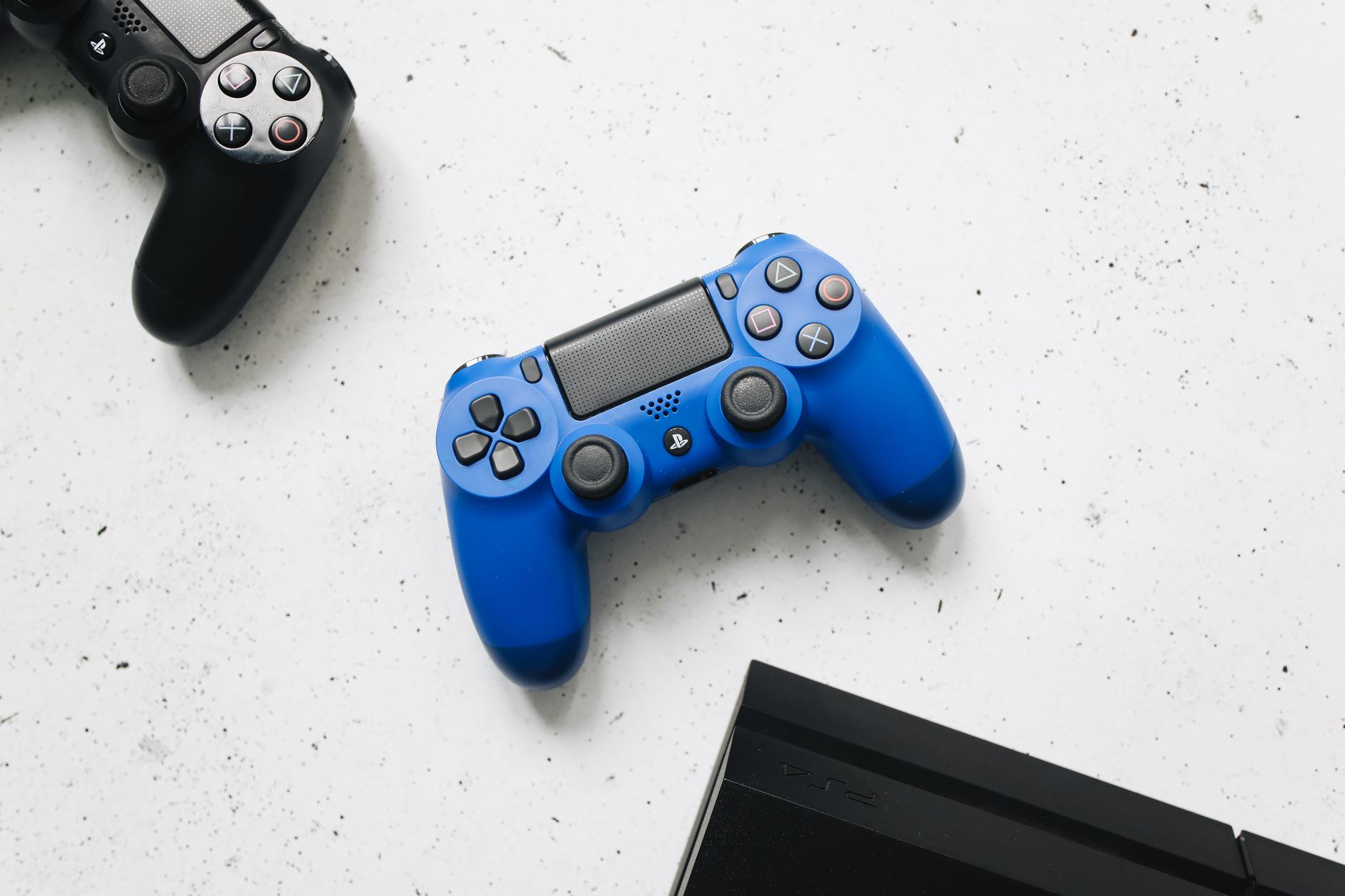
Connecting a PS4 controller to your console, PC, or mobile device can enhance your gaming experience, allowing for greater flexibility and control. Ensuring a smooth setup is vital for a seamless gaming experience, whether you’re gaming on your PlayStation 4, streaming on your PC, or using it with your smartphone. This guide will provide you with comprehensive steps on how to connect your PS4 controller and troubleshoot common issues you may encounter along the way.
Before diving into the steps, it’s important to understand the various supported platforms for the PS4 controller, the necessary prerequisites, and common troubleshooting techniques if you face connection problems. Let’s get started!
How to Connect PS4 Controller?
Connecting a PS4 controller involves pairing it with your device using either a wired or wireless method. Here’s how you can achieve this across different platforms.
Supported Platforms
- PlayStation 4 Console (PS4)
- Windows PC
- Mac OS
- Mobile Devices (smartphones and tablets, iOS and Android)
Prerequisites
- PS4 controller (DualShock 4)
- Compatible device (PS4, PC, Mac, or mobile device)
- USB cable (for wired connection)
- Bluetooth capability (for wireless connection)
- Updated software/drivers (optional)
Connecting the PS4 Controller to a PS4 Console
Connecting your PS4 controller to a PlayStation 4 is straightforward. Follow these steps to ensure a successful connection:
- Turn on your PS4 console by pressing the power button.
- Take your PS4 controller and connect it to the console using a USB cable.
- Press the
PSbutton in the center of the controller. The light bar will illuminate, indicating that it is connected. - Disconnect the USB cable, and you can now use your PS4 controller wirelessly.
Connecting the PS4 Controller to a Windows PC
To connect your PS4 controller to a Windows PC, you can use either a wired connection or Bluetooth. Here are the steps for both methods:
Wired Connection
- Connect your PS4 controller to the PC using a USB cable.
- Windows should automatically recognize the controller. You can check this by going to the Control Panel and selecting Devices and Printers.
- Your controller should be listed as a game controller. You can now use it for gaming.
Wireless Connection via Bluetooth
- Ensure your PC has Bluetooth capability and is enabled.
- On your PS4 controller, press and hold the
PSbutton and theSharebutton simultaneously until the light bar starts flashing. - On your PC, go to
Settings > Devices > Bluetooth & other devices. - Click on “Add Bluetooth or other device” and select “Bluetooth.”
- Your PC will search for available devices. Select “Wireless Controller” from the list.
- Once connected, you should see a message indicating that the PS4 controller is successfully paired.
Connecting PS4 Controller to a Mac
Connecting the PS4 controller to a Mac is also possible through wired or Bluetooth methods:
Wired Connection
- Plug the PS4 controller into your Mac using a USB cable.
- Your Mac should recognize the controller automatically, allowing you to use it for gaming.
Wireless Connection via Bluetooth
- On your PS4 controller, press and hold the
PSbutton and theSharebutton together until the light bar starts to flash. - On your Mac, go to
System Preferences > Bluetooth. - Ensure Bluetooth is turned on. Wait for your PS4 controller to appear in the list of available devices.
- Select the controller and click “Pair.”
- Once paired, you should see the controller appear in your connected devices list.
Connecting PS4 Controller to Mobile Devices
Connecting a PS4 controller to a mobile device can enhance your gaming experience on the go. Follow these steps, keeping in mind that compatibility can vary based on the game and device:
Connecting to Android Devices
- On your PS4 controller, press and hold the
PSbutton and theSharebutton until the light bar begins to flash. - On your Android device, go to
Settings > Bluetooth. - Ensure Bluetooth is turned on. Look for “Wireless Controller” in the available devices list.
- Select the controller to pair. Once connected, the light bar will stop flashing and remain lit.
Connecting to iOS Devices
- Ensure your device is updated to at least iOS 13 for controller compatibility.
- Put your PS4 controller into pairing mode by pressing the
PSandSharebuttons together until it flashes. - On your iOS device, go to
Settings > Bluetooth. - Enable Bluetooth and look for “DualShock 4 Wireless Controller” in the available devices.
- Tap on it to connect. The light bar will indicate a successful connection.
Troubleshooting Connection Issues
If you encounter issues while connecting your PS4 controller, here are some common errors and their expected fixes:
Controller Not Connecting
- Check Battery Level: Ensure your controller is charged. Connect it using a USB cable and allow it to charge before attempting to connect again.
- Bluetooth Issues: Make sure Bluetooth is enabled on your device. If necessary, toggle Bluetooth off and on again to reset the connection.
- Remove Previous Connections: If the controller was previously connected to another device, it may need to be disconnected or turned off before pairing with a new device.
- Update Drivers: If connecting to a PC, ensure your Bluetooth drivers and controller drivers are up to date.
Controller Unresponsive
- Reset the Controller: Use a pin to press the reset button located at the back of the controller. Hold it for a few seconds, and then attempt to reconnect.
- Interference: Ensure there are no other Bluetooth devices causing interference or that the device isn’t too far away from the controller.
Controller Lag or Connectivity Issues
- Reduce Distance: Ensure you are within a reasonable range of the device to reduce lag during gameplay.
- Check for Updates: Ensure the device and controller firmware/software are updated for optimal performance.
Common Issues and Alternatives
Even when following the steps carefully, users may encounter various other challenges. Here are a few common issues that can occur, along with their alternatives:
Incompatible Games
Some games may not support the PS4 controller or might require additional configuration to function correctly. In such cases, consider:
- Checking the game’s official support page for controller compatibility.
- Using third-party software like DS4Windows for Windows PCs to enhance compatibility.
Using Third-Party Apps
For mobile devices, certain games may only support touchscreen controls. In such situations:
- Try using controller-mapping applications available on the App Store or Google Play Store, which can help map the controller buttons to touchscreen inputs.
- Experiment with different third-party applications designed for controller compatibility.
Conclusion
Connecting your PS4 controller can open up new gaming possibilities and enhance your overall experience across different devices. Be sure to follow the outlined steps according to your specific platform and remember to troubleshoot common issues when they arise. With the right guidance, you can effortlessly connect your PS4 controller and enjoy gaming like never before.
For further assistance, you may explore related tech tutorials and guides, such as restarting the Bluetooth service on Windows or learn how to connect AirPods to a PS5.