
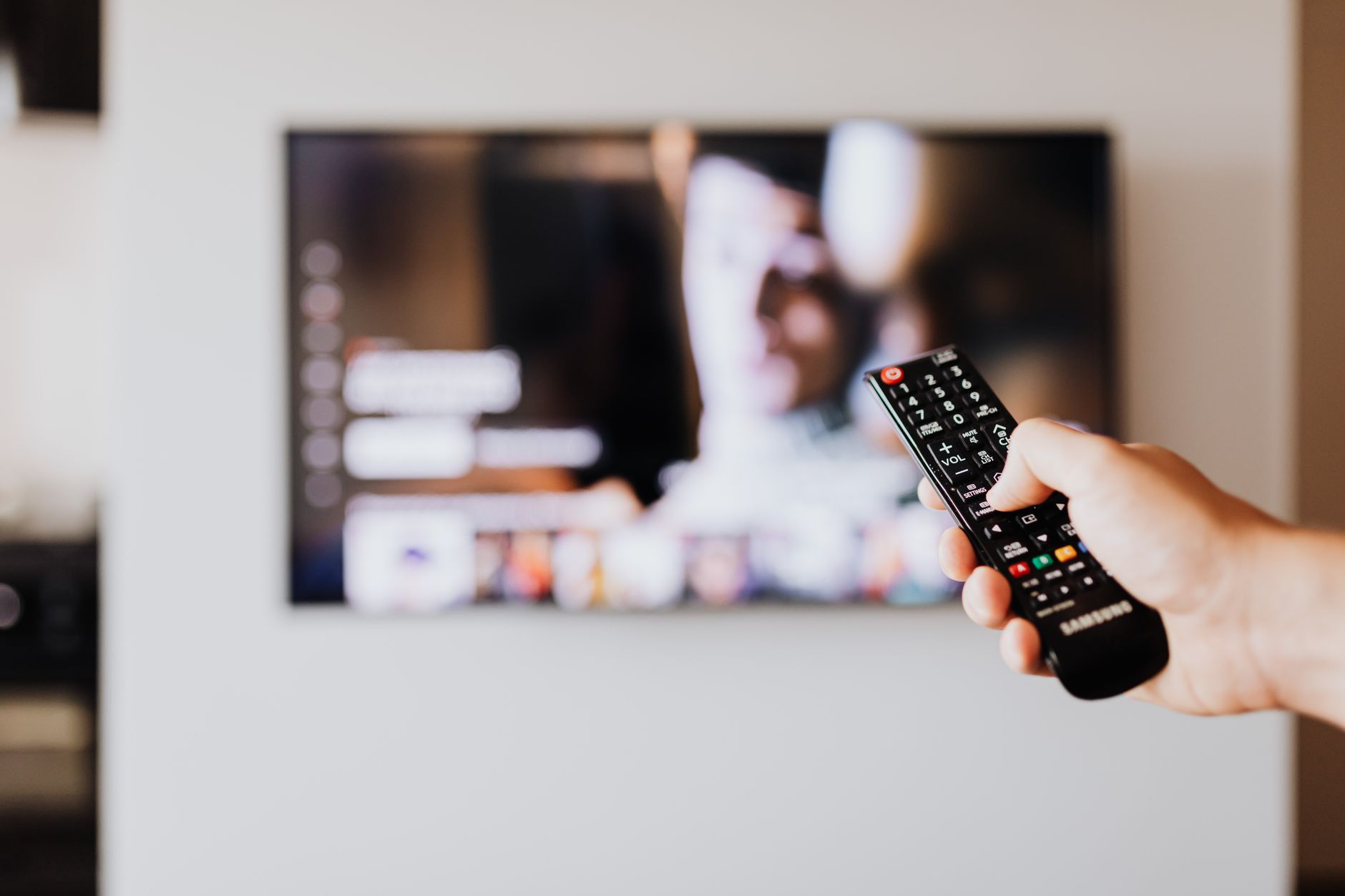
For many Roku users, syncing their remote is a straightforward task. However, when your remote lacks a pairing button, it can become more complicated. This article will guide you through how to sync a Roku remote without a pairing button, utilizing the infrared (IR) mode available in certain remote designs.
By the end of this guide, you’ll have a better understanding of how to connect your Roku remote without relying on the usual pairing functionality. This method is particularly useful if you own an older Roku remote or a specific model that does not include a pairing button.
How to Sync a Roku Remote Without a Pairing Button (IR Mode)?
To sync a Roku remote without a pairing button, you can rely on the infrared (IR) functionality, which is available in many standard Roku remotes. In this process, you’ll learn to check the compatibility and execute the steps to establish the connection properly.
Understanding Roku Remote Types
Before diving into the syncing process, it’s essential to understand the types of Roku remotes available:
- Standard IR Remote: Uses infrared signals to communicate with the Roku device. It requires line-of-sight to function effectively and does not have a pairing button.
- Roku Enhanced Remote: This remote connects to the Roku device via Wi-Fi and includes a pairing button. Features include voice control and headphone jack.
- Roku Mobile App: This app can be downloaded onto a smartphone and provides remote control functionality without the need for a physical remote.
Knowing which remote you have will determine the method for syncing it with your Roku device. This article focuses primarily on the standard IR remote.
Prerequisites for Syncing Your Roku Remote
Before proceeding with syncing your Roku remote, ensure the following prerequisites are met:
- You have a Roku device that supports IR remote controls.
- The batteries in your remote are fresh and installed correctly.
- Your Roku device is powered on and connected to the TV.
- You are positioned within the line-of-sight of the Roku device for accurate remote operation.
Steps to Sync a Roku Remote Without a Pairing Button
Follow these steps to sync your IR Roku remote:
- Set Up Your Roku Device: Ensure that your Roku device is connected to the TV and powered on. You should see the Roku home screen.
- Check Line-of-Sight: Position yourself within range of the Roku device and ensure there is an unobstructed line-of-sight between the remote and the Roku box.
- Insert New Batteries: Replace the existing batteries in your Roku remote with new ones. Ensure they are inserted properly based on the polarity indicated in the battery compartment.
- Point Remote at Roku Device: Hold the remote and point it directly at the Roku device.
- Test the Remote: Press the ‘Home’ button on the remote. A successful connection will result in the Roku home screen being displayed. If nothing happens, try pressing the ‘Up’ button.
- Adjust Your Position: If your initial attempts do not result in any action, slightly move closer to the device or adjust your angle to enhance the line-of-sight.
- Check Compatibility: If the remote still does not sync, verify that your remote is compatible with the specific Roku device model you are using. If they are not compatible, the remote will not work.
Troubleshooting Common Issues
Sometimes, problems can arise while attempting to sync your Roku remote. Below are some common issues and their respective solutions:
- Remote Not Responding: Check if the batteries are inserted correctly and charged. If the batteries are low, replace them.
- Remote is Not Compatible: Confirm that your remote is suitable for your Roku device. Certain remotes only function with specific models.
- Line-of-Sight Interference: Ensure there are no objects blocking the signal between the remote and the Roku device. Clutter can cause interference.
- Device Needs a Reset: If none of the previous steps work, try restarting your Roku device. Unplug it from power and reconnect after 10–15 seconds.
Using the Roku Mobile App
If syncing via the IR remote proves troublesome, consider using the Roku mobile app as an alternative control mechanism. The app can launch in place of or alongside a physical remote and offers similar functions. Here’s how to set it up:
- Download the Roku App: Install the Roku app on your smartphone or tablet. It is available for both iOS and Android devices.
- Connect to Wi-Fi: Ensure that your mobile device is connected to the same Wi-Fi network as your Roku device.
- Open the App: Launch the Roku app on your mobile device.
- Select Your Device: The app will search for available Roku devices on the same network. Choose your Roku device from the list.
- Use the Remote Feature: Once connected, tap on the ‘Remote’ feature in the app to gain control over your Roku device.
Alternative Solutions
If you’re still struggling to connect your Roku remote via infrared, you may want to explore several alternatives:
- Universal Remote: Many universal remotes can be programmed to work with Roku devices. Check compatibility before purchasing.
- Replacement Remote: Consider purchasing a Roku remote that includes a pairing button for enhanced functionality.
- Factory Reset Your Roku Device: As a last resort, resetting your Roku device might help resolve any issues preventing sync. Note that this will wipe your configuration and may remove saved data.
Conclusion
Syncing your Roku remote without a pairing button can be accomplished efficiently through the use of infrared technology. Following the steps outlined in this article can help you establish a connection, even when challenges arise. Always ensure your remote and Roku device are compatible to avoid frustration.
If you continue to experience issues, consider utilizing the Roku mobile app or acquiring an alternative remote solution. Remember that having an effective control mechanism is crucial for a smooth viewing experience on your Roku device.
For more troubleshooting assistance, you can explore guides on how to reset your Roku TV or techniques for resetting AirPods Pro.
Check out how to reset Roku TV and reset AirPods Pro for additional support and information.