
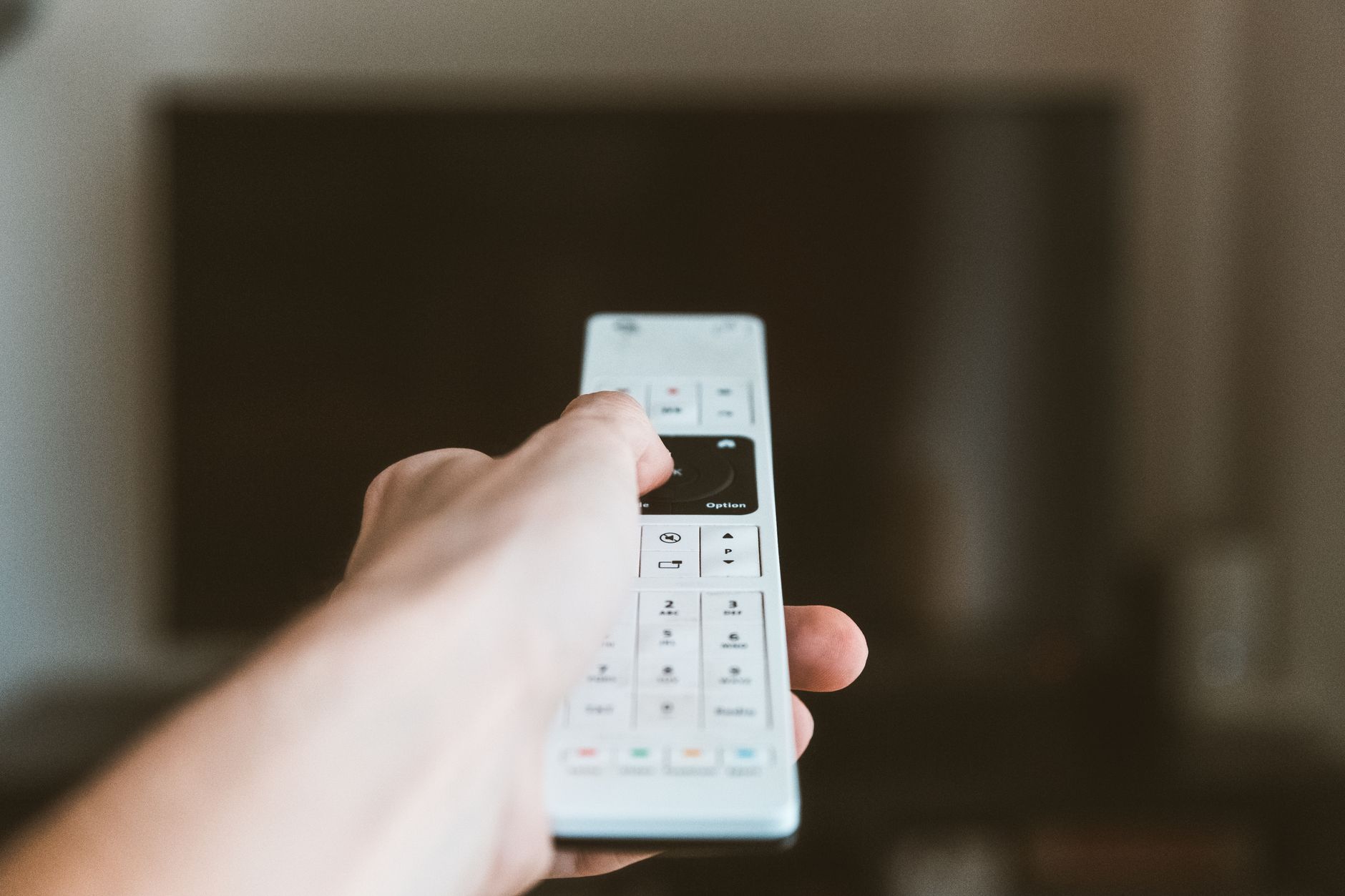
Resetting your Roku TV can be a valuable skill to master, especially when troubleshooting issues or preparing your device for a new owner. This comprehensive guide will walk you through the various methods to reset your Roku TV, whether you need to perform a quick restart or a complete factory reset. You’ll also learn about backup and recovery steps to protect your data.
Whether facing connectivity problems or simply wanting to clear all settings, knowing how to reset your Roku TV can help restore its performance. Follow along for detailed instructions on backup, recovery, and setup steps tailored specifically to the Roku platform.
How to Reset Roku TV?
To reset your Roku TV, you can choose between two main options: a soft reset and a factory reset. A soft reset will simply restart your device, while a factory reset will erase all settings and data. This guide will detail both options.
Types of Reset Available for Roku TV
- Soft Reset: This option restarts your Roku TV and is often used to resolve minor issues without erasing any data.
- Factory Reset: This option erases all personal settings, accounts, and data, restoring the device to its original factory settings.
When to Reset Your Roku TV
There are several scenarios in which you may want to reset your Roku TV:
- Unresponsive remote or TV.
- Connectivity issues with the internet.
- General performance problems, such as slow performance or lag.
- Preparing the device for a new owner or moving to a different location.
- Restoring the factory settings to resolve persistent issues.
Preparing to Reset Your Roku TV
Before initiating any reset, it’s essential to back up your settings if possible. Here are a few steps you can take to prepare:
- Make a note of your installed channels and their login details.
- Check your account information to ensure it is current and accessible.
- Take screenshots of important settings such as network preferences.
How to Perform a Soft Reset on Roku TV
A soft reset is a quick way to troubleshoot minor issues. Here’s how to do it:
- Locate the Home button on your Roku remote.
- Press it five times in quick succession.
- Then press the Up Arrow once.
- Next, press the Rewind button two times.
- Finally, press the Fast Forward button two times.
You should see the Roku logo on your screen, indicating that the device is restarting. This process only takes a few moments.
How to Perform a Factory Reset on Roku TV
For a complete factory reset, follow these steps:
Method 1: Using the Roku TV Remote
- Press the Home button on your remote.
- Scroll down and select Settings.
- Scroll to System and choose it.
- Select Advanced system settings.
- Then select Factory reset.
- Finally, follow the on-screen instructions to confirm the reset.
Method 2: Using the Reset Button
Most Roku TVs have a physical reset button. To use it:
- Locate the Reset button on the TV. It is often found on the back or side of the unit.
- Press and hold the button for about 10 seconds. You should see the TV light up, indicating a successful reset.
Confirming the Factory Reset
After following any of these methods, your Roku TV will reboot and guide you through the initial setup process. Make sure to connect the TV to your Wi-Fi network and sign into your Roku account to access your channels again.
Recovering After a Factory Reset
After performing a factory reset, you will need to restore your settings. Here are the steps to follow:
- Connect your Roku TV to the internet.
- Sign in to your Roku account. If you backed up your channel information, it should start downloading your previously installed channels automatically.
- Adjust your settings to your preference, including input preferences and any additional settings.
Troubleshooting Common Errors Post-Reset
If you encounter issues after resetting your Roku TV, consider the following troubleshooting tips:
- Ensure that your Wi-Fi connection is stable. Reboot your router if necessary.
- Check that your Roku account is active, and try logging in again.
- Power cycle your Roku TV by unplugging it from the wall for a minute and then plugging it back in.
Alternative Solutions for Issues
If resetting your Roku TV does not resolve your issues, consider the following alternatives:
- Contact Roku customer support for professional assistance.
- Consult the Roku community forums for common solutions from other users.
- Visit the official Roku help website for additional resources and troubleshooting guides.
Tips to Keep Your Roku TV Running Smoothly
To extend the life of your Roku TV and maintain its optimum performance, keep these tips in mind:
- Regularly check for software updates under Settings > System > System update.
- Uninstall unused channels to free up memory.
- Perform regular soft resets to clear cache and improve performance.
- Ensure adequate ventilation around the TV to prevent overheating.
When to Consider Professional Help
If you find that you are frequently facing the need to reset your Roku TV, there may be underlying hardware or software issues that require professional attention. Consider consulting with an authorized service center or a qualified technician if:
- Repeated resets do not resolve the issues.
- You notice physical damage to the device.
- You encounter error codes that you cannot resolve.
Conclusion
Resetting your Roku TV can be an effective way to troubleshoot issues and restore functionality. By knowing the difference between a soft and a factory reset, you can address a variety of concerns efficiently. Remember to back up important information before a factory reset and take note of troubleshooting options if issues arise afterward. Regular maintenance and updates can also help keep your Roku TV running smoothly for years to come.
For more information on tech tips and troubleshooting, explore our other guides, including how to reset your Firestick remote at this link and how to reset AirPods Pro at this link.