
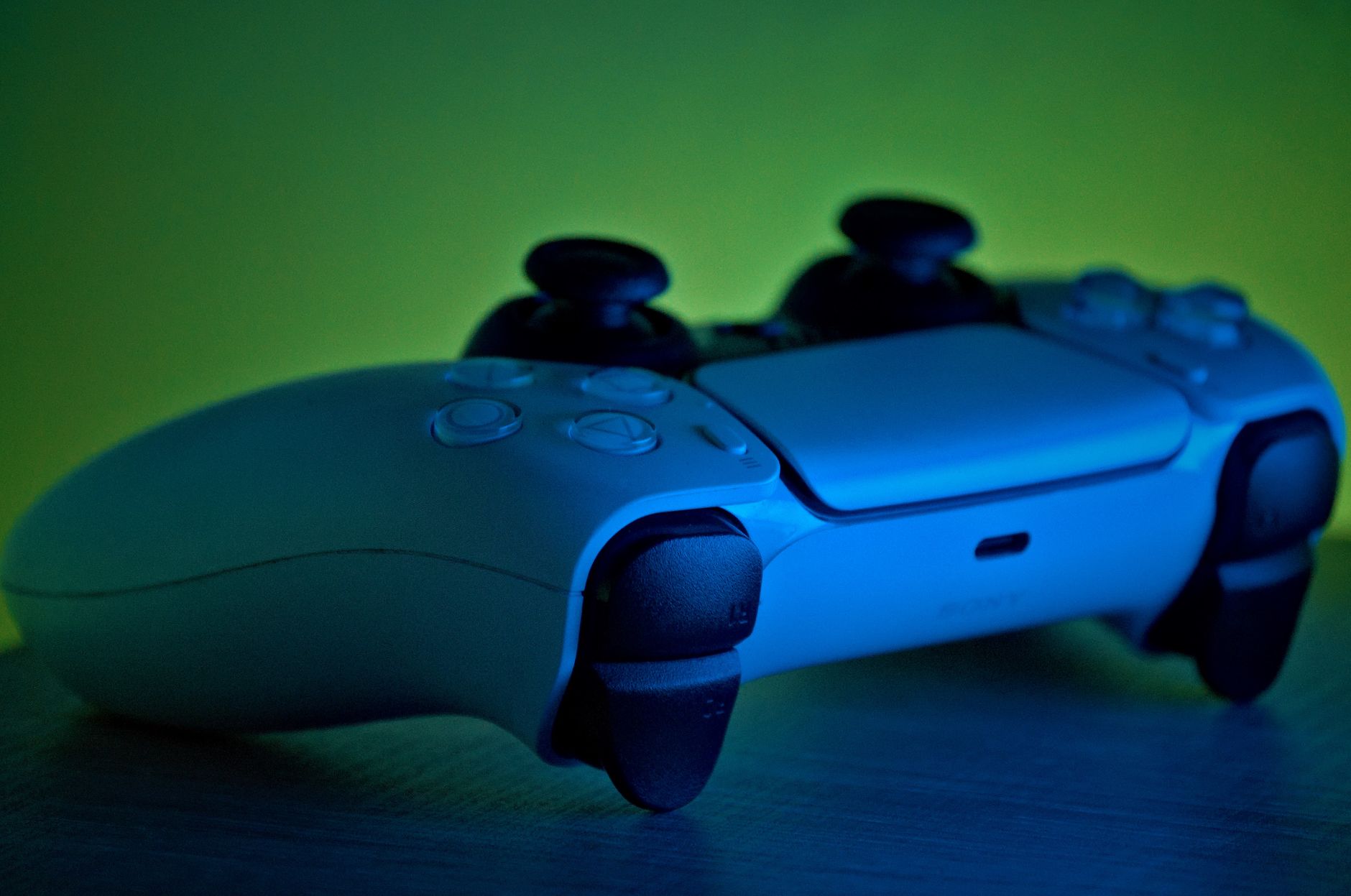
The PS5 controller, formally known as the DualSense controller, has brought a new level of immersion to gaming with its advanced features. However, like any technology, issues can arise that might require the controller to be reset. Whether you’re facing connectivity issues, unresponsive buttons, or stick drift problems, knowing how to reset your PS5 controller can be a valuable skill.
This article will provide a detailed guide on resetting your PS5 controller, including steps for button configurations, troubleshooting connections, and pairing it again with your console. By the end, you’ll understand how to effectively reset your controller and get back into your gaming session.
How to Reset PS5 Controller?
To reset a PS5 controller, you will need to locate the small reset button on the controller, press it using a pin, and then re-pair the controller with your console. This process can resolve various issues ranging from connectivity failures to malfunctioning buttons.
Understanding the Need for a Reset
Various factors can lead to the need to reset your PS5 controller. Here are some common scenarios:
- Connectivity Problems: The controller may refuse to connect to the console or other devices.
- Button Malfunctions: Certain buttons may become unresponsive or behave erratically.
- Stick Drift: The analog sticks may register input without being touched.
- Firmware Issues: Software updates may cause some functions to behave incorrectly.
Resetting the controller can help eliminate these issues, giving you a smoother gaming experience.
Prerequisites for Resetting Your PS5 Controller
Before you begin, ensure the following:
- Your PS5 controller is charged.
- Your PS5 console is powered on and nearby.
- You have a paperclip or a similar tool to press the reset button.
How to Reset Your PS5 Controller: Step-by-Step Instructions
Resetting your PS5 controller involves a straightforward process. Follow the steps below closely.
- Locate the Reset Button: Turn your controller over to reveal the back side. You will find a small pinhole-sized button near the L2 shoulder button.
- Prepare Your Reset Tool: Take a paperclip and straighten one end. This will be your tool to press the reset button.
- Press the Reset Button: Insert the straightened end of the paperclip into the small hole. Press and hold the reset button for about five seconds.
- Release the Button: After five seconds, remove the paperclip and allow the controller a moment to reset.
- Reconnect the Controller: Now that the controller is reset, it’s time to re-pair it with your PS5 console.
Re-pairing the Controller with Your PS5
Once you have reset your controller, you need to reconnect it to your PS5. Follow these steps:
- Connect the Controller: Use a USB cable to connect your PS5 controller to the console. Ensure that the cable is securely plugged into both the controller and one of the USB ports on the PlayStation 5.
- Power On the Console: If your PS5 isn’t already on, press the power button to turn it on. The controller should power up automatically.
- Sync the Controller: Once connected via USB, press the PS button (the circular button in the center of the controller). This should sync the controller with your PlayStation 5, and you’ll see a light illuminate on the controller, indicating it is paired successfully.
Confirming Successful Reset and Connection
To confirm that your PS5 controller has been reset successfully, follow these steps:
- Look for the light bar on your controller; it should glow a solid color, indicating it is paired.
- Test the buttons by navigating through the PS5 menu to ensure everything is functioning properly.
Troubleshooting Common Issues Post-Reset
Even after resetting, you may still contact some issues. Here are common problems and their solutions:
Controller Won’t Connect
- Check Cable Connection: Ensure that both ends of your USB cable are securely connected.
- Try a Different USB Port: If one port is malfunctioning, try using another USB port on the console.
- Charge the Controller: Make sure your controller has enough battery to pair. Leave it plugged in for a while before retrying.
Controller Is Still Unresponsive
- Reset Again: Sometimes a second reset is necessary. Revisit the reset steps and try again.
- Firmware Update: Check if there are any firmware updates available for your PS5 and controller to resolve ongoing issues.
- Replace the Controller: In persistent cases, consider that the controller may require repair or replacement due to hardware failure.
Alternative Reset Methods
While the hardware reset method is the most effective, you can also attempt to reset your controller through software if your PS5 is experiencing issues. Here’s how:
- Navigate to Settings: Go to the home screen of your PS5 and select the “Settings” gear icon on the top right.
- Access Accessories: Scroll down to “Accessories” and select it. Here you can manage settings related to your controller.
- Choose Controllers: Inside the Accessories menu, select “Controllers.” Here you will find various options to adjust settings and reset configurations.
- Reset to Default: Look for a reset option to return the controller settings to default. Choose this option and confirm your selection.
Additional Tips for Maintaining Your PS5 Controller
To prevent the need for frequent resets, here are some maintenance tips:
- Keep It Clean: Regularly clean your controller, especially the buttons and sticks, to remove dirt and grime.
- Avoid Overcharging: Unplug the controller once it is fully charged to extend battery life.
- Store Properly: When not in use, store the controller in a dry place, away from direct sunlight.
- Software Updates: Regularly check for PS5 system software updates to ensure compatibility and optimal functionality.
When to Contact Sony Support
If you have tried all aforementioned methods and your PS5 controller continues to act up, it may be time to reach out to Sony Support. Here are several scenarios where contacting support is advisable:
- Repeated issues with connectivity that persist after multiple resets.
- Mechanical failures, such as broken buttons or sticks that do not respond.
- Unresolved firmware issues that might not be fixed through standard updates.
Document the issues you encounter and any steps you have already taken to expedite the support process.
Conclusion
Resetting your PS5 controller is a straightforward process that can solve numerous issues, from unresponsive buttons to connectivity problems. By following the steps outlined in this guide, you can effectively reset and re-pair your controller, ensuring a smooth gaming experience.
Should problems persist, consider maintaining regular updates and cleaning to prevent future issues. Lastly, don’t hesitate to contact Sony Support if necessary, as they can provide additional assistance. For further troubleshooting, you might find it helpful to check out guides on fixing stick drift on PS5 or connecting your PS5 controller to a phone.