
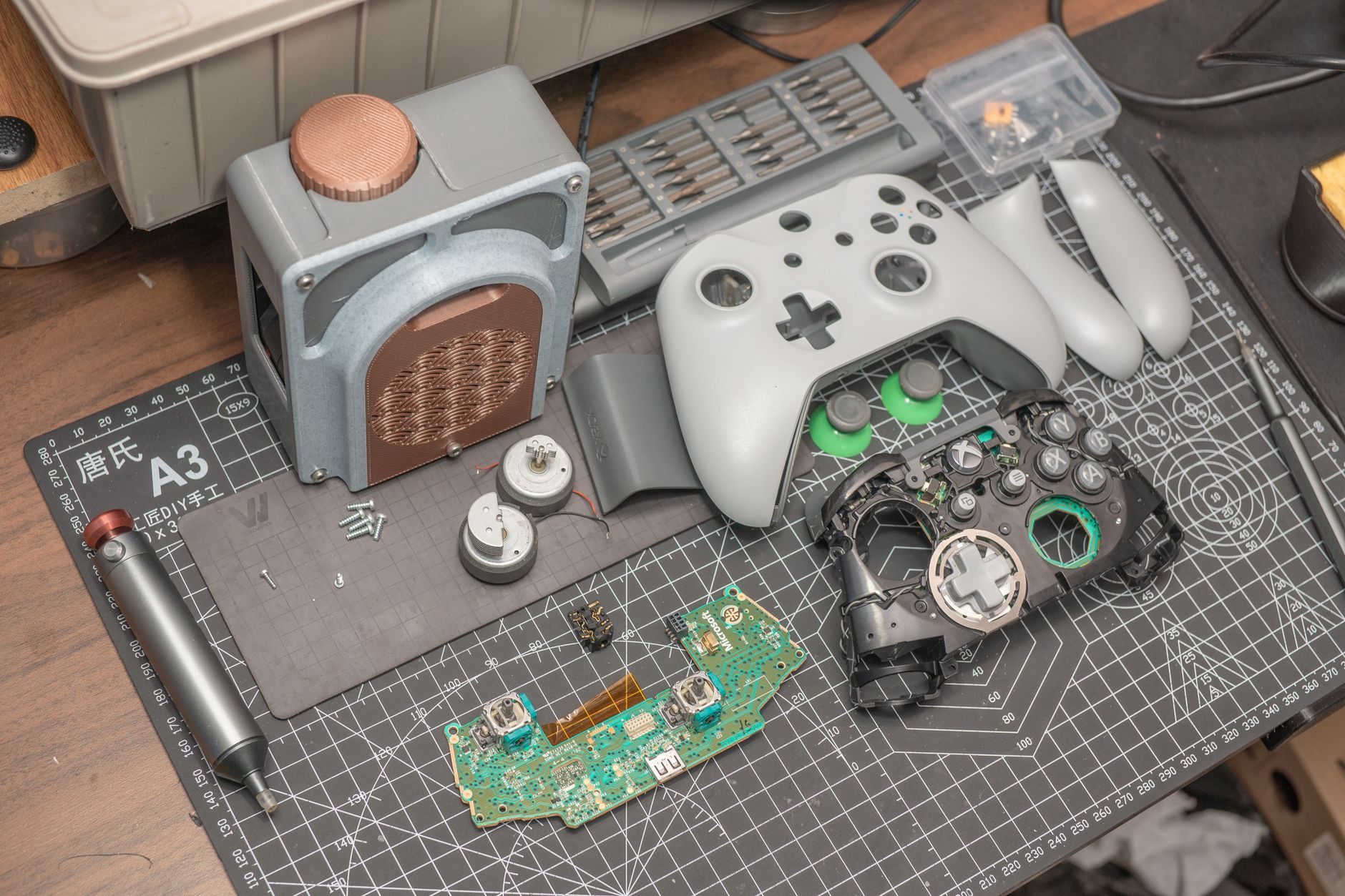
Stick drift is a common issue faced by gamers using the PS5 controller, the DualSense. It refers to the unintended movement of the on-screen character or cursor caused by the analog sticks registering movement even when they are not being touched. This issue can interrupt gameplay and can be frustrating to resolve without the right information.
Fortunately, there are several ways to address stick drift, ranging from software adjustments to hardware solutions. This guide will walk you through these approaches, ensuring your PS5 experience can return to a smooth and enjoyable state.
How to Fix PS5 Stick Drift?
To fix PS5 stick drift, you can start with settings adjustments in your console, then move on to cleaning the controller and, if necessary, performing a more intensive repair. Understanding these methods can help you mitigate or entirely eliminate stick drift issues.
Understanding Stick Drift
Before diving into solutions, it’s important to understand what causes stick drift. Stick drift can occur due to:
- Accumulation of dust and debris around the analog sticks.
- Wear and tear on the internal components of the controller.
- Software issues, including calibration errors.
Knowing these causes will help you address the problem more effectively, either through simple cleaning or by seeking professional repair if necessary.
Common Symptoms of Stick Drift
Recognizing the symptoms of stick drift can help in identifying the exact issue with your PS5 controller. Some common symptoms include:
- Your character moves in a certain direction without any input.
- The camera pans even when you are not touching the stick.
- The cursor moves on its own in menu and gameplay.
Step-by-Step Solutions for Fixing Stick Drift
1. Adjusting Dead Zones in PS5 Settings
One of the first steps you can take to address stick drift is to adjust the dead zone settings in the PS5 configuration. A dead zone is the area around the center of the stick where input is ignored, allowing for slight imperfections in center alignment without causing movement.
- Turn on your PS5 and navigate to the settings.
- Select “Accessories” from the settings menu.
- Choose “Controllers” and then select “Controller Settings.”
- Look for the “Dead Zone” settings and adjust them. Increasing the dead zone may reduce the effects of stick drift.
This adjustment allows you to find a balance that minimizes unwanted movement without hindering gameplay responsiveness. Start with a small increase and test it in a game to see if the drifting remains. Check with multiple games to ensure it works universally.
2. Cleaning the Controller
If adjusting the dead zone doesn’t resolve the issue, it may be time to clean the controller, especially around the analog sticks. Dust, dirt, and grime can interfere with the mechanics inside the controller, leading to stick drift. Here’s how to clean it effectively:
- Turn off your PS5 and disconnect the controller from any power source.
- Use a microfiber cloth to wipe the controller’s exterior.
- For deeper cleaning, moisten a cotton swab with isopropyl alcohol and gently clean around the base of the analog sticks.
- Move the sticks around while cleaning to get into the crevices.
- Allow the controller to dry completely before reconnecting.
This thorough cleaning can help clear out any debris that may be interfering with proper functionality and might resolve the drift issue.
3. Resetting the Controller
If cleaning does not help, another potential solution is to reset the controller. This can help resolve any temporary glitches that might be causing the stick drift.
- Turn the controller over to reveal the small reset button located at the back near the L2 shoulder button.
- Using a pin or paperclip, press and hold this button for about five seconds.
- Reconnect the controller to the PS5 with a USB cable and power it on.
After resetting, you may need to reconfigure your settings. Check to see if stick drift persists after this reset.
4. Updating Controller Firmware
Sometimes the issue may stem from outdated software. Updating your controller’s firmware can help fix bugs and improve performance.
- Connect your DualSense controller to the PS5 using a USB cable.
- Go to “Settings” and select “Accessories.”
- Choose “Controllers” and look for the option to check for firmware updates.
- If an update is available, follow the prompts to install it.
Keeping your controller updated ensures that performance problems are minimized, reducing the likelihood of stick drift due to software errors.
5. Inspecting Hardware and Connecting to a PC for Diagnostics
If problems persist after undertaking these software-based solutions, physical hardware inspection is the next step. You can check if there’s any visible damage to the controller.
Additionally, you may connect your controller to a PC to further diagnose the issue. Using software like DS4Windows can help you analyze the controller’s input and see if the analog sticks are sending unexpected signals.
6. Performing a Quality Firmware Reset (If Needed)
As a more advanced step, you can perform a full firmware reset on the controller. This option should be considered if all other methods fail.
- Connect your controller to a PC and download the appropriate software for firmware updates.
- Follow the software instructions to reset the controller back to factory settings.
- Reconnect it to your PS5 and reconfigure as needed.
7. Seeking Professional Help
After following all these steps, if the controller still shows signs of stick drift, it may be time to seek professional help. Consult Sony or a specialized repair center. Hardware issues such as worn-out analog sticks or internal damage may require replacing certain components.
Prevention Tips
To avoid experiencing stick drift in the future, consider these preventive measures:
- Store your controller in a clean, dust-free environment.
- Avoid using the controller while eating or with greasy hands.
- Regularly clean your controller to prevent debris buildup.
- Be gentle with the analog sticks to extend their lifespan.
Conclusion
Stick drift on your PS5 controller can be an annoying hurdle to overcome, but with the right steps, it can often be resolved without too much effort. Begin by adjusting your settings, cleaning the controller, resetting it, or updating the firmware. If none of these solutions work, consider examining the hardware or seeking professional help. By taking preventive measures, you can extend the life of your controller and enjoy a smoother gaming experience.
For more tech guides and troubleshooting tips, check out our pages on fixing printer issues or learning how to factory reset a MacBook at How to Fix Printer Offline and How to Factory Reset MacBook.