
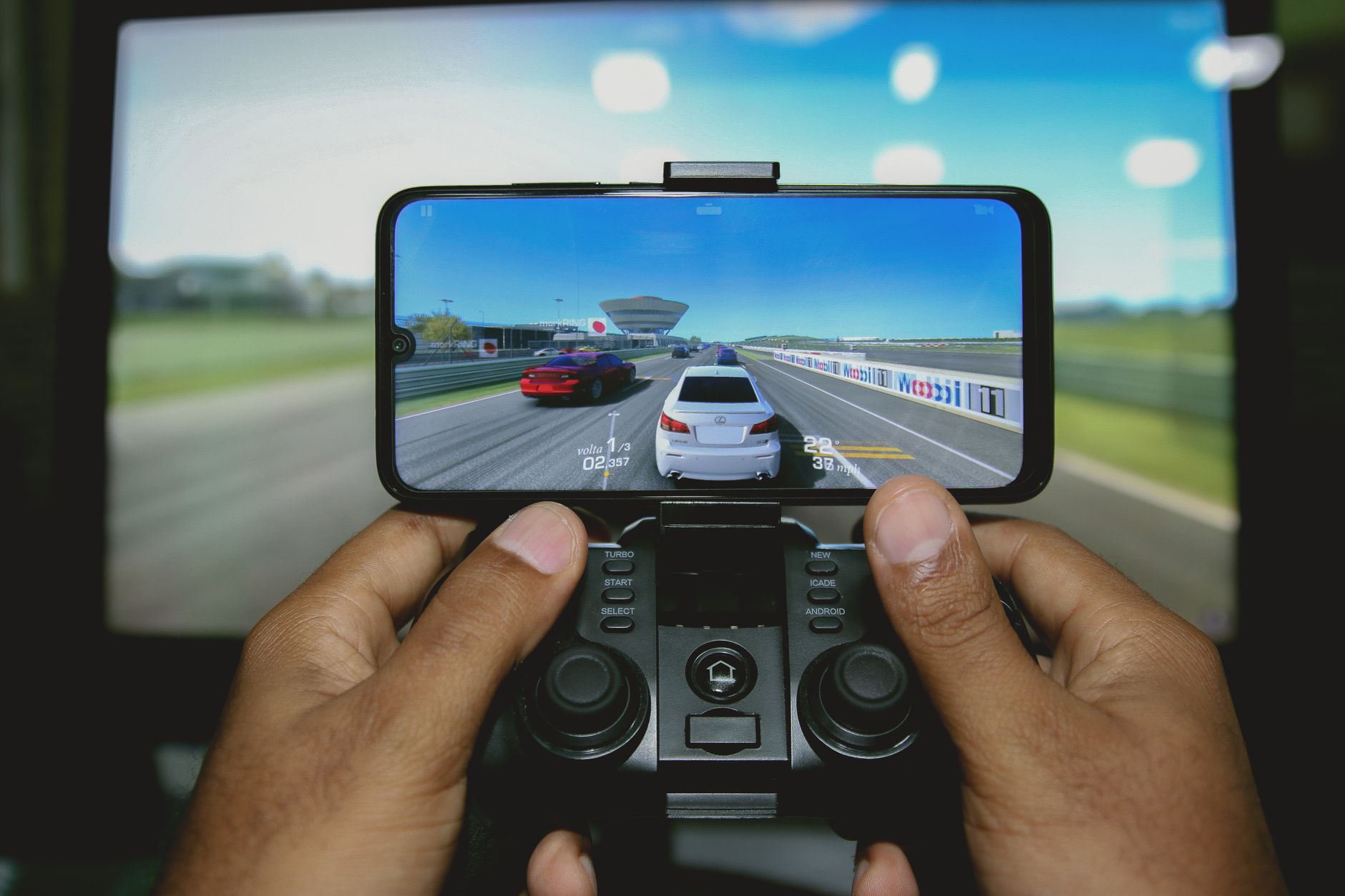
As mobile gaming continues to rise in popularity, many gamers find themselves wanting to enhance their gaming experience by utilizing a game controller. A common choice is the PlayStation 5 (PS5) DualSense controller, which can be easily connected to smartphones. In this guide, we will explore how to connect a PS5 controller to your phone, including the setup process and troubleshooting common issues.
Whether you want to play mobile games with better precision or enjoy game streaming services on your phone, connecting a PS5 controller can significantly improve your experience. This guide covers details for connecting the controller to both Android and iOS devices and addresses potential issues that may arise during the process.
How to Connect PS5 Controller to Phone?
To connect a PS5 controller to your phone, you need to follow some straightforward steps. The process varies slightly depending on whether you are using an Android or iOS device. Below are the detailed steps for both platforms.
Prerequisites for Connecting Your PS5 Controller
- PS5 DualSense Controller
- Smartphone (Android or iOS)
- Latest software update for your smartphone
- Bluetooth connectivity on your smartphone
Connecting the PS5 Controller to an Android Phone
Connecting your PS5 controller to an Android phone is a relatively easy process. Follow these steps to get started:
-
Put your PS5 controller in pairing mode.
To do this, press and hold thePSbutton and theCreatebutton (the small button located to the left of the touchpad) until the light bar starts flashing. This indicates that the controller is in pairing mode. -
Open Bluetooth settings on your Android phone.
Swipe down from the top of your screen to access the notification panel and tap on the gear icon to enter Settings. Navigate toConnectionsorBluetooth, depending on your device. -
Turn on Bluetooth.
Ensure that the Bluetooth toggle is set to “On.” Your phone will start scanning for nearby devices. -
Select the PS5 controller from the list of available devices.
Look for “Wireless Controller” or “DualSense Wireless Controller” in the list of available devices and tap on it. -
Confirm pairing.
Once you select the controller, your phone may prompt you to confirm the pairing. If prompted, tap “Pair.” The light bar on the controller should stop flashing and remain steady, indicating a successful connection.
Connecting the PS5 Controller to an iPhone
The process for connecting a PS5 controller to an iPhone is similar to that of an Android device. Follow these steps:
-
Enter pairing mode on your PS5 controller.
As with the Android process, hold down thePSbutton and theCreatebutton until the light bar starts blinking. -
Open Bluetooth settings on your iPhone.
Go toSettingsand then tap onBluetooth. Make sure Bluetooth is turned on. -
Locate the PS5 controller.
Under “Other Devices,” you should see “DualSense Wireless Controller” appear. Tap on it. -
Confirm pairing.
Once you tap on the controller, it will connect, and you should see it listed under “My Devices” as “Connected.”
Common Issues and Troubleshooting Steps
Despite the simplicity of connecting a PS5 controller to your phone, various issues can arise. Here are some common problems and solutions to help you troubleshoot effectively:
Controller Not Pairing
If your controller is not pairing with the phone, try the following steps:
- Ensure that your controller is charged. A low battery can prevent pairing.
- Double-check that Bluetooth is turned on in your phone’s settings.
- Reset the PS5 controller by using a paperclip to press the reset button located on the back of the controller near the L2 shoulder button.
- Restart your phone and try the pairing process again.
Connection Drops or Lagging
If the connection is dropping or lagging during gameplay, consider the following solutions:
- Ensure there are minimal obstacles between the controller and your phone, as physical barriers can cause connectivity issues.
- Turn off any other Bluetooth devices nearby; they may be causing interference.
- Try disconnecting the controller from other devices it may be connected to and pair it solely with your phone.
Controller Not Responding in Games
Sometimes, the controller may connect but not function properly in gaming apps. Here’s what you can do:
- Check if the game supports external controllers. Not all mobile games are compatible with gamepads.
- Try restarting the game after connecting the controller.
- Look for specific control settings in the game to see if you need to enable controller support manually.
Controller Stopping Responding
If your PS5 controller suddenly stops responding while connected to your phone:
- Unplug any USB devices connected to your phone, as they may interfere with Bluetooth connectivity.
- Turn off the Bluetooth connection on your phone, wait a few seconds, and reconnect.
- Check if any software updates are available for your phone that could improve compatibility with Bluetooth devices.
Alternative Ways to Play Mobile Games
Although using a PS5 controller can enhance the mobile gaming experience, there are other options that cater to different preferences:
- Gamepads for Mobile Devices: Many third-party gamepads are designed specifically for mobile use and may provide a more tailored experience.
- On-Screen Controls: Some games offer custom on-screen controls that can be optimized for touchscreens, providing a more immersive feel.
- Mouse and Keyboard: Certain mobile games support mouse and keyboard, giving players another avenue for control, particularly with Android devices.
Conclusion
Connecting your PS5 controller to your phone can offer a superior gaming experience, whether you’re playing on Android or iOS. Follow the steps outlined above to set it up and troubleshoot common issues you may encounter. By optimizing your controller setup, you can transform your smartphone into a more capable gaming device that enhances your overall enjoyment.
For more detailed guides, feel free to explore related topics on our site: Connect PS5 Controller to iPhone and Fix Stick Drift on PS5 Controller for further troubleshooting tips and tricks.