
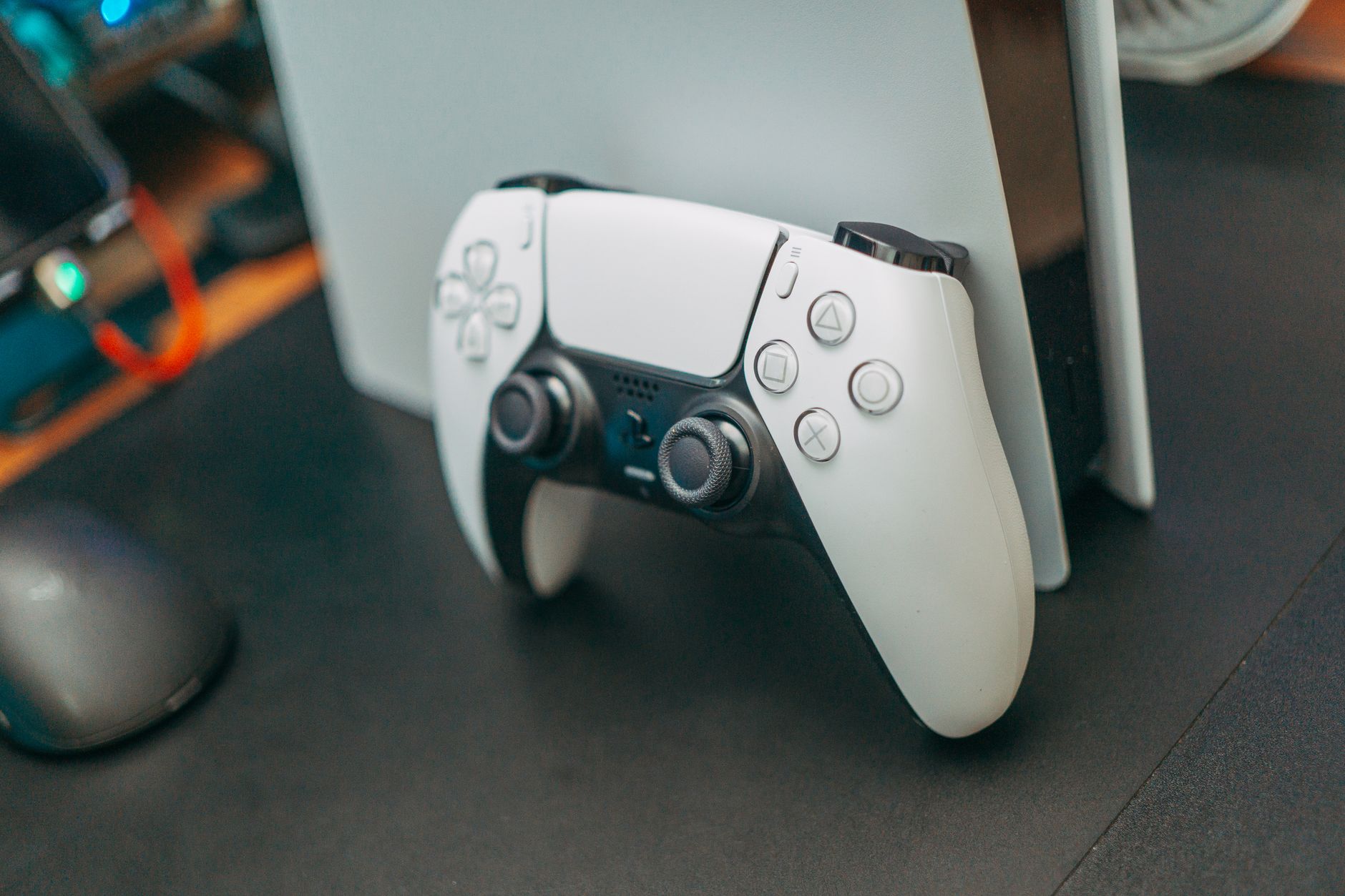
Connecting a PS5 controller to an iPhone can enhance your gaming experience, allowing you to enjoy console-like control over mobile games. This guide will walk you through the process of pairing your PS5 DualSense controller with your iPhone, as well as troubleshooting common issues that might arise during setup.
Before diving into the steps, it’s important to ensure that your iPhone supports this feature. Apple introduced support for Bluetooth controllers in iOS 14.5 and higher, so an update is essential if you’re running an older version. Following this, we’ll clarify compatibility, necessary prerequisites, and provide troubleshooting tips if you encounter any issues.
How to Connect PS5 Controller to iPhone?
To connect a PS5 controller to your iPhone, you will need to follow a series of straightforward steps. The entire process can be accomplished in a matter of minutes if you have everything ready.
- Update Your iPhone: Ensure your iPhone is running at least iOS 14.5 or later. To check for updates, go to
Settings>General>Software Update. If an update is available, download and install it before proceeding. - Enable Bluetooth on Your iPhone: Go to
Settings>Bluetoothand toggle the Bluetooth switch to the “on” position. Your iPhone will start searching for available devices. - Prepare Your PS5 Controller: If your PS5 controller is currently connected to another device, disconnect it. Next, make sure the controller is turned off. To turn it on, press and hold the
PSbutton (the PlayStation logo) until the light bar starts flashing, indicating it is in pairing mode. - Pair the Controller: On your iPhone, under the
Bluetoothsection, you should see a device labeled “DualSense Wireless Controller” or something similar appear in the list. Tap on that to pair the controller with your iPhone. - Confirm the Connection: Once connected, you will see the controller appear under “My Devices” in the Bluetooth settings, and the light bar on the controller will stop flashing and stay illuminated.
Gameplay Compatibility and Supported Games
Once your PS5 controller is connected to your iPhone, you might wonder which games support this feature. Many popular iOS games have been updated to allow controller support, including:
- Fortnite
- Call of Duty: Mobile
- Grand Theft Auto: San Andreas
- Dead Cells
- Brawlhalla
- Geometry Dash
When playing, you can check in the game settings if controller support is available. Games that allow controller input usually provide in-game options to customize your controls.
Troubleshooting Common Issues
While connecting a PS5 controller to an iPhone is generally a smooth process, issues may arise. Below are some common problems and their solutions.
Controller Not Appearing in Bluetooth Settings
If your PS5 controller does not show up when searching for devices, try the following:
- Ensure that the controller is in pairing mode. Press and hold the
PSbutton for a few seconds until you see the light bar flashing. - Restart your iPhone and try again. Sometimes, a simple reboot can resolve connectivity issues.
- Reset the PS5 controller. To do this, locate the small reset button on the back of the controller, press it using a paper clip or similar object, and then repeat the pairing steps.
Controller Keeps Disconnecting
If your controller is frequently disconnecting, consider the following:
- Ensure that there’s no interference from other Bluetooth devices nearby. Try moving away from other devices.
- Check if the controller’s battery is low. Charge it using a USB cable, and then attempt to reconnect.
- If the problem persists, try forgetting the controller from your iPhone’s Bluetooth settings and re-pair it following the initial connection steps.
Button Mappings Not Working Correctly
In some cases, the button mappings may not work as expected. To fix this issue:
- Close the game and restart it to see if the controller inputs are recognized correctly.
- Check the in-game settings for controller configurations. Some games allow you to customize button mappings for better ergonomics.
- If the issue continues, disconnect and reconnect the controller to refresh the connection.
Benefits of Using a PS5 Controller on Your iPhone
Utilizing a PS5 controller for gaming on your iPhone comes with multiple advantages:
- Enhanced Control: The button layout, triggers, and thumbsticks on the DualSense controller provide a superior gaming experience compared to touch controls.
- Ergonomics: The design of the PS5 controller can reduce strain during long gaming sessions compared to touchscreen inputs.
- Compatibility: Many modern iOS games and apps are optimized for controller use, making gameplay smoother and more enjoyable.
Considerations and Limitations
While using a PS5 controller on your iPhone can enhance gaming, there are some considerations and potential limitations:
- Limited Game Support: Not all games support controller input, so it’s essential to verify whether a specific game has this feature.
- Battery Life: While using the controller, remember that it will consume battery power. Ensure that both the controller and your iPhone have sufficient battery to avoid interruptions.
- Unauthorized Use: Some games might restrict or ban users for using unauthorized controllers. Always check game rules and community guidelines.
Alternative Controllers for iPhone
If you find that the PS5 controller might not be to your liking, consider these alternative controllers that are compatible with iOS:
- Xbox Wireless Controller
- SteelSeries Nimbus+ Wireless Gaming Controller
- Razer Kishi (Game Controller for iPhone)
- GameSir X2 Mobile Game Controller
Each alternative controller will also have its unique set of features, so consider your gaming preferences and what type would fit your style best.
Maintaining Good Connectivity
To ensure your PS5 controller continues to connect smoothly to your iPhone, consider following these best practices:
- Regularly check for software updates for both your iPhone and your PS5 controller.
- Clear any paired devices you no longer use in the Bluetooth settings of your iPhone to reduce clutter.
- Charge your controller after use to ensure it’s ready to go when you need it.
Final Thoughts
Connecting a PS5 controller to your iPhone can significantly elevate your mobile gaming experience. Whether you are playing for a few minutes or hours, the tactile feedback and ergonomics of the DualSense controller provide a level of comfort and precision that touch controls cannot match.
If you encounter any connection issues, remember to refer to the troubleshooting steps mentioned. By following this guide, you can enjoy high-quality gameplay on your iPhone with minimal hassle. Take the plunge, and enjoy your gaming sessions!
If you’re interested in further enhancing your gaming fundamentals, explore topics such as fixing stick drift in PS5 controllers or learn how to connect a PS4 controller to your PC.