
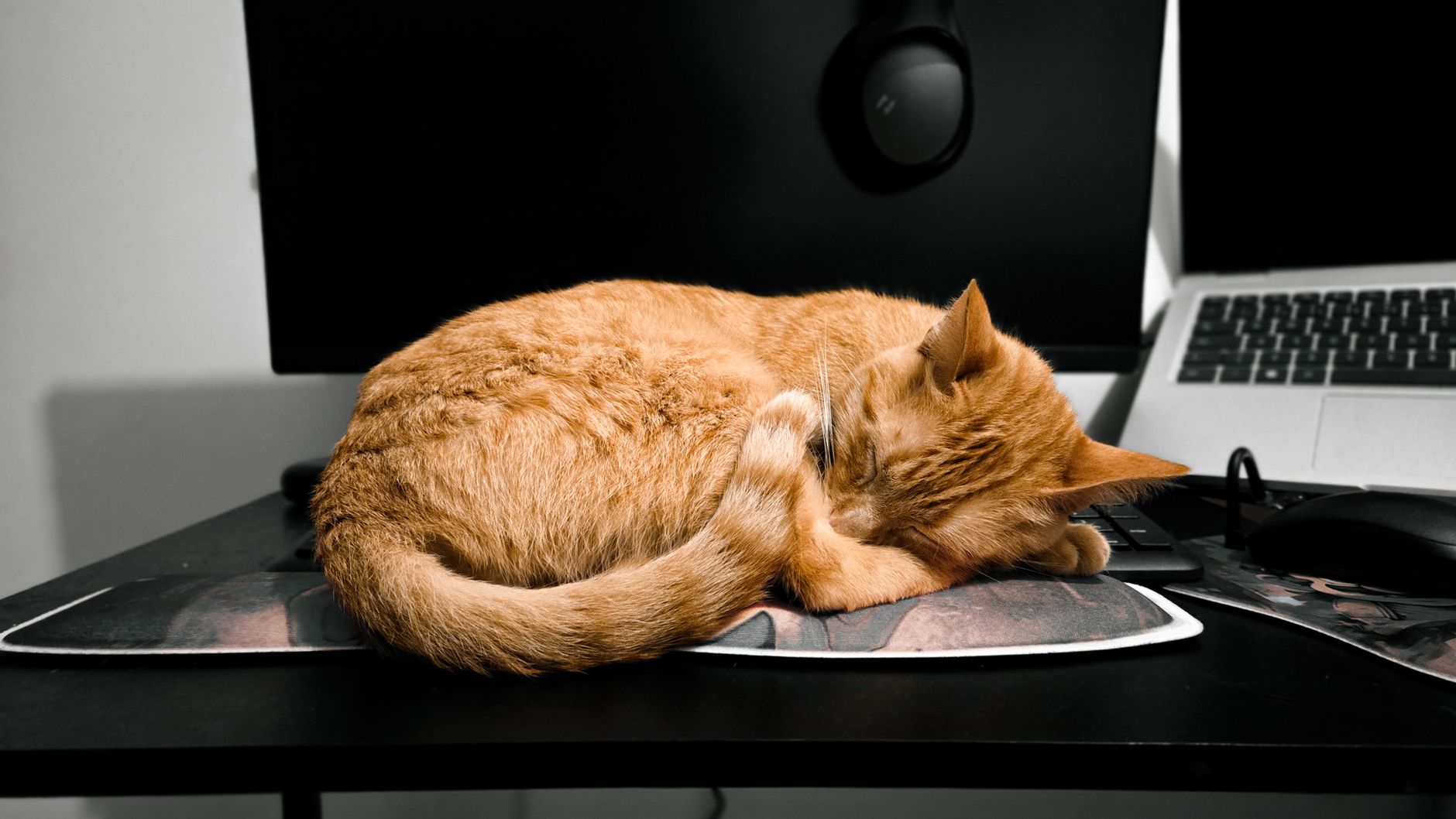
Mousepads are often overlooked when cleaning a workspace. A dirty mousepad can harbor dust, oils, and bacteria, which may negatively affect your mouse’s performance and even your health. Regular maintenance will prolong the life of your mousepad and preserve optimal functionality.
This article will guide you through the comprehensive steps to effectively clean different types of mousepads, ensuring they remain hygienic and in great condition. Let’s dive into the various cleaning methods suitable for fabric, plastic, and gaming mousepads.
How to Clean a Mousepad?
Cleaning a mousepad involves choosing the right cleaning solution, gathering the necessary tools, and following specific steps based on the type of mousepad you have. Here’s how to do it effectively in a few easy steps.
Why Clean Your Mousepad Regularly?
Regular cleaning of your mousepad offers several benefits:
- Improved Performance: Dust and debris can affect the responsiveness of your mouse, impacting your accuracy and workflow.
- Hygiene: Dead skin cells, oils, and bacteria can accumulate, leading to potential health risks.
- Durability: Regular cleaning can extend the lifespan of your mousepad, preventing premature wear and tear.
- Aesthetic Appeal: A clean mousepad enhances the overall look of your workstation, making it more inviting and tidy.
What You Will Need
Before getting started, gather the following cleaning supplies:
- Warm water
- Dish soap or mild detergent
- Microfiber cloth or sponge
- Soft brush (like a toothbrush)
- Towel for drying
- Dish basin or sink (for submerging)
- Optional: Isopropyl alcohol for deep cleaning
Types of Mousepads and Cleaning Methods
Mousepads come in various materials, and the cleaning method can differ slightly based on these materials. Below are detailed cleaning steps for fabric, plastic, and gaming mousepads.
1. Cleaning Fabric Mousepads
Fabric mousepads can absorb spills and dirt more than other types, making them prone to stains. Here’s how to clean one:
- Check the Manufacturer’s Instructions: Before cleaning, check for any specific washing instructions from the manufacturer.
- Prepare the Cleaning Solution: Mix a few drops of dish soap in warm water.
- Submerge the Mousepad: Place the mousepad in a sink or dish basin filled with the soapy water.
- Scrub Gently: Use a microfiber cloth or sponge to gently scrub the surface of the mousepad in circular motions, paying extra attention to any stained areas. For deeper cleaning, use a soft-bristled brush to get into the fibers.
- Rinse Thoroughly: Once clean, rinse the mousepad under running water until no soap remains.
- Dry the Mousepad: Lay the mousepad flat on a towel and press gently to absorb excess water. Avoid wringing or folding it. Allow it to air dry completely before using it again.
2. Cleaning Plastic Mousepads
Plastic mousepads are generally easier to clean compared to fabric mousepads. Follow these steps:
- Wipe Off Debris: Before washing, shake off any loose debris and dust from the surface.
- Prepare the Cleaning Solution: Mix warm water with a mild detergent in a bowl.
- Wipe the Surface: Dip a microfiber cloth or sponge into the soapy water and wipe down the mousepad’s surface thoroughly.
- Focus on Stains: For stubborn stains, use a soft brush or your fingers to gently scrub directly on the spot.
- Rinse with Water: Rinse the mousepad under warm running water to remove soap residue.
- Dry Completely: Wipe it down with a dry towel or allow it to air dry completely before usage.
3. Cleaning Gaming Mousepads
Gaming mousepads often feature a unique surface designed for optimal tracking. Cleaning them carefully is essential:
- Check Guidelines: Once again, verify if there are specific cleaning guidelines from the manufacturer of the gaming mousepad.
- Prepare Cleaning Solution: Create a solution of warm water and a small amount of non-abrasive soap.
- Dampen a Cloth or Sponge: Moisten a microfiber cloth or sponge with the soapy water; avoid soaking it.
- Wipe Down the Surface: Gently wipe the surface to remove dirt and oils. Be careful not to scrub too hard to preserve the mousepad’s surface texture and performance.
- Rinse Off Residue: Using a clean damp cloth, wipe the mousepad again to ensure no soap residue remains.
- Dry: Lay the mousepad flat, ensuring it’s completely dry before using it again.
Additional Tips for Maintaining Your Mousepad
After cleaning your mousepad, consider these additional tips for ongoing maintenance:
- Regular Cleaning: Clean your mousepad every few weeks to keep it in optimal condition, especially if used frequently.
- Keep it Dry: Avoid placing wet drinks or items near your mousepad to reduce the chances of spills.
- Avoid Direct Sunlight: Prolonged exposure to sunlight can cause fading or warping of some materials.
- Store Properly: When not in use, store your mousepad flat to maintain its shape and surface integrity.
- Use a Desk Mat: Consider placing a desk mat underneath your mousepad for added protection against dirt.
Common Errors and Mistakes to Avoid
While cleaning your mousepad, avoid these common errors to ensure the best results:
- Using Harsh Chemicals: Avoid bleach or strong solvents, as they can damage the material.
- Scrubbing Too Hard: Excessive scrubbing can wear down the surface, especially on fabric mousepads.
- Not Rinsing Enough: Failing to remove soap thoroughly can leave a film that may reduce mouse sensitivity.
- Skipping Drying Time: Using a damp mousepad can cause your mouse to malfunction or sticky spots from moisture.
- Using Excessive Water: For fabric mousepads, excessive water can lead to warping after drying.
Conclusion
Cleaning your mousepad is a straightforward process that greatly improves the efficiency and hygiene of your workstation. With the right tools and methods, you can maintain your mousepad’s performance and longevity, making it a crucial component of your tech setup.
As a next step, refer to other practical tutorials on how to keep your tech workspace tidy, such as cleaning keyboard keys or cleaning your computer screen.