
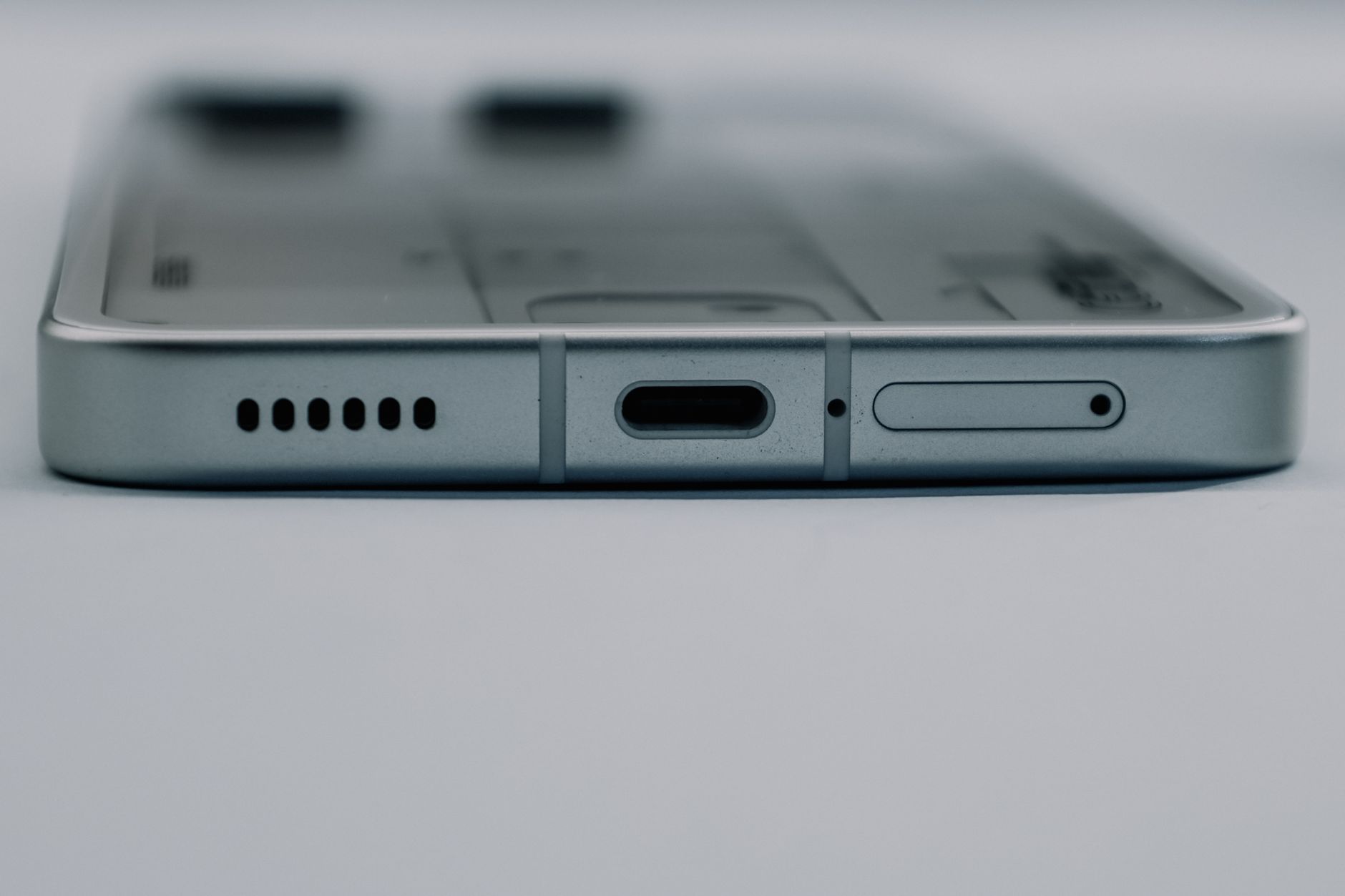
Cleaning the iPhone speaker is an essential yet often overlooked maintenance task that can improve sound quality and optimize overall device performance. Dust, lint, and moisture can accumulate in the speaker grill, muffling audio output and affecting calls and media playback.
This guide will provide a detailed overview of how to safely and effectively clean your iPhone speaker, highlighting the tools and steps required for optimal results. By following these instructions, you can extend the lifespan of your device while ensuring clear sound quality.
How to Clean iPhone Speaker?
To clean your iPhone speaker safely, you’ll need to gather the right tools and follow a series of clear steps. This process involves removing dirt and debris without damaging the speaker components. Here’s a straightforward approach to get started.
What You’ll Need
- Soft, lint-free cloth
- Compressed air canister (optional)
- Toothbrush with soft bristles
- Isopropyl alcohol (optional)
- Small, wooden or plastic stick (like a toothpick or Q-tip)
Preparation Steps
Before starting the cleaning process, it’s essential to prepare your iPhone to prevent accidental damage.
- Power Off Your iPhone: Always turn off your device before cleaning to avoid accidental touches and possible damage.
- Remove Accessories: If your phone has a case or external accessories, take them off for easier access to the speaker.
- Inspect the Speaker: Use a flashlight to get a good look at the speaker area. Note the condition and any visible buildup of dust or debris.
Cleaning Steps
Step 1: Use a Soft Cloth
Start by using a soft, lint-free cloth to gently wipe the speaker area. This helps remove surface dust without scratching your device.
Step 2: Utilize Compressed Air
If the initial wipe doesn’t clear all the debris, using compressed air can be effective. Hold the canister about 6 inches away from the speaker grill and use short bursts to blow out dust particles.
Step 3: Brush with a Toothbrush
A soft-bristled toothbrush can be very helpful in loosening any stubborn particles stuck within the speaker grill. Gently brush around the speaker, ensuring no bristles break off into the speaker.
Step 4: Deep Cleaning with a Stick or Q-tip
If particles remain lodged in the speaker, you may opt for a small stick or Q-tip. Gently probe around the edges of the speaker to dislodge any trapped debris. Avoid inserting the stick too deeply.
Step 5: Alcohol Wipe (Optional)
If your speaker area appears sticky or has remaining grime, use a Q-tip lightly dipped in isopropyl alcohol to clean it. Ensure the Q-tip is not dripping; excess moisture can damage electronic components. Wipe carefully around the edges.
Step 6: Final Wipe
Conclude the cleaning process with another soft cloth wipe to remove any residue left from the cleaning process.
Common Issues and Troubleshooting
While cleaning your iPhone speaker, you might encounter a few common issues. Here are solutions for each:
- Low Sound Quality: If you notice your audio is still muffled after cleaning, check for updates to your iOS software. Also, confirm if there are any audio driver issues.
- Speaker Not Working: This could be due to internal damage. If the speaker does not function correctly despite cleaning, seek professional help as internal components may need replacement.
- Excessive Dust Build-up: If you regularly find significant dust accumulation, consider using a phone case that covers the speaker area to help minimize further exposure.
Maintenance Tips
To keep your iPhone speaker clean and functional, consider these preventative measures:
- Regular Cleaning: Incorporate a regular cleaning schedule for your iPhone speaker, especially if you’re in a dusty environment.
- Use a Case: A good quality case can protect the speaker from dust and moisture.
- Avoid Excessive Moisture: Try to keep your phone away from wet surfaces or environments to prevent damage from water.
Software Considerations
Occasionally, issues with sound quality may stem from software conflicts rather than hardware obstructions. Keep the following in mind:
- Ensure your iPhone is updated with the latest iOS. Updates often include bug fixes that can improve sound performance.
- Check your audio setting preferences, specifically volume controls, accessibility settings, and whether features like Mono Audio are turned on.
- Consider performing a software reset if problems persist, which can fix sound-related issues. However, back up your data before performing resets.
When to Seek Professional Help
If you have performed regular cleanings and the speaker issues persist, it may be time to seek professional assistance:
- If your iPhone speaker has internal damage or requires replacement.
- When other components (like microphones) also malfunction, suggesting systemic issues.
- If your device is still under warranty, getting it checked by an Apple technician can save you expenses.
Summary
Maintaining a clean iPhone speaker is crucial for optimal audio quality and device longevity. By using simple tools and following the detailed steps laid out in this article, you can ensure your device remains clear and functional.
Your next steps should involve gathering your tools and performing the cleaning process outlined above. If you consistently clean but still face issues, consider seeking expert advice. For additional tech guidance, feel free to explore other articles on cleaning tech devices, such as how to clean your PS5 or how to clean your MacBook screen.