
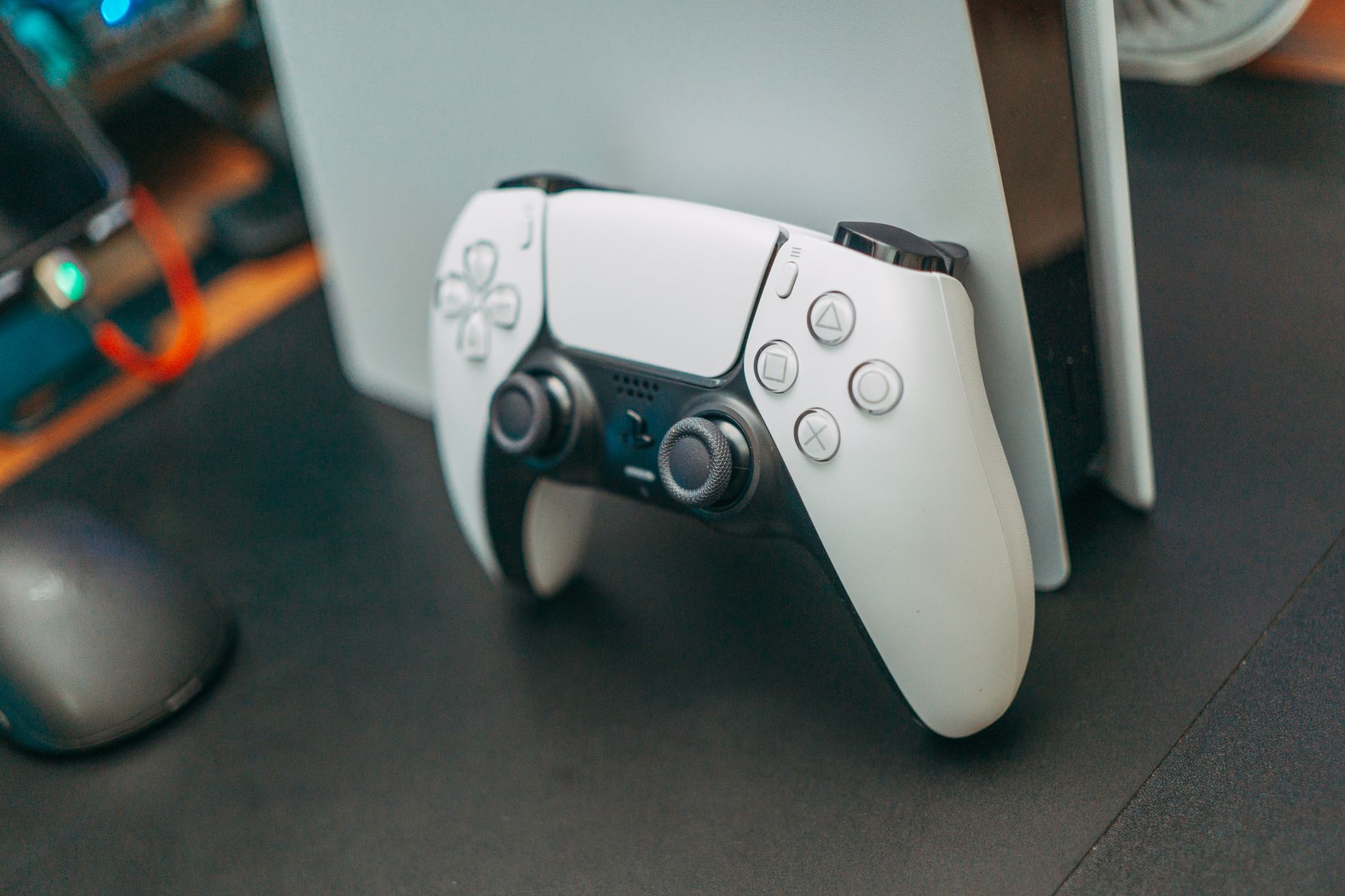
PlayStation 5 (PS5) enthusiasts often wonder if they can use their old PlayStation 4 (PS4) controllers with the new console. The good news is that connecting a PS4 controller to a PS5 is not only possible but also quite simple. This guide aims to provide you with the necessary steps, including troubleshooting and fixes, to seamlessly integrate your PS4 controller with your PS5.
By the end of this article, you will be equipped with the knowledge you need, whether you’re looking to use the PS4 controller for specific games or simply as a convenient backup. Let’s dive into the setup process and explore some common issues you might encounter.
How to Connect PS4 Controller to PS5?
To connect a PS4 controller to a PS5, follow these steps:
- Ensure your PS5 is powered on and ready for setup.
- Connect your PS4 controller to the PS5 using a USB cable.
- Press the PS button on the PS4 controller to pair it with the console.
- Verify the connection by checking the controller’s functionality within the PS5 menu.
Once you have successfully connected the controller, you may use it for PS4 games on the PS5. However, be aware that the PS4 controller cannot be used for PS5 titles as they are optimized for the DualSense controller.
Prerequisites for Connecting PS4 Controller to PS5
- A working PlayStation 5 console.
- A functional PlayStation 4 controller.
- A USB cable for connection.
Step-by-Step Instructions to Connect Your PS4 Controller
Using a USB Cable
The simplest method of connecting your PS4 controller to your PS5 is by using a USB cable. Here’s how you can do it:
- Locate a USB-A to USB-C cable. This cable usually comes with your PS4 or you can purchase it separately.
- Plug the USB-A end into the PS4 controller and the USB-C end into one of the available USB ports on the PS5.
- Press the PS button (the round button in the center of the controller) to power it on.
- Your PS4 controller will automatically pair with the PS5 once it’s powered on. The light bar should be illuminated, indicating an established connection.
Using Bluetooth (If Necessary)
If you prefer using Bluetooth, the process may be slightly different since you’ll need to initially connect via a wired connection before switching to Bluetooth. Follow these steps:
- Connect the PS4 controller to the PS5 with the USB cable as described above.
- Once connected, navigate to the “Settings” menu on your PS5 by selecting the gear icon.
- Select “Accessories,” then navigate to “Controllers” settings.
- Find the option to disconnect the USB connection and then choose “Bluetooth” to set up a wireless connection.
- Unplug the USB cable once the wireless connection is established. You can now use the PS4 controller wirelessly.
Verifying the Connection
Once you’ve connected your PS4 controller, it’s essential to confirm that it is functioning properly.
- Go to the home screen of your PS5.
- Navigate through the menu using the controller to verify that all buttons are functioning correctly.
- You can also test by launching a PS4 game on the PS5. The PS4 controller should be fully compatible with these titles.
Common Issues and Troubleshooting
Like any tech setup, you may encounter some issues while connecting your PS4 controller to the PS5. Below are some common problems and their solutions.
Controller Not Connecting
If your PS4 controller fails to connect, try these troubleshooting steps:
- Make sure the PS4 controller is charged. A low battery may prevent it from connecting.
- Restart your PS5 console and try re-establishing the connection.
- Check the USB cable for faults. Using a different cable may help.
- Reset the PS4 controller. Locate the small reset button on the back of the controller, use a pin or similar object to press it, and then attempt reconnection.
Intermittent Connection Issues
If the connection seems unstable or intermittent, consider these options:
- Ensure that there are no other wireless devices nearby that could interfere with the Bluetooth signal.
- Update your PS5 system software to the latest version, which may fix underlying connection issues.
- Reset both the PS4 controller and the console as a last resort.
Controller Lag or Slow Response
If you experience lag when using your PS4 controller on the PS5, try the following:
- Reduce the distance between the controller and the console.
- Disconnect any other Bluetooth devices that may be consuming bandwidth.
- Reset the PS4 controller, as mentioned earlier.
Alternatives to Using a PS4 Controller on PS5
While connecting a PS4 controller to a PS5 is straightforward, you may want to consider other options:
- Upgrade to the DualSense controller for an enhanced gaming experience with features like haptic feedback and adaptive triggers.
- Explore third-party controllers that are explicitly designed for the PS5.
- Utilize remote play features on other devices instead of connecting additional controllers directly.
Conclusion
Connecting a PS4 controller to your PS5 can enhance your gaming experience, especially if you’re transitioning from the older console. The simple steps outlined in this guide will allow you to connect your controller successfully and troubleshoot common issues. Whether you use it as a primary controller or a backup, having a PS4 controller at your disposal can be quite useful.
For your next steps, consider exploring related tech tutorials or guides such as connecting your PS4 controller to a PC or learning how to reset your PS5 controller.