
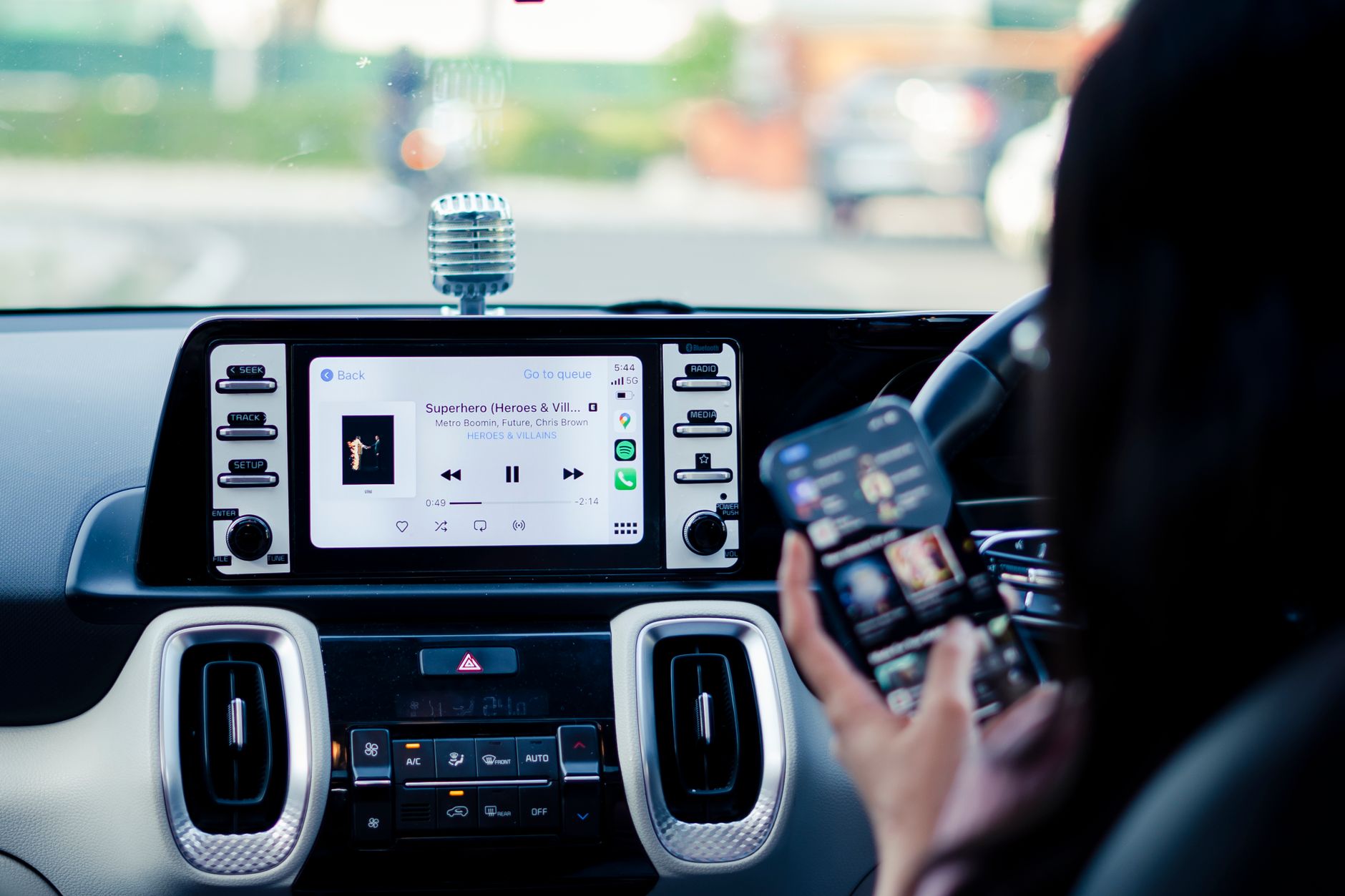
Disconnecting CarPlay can be a crucial step for various reasons, whether you’re troubleshooting a connection issue, preparing to sell your vehicle, or simply wanting to revert to your phone’s basic functions. This guide provides detailed instructions on how to easily disconnect CarPlay from your vehicle.
We’ll cover methods for both wired and wireless connections, tackling various devices and troubleshooting strategies. Whether you’re using an iPhone 8 or the latest model, you’ll find the necessary steps to disconnect seamlessly.
How to Disconnect CarPlay?
To disconnect CarPlay, you can either unplug your iPhone from the USB port in the car for a wired connection or disable it through the iPhone’s settings for a wireless connection. It’s essential to follow the specific steps based on your current setup.
Understanding CarPlay Connections
Before delving into the disconnect process, it’s vital to understand how CarPlay functions. CarPlay allows your iPhone to integrate with your car’s multimedia system, providing features like navigation, messaging, and music playback.
There are typically two types of connections:
- Wired Connection: Achieved by connecting your iPhone to the car using a USB cable. This connection typically charges the phone while utilizing CarPlay features.
- Wireless Connection: Involves Bluetooth and Wi-Fi technology to create a connection without the need for a physical cable.
Prerequisites for Disconnecting CarPlay
Before you begin, make sure you have the following:
- An iPhone compatible with CarPlay (iPhone 5 or newer).
- A vehicle that supports Apple CarPlay.
Disconnecting Wired CarPlay
If you are using a wired connection, follow these steps:
- Locate the USB cable connected to your vehicle’s USB port.
- Unplug the cable from either your iPhone or the vehicle’s USB port.
- Confirm that existing CarPlay features are no longer accessible on your vehicle’s dashboard.
By disconnecting the cable, CarPlay will cease to function until the iPhone is reconnected. This method is straightforward—however, if you experience issues where the connection persists even after unplugging, additional steps may be needed.
Disconnecting Wireless CarPlay
If your CarPlay setup is wireless, you’ll need to disable the connection through your iPhone’s settings. Here’s how:
- On your iPhone, open the Settings app.
- Select General.
- Scroll down and tap on CarPlay.
- You will see a list of vehicles connected. Tap on your vehicle’s name.
- Select Forget This Car.
This action disconnects your iPhone from the vehicle entirely. To reconnect, you will need to go through the setup process again.
Troubleshooting Common Issues
Sometimes, disconnecting CarPlay may not yield the desired result, or you may encounter some issues. Below are common issues and their respective fixes.
Issue 1: CarPlay automatically reconnects
If CarPlay automatically reconnects after you’ve unplugged or forgotten the connection, it could be due to Bluetooth settings.
- Go to the Settings app on your iPhone.
- Tap on Bluetooth.
- Find your car’s device name and tap the i icon next to it.
- Select Forget This Device. This action removes its access entirely.
Issue 2: Unable to access CarPlay settings
If you’re unable to reach the CarPlay settings, your vehicle’s connectivity may have glitches.
- Restart both your iPhone and the vehicle’s infotainment system.
- Ensure that your phone’s software is updated to the latest version.
How to Disable CarPlay from the Car’s Settings
Some vehicles have their own settings for CarPlay that can be adjusted directly from the car’s infotainment system. Here’s how to do it:
- Access your vehicle’s main menu on the dashboard display.
- Look for a section labeled Settings or Connectivity.
- Select Apple CarPlay or a similar option.
- Choose the option to disable or remove CarPlay.
Restoring CarPlay After Disconnecting
If you wish to restore the CarPlay connection after disconnecting, the process is quite simple. For a wired connection, simply reconnect the USB cable. For a wireless version:
- Make sure Bluetooth is enabled on your iPhone.
- Start your car and ensure that the infotainment system is on.
- From your iPhone, go to Settings, tap on General, and then CarPlay.
- Choose your vehicle’s name from the list and follow the prompts to reestablish the connection.
Alternatives to CarPlay
Sometimes, you might want options other than CarPlay. Consider the following alternatives:
- Android Auto: For Android users, Android Auto provides similar functionality.
- MirrorLink: Some vehicles support MirrorLink, which displays your smartphone’s interface on the car’s screen.
- Bluetooth Streaming: Instead of using CarPlay, you can stream audio directly through Bluetooth without the additional apps.
Privacy Considerations
When using CarPlay, certain privacy considerations are vital. The device might access sensitive information such as contacts, messages, or location. To enhance your privacy:
- Limit the permissions you provide to CarPlay in the app settings.
- Consider using the “Do Not Disturb” feature while driving to avoid distractions.
Conclusion
Disconnecting CarPlay is a straightforward process, whether you’re using a wired or wireless setup. Should any issues arise, a few troubleshooting steps can typically resolve them. Remember to check your vehicle’s and iPhone’s compatibility and settings for any necessary adjustments.
For more information, you may want to explore how to turn off CarPlay completely or gain a deeper understanding of what Apple CarPlay is.
For additional tech tutorials and guides, check out the following links: how to turn off CarPlay and what is Apple CarPlay?.