
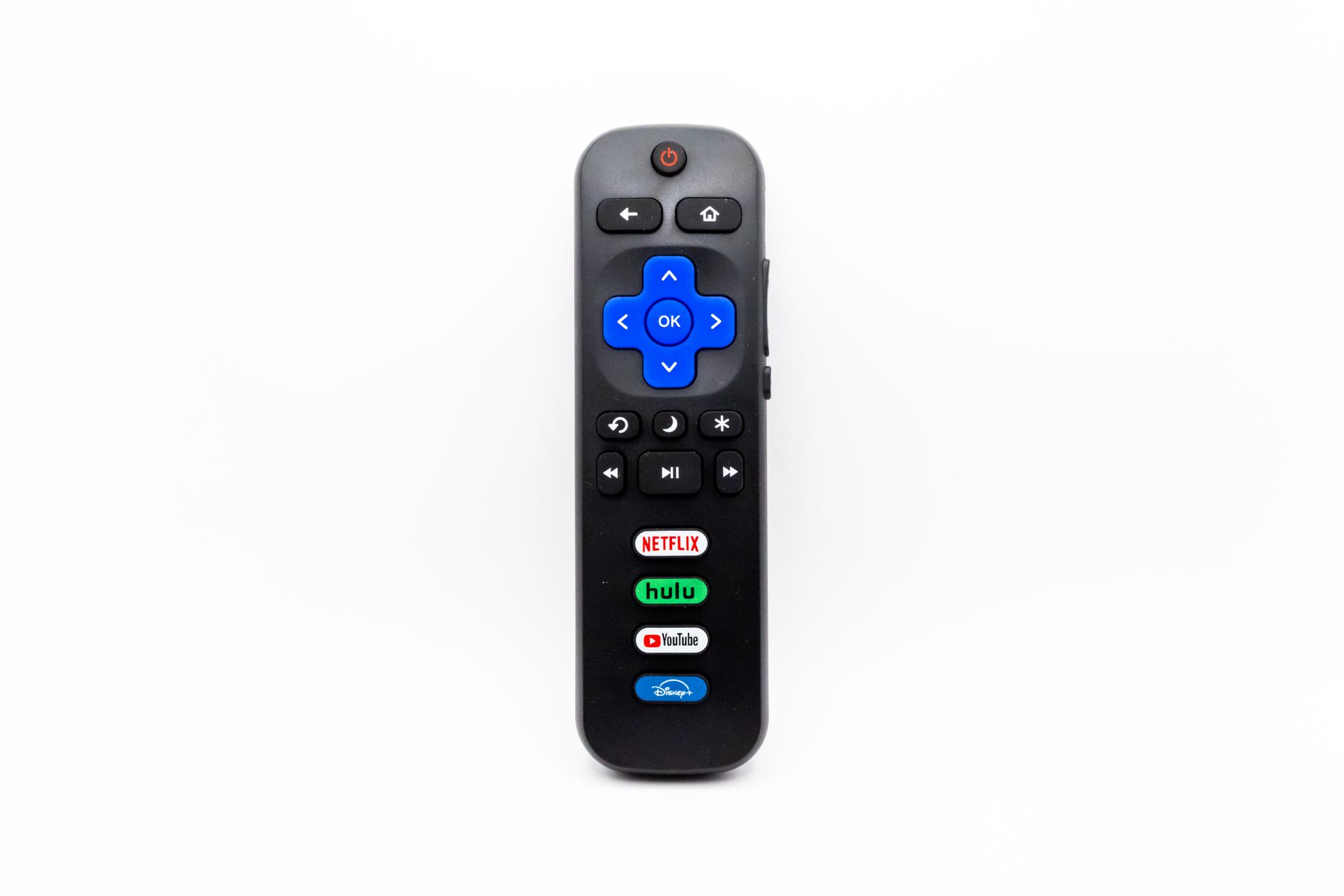
Programming your Xfinity remote is essential for controlling your television and other devices seamlessly. Whether you have a standard remote or a voice remote, the programming process can enable you to operate multiple devices with just one remote. This guide covers everything you need to know about programming your Xfinity remote, including step-by-step instructions and troubleshooting tips.
By following the instructions in this article, you will learn how to set up your remote for TV, audio equipment, and streaming devices. Not only will you streamline your TV experience, but you will also gain the ability to switch between devices effortlessly.
What is an Xfinity Remote and Why Program It?
The Xfinity remote control is designed to make watching TV easier and more convenient. It typically allows you to control your cable box, television, and other components like sound systems from a single remote. Programming your Xfinity remote means syncing it with the devices you want to control so that you can execute commands without needing multiple remotes.
There are several types of Xfinity remotes, including:
- Xfinity Standard Remote
- Xfinity Voice Remote
- Xfinity XR11 Voice Remote
Each type has its method for programming, and knowing how to set them up is crucial for an optimal viewing experience.
Prerequisites for Programming Your Xfinity Remote
Before you begin programming your Xfinity remote, make sure you have:
- Your Xfinity remote and the devices you wish to control.
- Access to your television and cable box.
- Patience, as the process may take some trial and error.
How to Program Your Xfinity Remote for TV
Here’s a step-by-step guide to programming your Xfinity remote to work with your television. These steps apply to the standard Xfinity remote and the voice remote:
- Turn on your television.
- Press the
TVbutton on your Xfinity remote (the button should illuminate). - Press and hold the
Setupbutton until the TV button blinks twice and then remains on. - Enter the code for your television brand. You can find this in the user manual or on the Xfinity website. After entering the code, the TV button should blink twice.
- Test the volume and power buttons to confirm the remote controls your TV. If it doesn’t work, repeat the above steps using the next code for your brand.
How to Program Your Xfinity Remote for Audio Devices
If you have an audio device that you wish to control with your Xfinity remote, such as a soundbar or home theater system, follow these steps:
- Turn on your audio device.
- Press the
AUDbutton on your Xfinity remote (the button should illuminate). - Press and hold the
Setupbutton until the AUD button blinks twice and remains on. - Enter the code for your audio device brand. Similar to programming the TV, this code can be found in the manual or on the Xfinity website.
- Test the volume and mute buttons to ensure that the remote is controlling your audio device. If not, repeat the steps with the next code.
How to Program Your Xfinity Voice Remote
Programming the Xfinity Voice Remote (also known as the XR11 remote) is slightly different due to its voice functionality. Here’s how to set it up:
- Turn on your television and, if applicable, your cable box.
- Press and hold the
Microphonebutton (often represented by a microphone icon) until you see a prompt on the screen. - Follow the on-screen instructions to complete the pairing process. This usually involves pressing the
Xfinitybutton and following the prompts. - Try out the voice commands for searching and control to ensure it works correctly.
Using the Code Search Method for Device Programming
If you don’t have the specific codes for your devices, you can use the code search method to program your Xfinity remote:
- Turn on the device you want to program (TV, audio device, etc.).
- Press and hold the
Setupbutton until the appropriate button (TV or AUD) blinks twice. - Press and release the button you want to program (TV or AUD); the button will blink and remain on.
- Press and release the
Channel Upbutton repeatedly until the device turns off. This may take some time, as you will cycle through the codes. - Once the device turns off, press the
Enterbutton to store the code. The button should blink twice to confirm.
Common Programming Errors and Troubleshooting Tips
Even with straightforward instructions, issues may arise. Here are some common errors and troubleshooting tips:
Remote Won’t Control the Device
If your remote isn’t controlling the device, consider the following:
- Confirm that the device is turned on.
- Ensure that the correct device is selected on the remote (TV or AUD).
- Repeat the programming steps, making sure to enter the correct code.
- Replace the batteries in the remote, as low batteries can affect functionality.
Programming Code Not Found
If the code for your device isn’t listed, you can:
- Use the code search method to find an alternative.
- Check the Xfinity website or user manual for updated codes.
- Contact Xfinity customer support for assistance.
Remote is Unresponsive
If your remote becomes unresponsive or behaves erratically:
- Check the battery power and replace batteries as needed.
- Unpair, then re-pair the remote by following the programming instructions again.
- Reset the remote by pressing and holding the
Setupbutton until the light turns off, then turn it back on.
Alternatives for Device Control
If you’re experiencing continuous issues with your Xfinity remote, consider these alternatives:
- Use the Xfinity Stream app on your mobile device, which offers a remote control feature.
- Purchase a universal remote that is compatible with Xfinity and your other devices.
- Look into smart home devices that can integrate with your Xfinity setup and provide additional control options.
Conclusion
Programming your Xfinity remote can make managing your home entertainment system much simpler. By following the detailed steps provided, you can easily set up your remote to control your television, audio devices, and more. Remember, if you encounter issues, refer to the troubleshooting tips or explore alternative methods for controlling your devices.
For more tech tutorials and guides, consider exploring topics like how to program a Firestick remote or how to reset an Apple TV remote.