
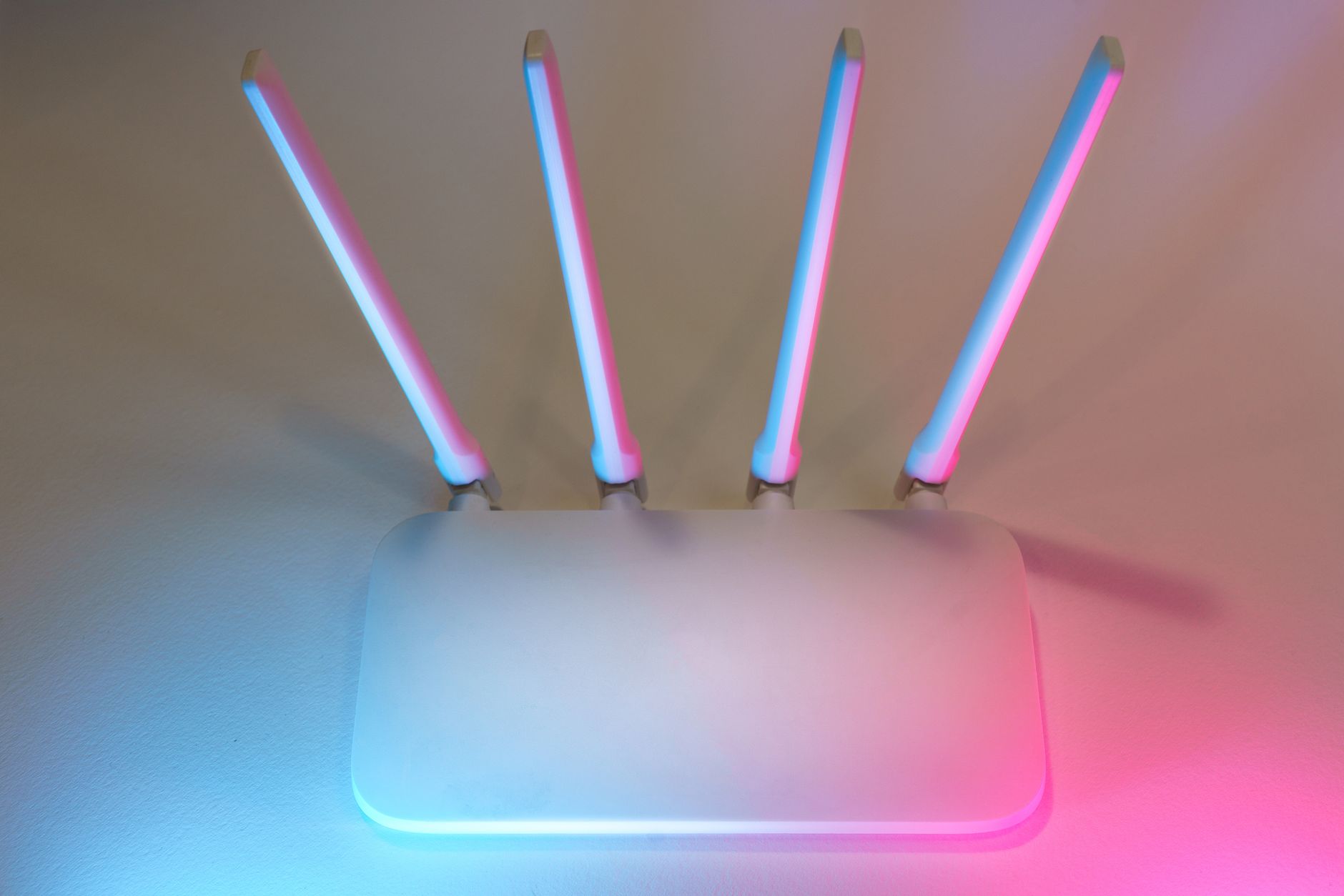
Setting up a router is a fundamental step for establishing a network connection in your home or office. Whether you are connecting multiple devices to the internet, streaming content, or setting up a secure network, knowing how to properly configure your router is crucial. This guide will walk you through the entire process, covering cables, Wi-Fi setup, and essential network security measures.
By the end of this article, you will understand how to physically set up your router, connect it to your internet source, configure Wi-Fi settings, and secure your network against potential threats. Let’s dive into the details of router setup.
How to Set Up a Router?
To set up a router, you need to connect it to your internet source, configure its settings through a web interface, set up Wi-Fi, and secure your network. Following these steps will help you create a reliable and safe network environment.
Prerequisites for Router Setup
Before you begin the setup process, ensure you have the following items:
- A router
- An internet source (cable modem, DSL modem, or fiber optic connection)
- Ethernet cables
- A computer or mobile device
- Access to your internet service provider (ISP) credentials (if necessary)
Step-by-Step Guide to Setting Up Your Router
1. Unbox and Position Your Router
First, unbox your router and identify the different ports, usually found on the back. These include:
- WAN or Internet port (often colored differently)
- LAN ports (usually labeled 1, 2, 3, etc.)
- Power port
Choose a central location in your home or office for the best Wi-Fi coverage. Avoid placing the router inside cabinets or near large metal objects that could interrupt the signal.
2. Connect to Your Internet Source
Take the Ethernet cable and connect one end to your modem and the other end to the WAN port on your router. If you’re using a modem/router combo, you can skip this step as your device will manage both functions.
3. Power On Your Router
Connect the power adapter to your router and then plug it into a power outlet. Wait for a minute or two for the router to boot up completely. The lights should indicate a stable connection when online.
4. Connect to the Router’s Network
Using your computer or mobile device, scan for available wireless networks. You should see a default network name (SSID)—usually the brand name or model of your router. Connect to this network. The default password can be found on a sticker on the router or in the manual.
5. Access the Router’s Web Interface
Open a web browser and enter the router’s IP address into the address bar. Common IP addresses include:
- 192.168.1.1
- 192.168.0.1
- 10.0.0.1
If unsure, consult your router’s manual for the correct address. You will be prompted to enter a username and password. The default values are often “admin/admin” or “admin/password.” It is crucial to change these defaults during the first use to enhance security.
6. Configure Internet Settings
Once logged into the web interface, locate the “Internet Setup” or “WAN Setup” section. Here, you can set up the type of connection based on your ISP:
- Dynamic IP: Automatically receives an IP address from your ISP.
- Static IP: Manually enter an IP address provided by your ISP.
- PPPoE: Requires a username and password provided by your ISP.
After configuring the appropriate settings, save the changes and allow the router to reboot if prompted.
7. Set Up Wi-Fi
Navigate to the “Wireless” or “Wi-Fi Settings” section to configure your wireless network:
- Change the SSID: Personalize your network name for easier identification.
- Set a Strong Password: Use WPA2 or WPA3 security and create a complex password to prevent unauthorized access.
- Enable Guest Networking (optional): This allows guests to connect to the internet without accessing your personal devices.
Once these settings are adjusted, save the changes.
8. Update the Firmware
Check if there are any firmware updates available for your router in the “Administration” or “System Tools” section of the web interface. Keeping the firmware updated helps improve performance and security.
9. Configure Network Security Settings
To enhance your network security, consider the following settings:
- Change the default admin username and password to something unique.
- Disable WPS (Wi-Fi Protected Setup) if not needed, as it can be a security risk.
- Check for intrusion detection settings, and enable any features that can notify you of unauthorized access attempts.
Implementing these security measures will help protect your network from potential threats.
10. Connect Devices to Your Network
Now that your router is set up, you can connect devices using either Wi-Fi or Ethernet. For Wi-Fi, use the SSID and password you configured earlier. For Ethernet, plug one end of the cable into a LAN port on the router and the other end into your device.
11. Test Your Internet Connection
Once all devices are connected, test the internet by opening a web page or running a speed test. If issues arise, double-check all settings and connections. You might also restart the router if necessary.
Common Issues and Troubleshooting
While setting up a router is generally straightforward, you may encounter some common issues. Below are several problems and their potential solutions:
Issue 1: No Internet Connection
If you cannot connect to the internet, check the following:
- Ensure the modem is functioning properly.
- Verify that the WAN cable is securely plugged in.
- Check the internet settings for correct information.
- Reboot the router and modem.
Issue 2: Cannot Access the Router’s Web Interface
If you cannot load the router’s settings page, try:
- Using a different web browser.
- Checking if the device is connected to the router’s network.
- Resetting the router to factory settings (press and hold the reset button for 10-15 seconds). Remember, this will erase all settings).
Issue 3: Weak Wi-Fi Signal
If some areas in your home have a weak signal, try these tips:
- Reposition the router to a more central location.
- Remove obstructions that may block the signal.
- Consider upgrading to higher-gain antennas, or using Wi-Fi extenders.
Best Practices After Setting Up Your Router
Once your router is operational, adopting best practices can enhance your network experience:
- Change your Wi-Fi password regularly, especially if you suspect unauthorized access.
- Regularly check the list of connected devices through the router settings.
- Keep firmware updated to patch security vulnerabilities.
- Consider using a VPN for enhanced privacy while using your network.
Conclusion
Setting up a router involves connecting it to an internet source, configuring the network settings, and securing your connection. By following these steps and best practices, you can establish a robust and secure network suitable for all your browsing and streaming needs.
For further reading, consider exploring topics like what a router is or how to build a PC for more tech insights.