
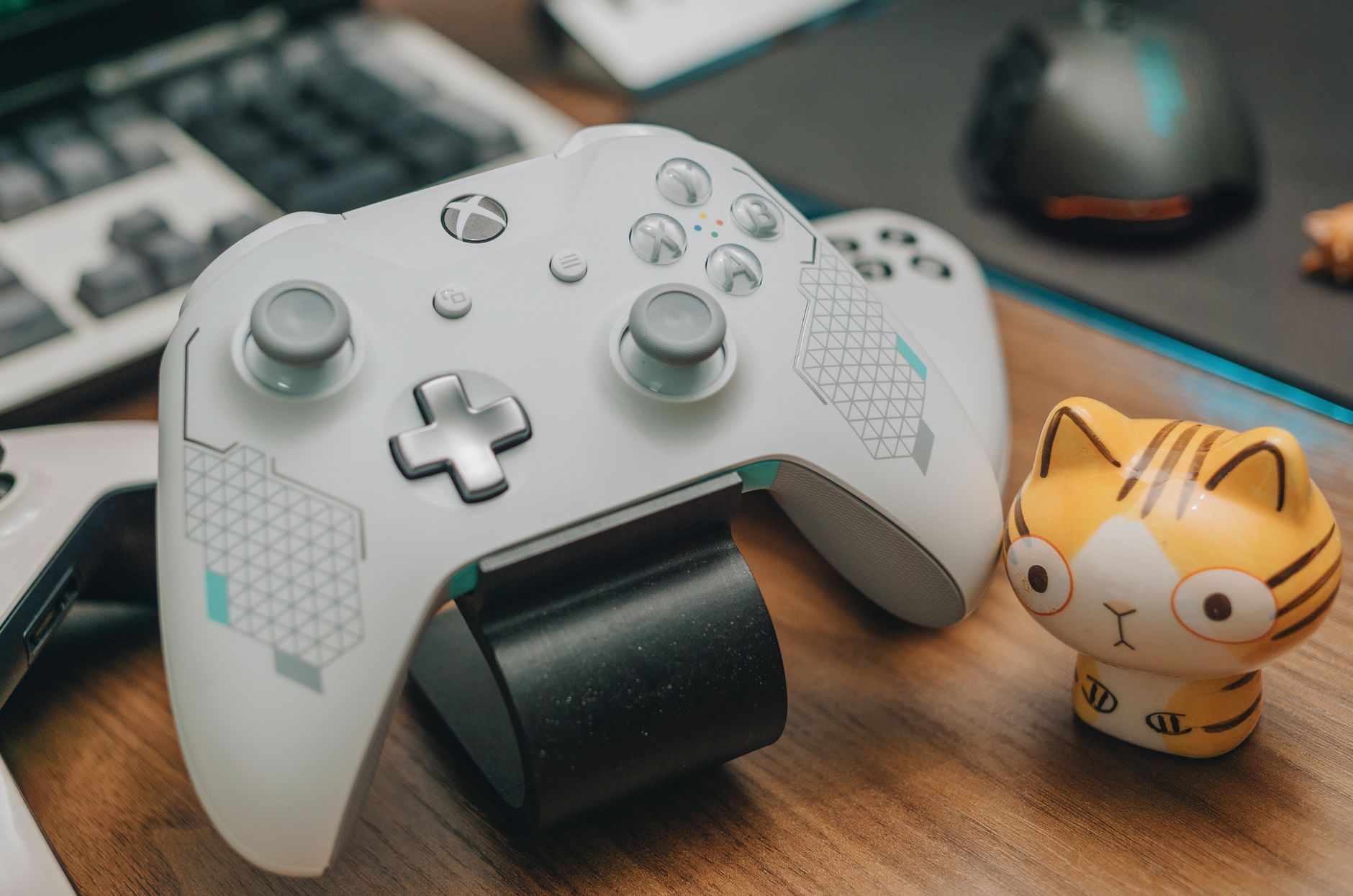
Using a PS5 controller on a PC can enhance your gaming experience by providing a familiar, comfortable grip and responsive controls. Whether you prefer wired or wireless gameplay, connecting a PS5 controller is straightforward and allows you to enjoy a variety of games seamlessly.
This guide covers the steps to use a PS5 controller on your PC, both through a USB cable and via Bluetooth. We’ll also discuss troubleshooting tips and address common issues you may encounter while setting it up.
How to Use a PS5 Controller on PC (USB and Bluetooth)
To connect a PS5 controller to your PC, you can either use a USB cable or Bluetooth. Each method has its benefits, and we’ll explore both options thoroughly.
What You Will Need
- A PlayStation 5 DualSense controller
- A PC with USB ports or Bluetooth capability
- USB-C cable (for wired connection)
- Windows 10 or higher (for compatibility reasons)
- Steam or compatible game software (if applicable)
Connecting Your PS5 Controller via USB
Using a wired connection is the quickest way to get started. Here’s how to do it:
- Take your USB-C cable and connect one end to the PS5 DualSense controller.
- Connect the other end of the USB-C cable to a USB port on your PC.
- Once connected, your PC should automatically recognize the controller. Windows will typically install any necessary drivers.
- To confirm the connection, navigate to
Settings>Devices>Bluetooth & other devices. You should see the controller listed.
At this point, you can start using the controller to play games that support gamepads. Most modern games will automatically recognize the controller and allow you to use it without extra configuration.
Connecting Your PS5 Controller via Bluetooth
If you prefer a wireless experience, you can connect your controller via Bluetooth. Follow these steps:
- First, ensure that your PC has Bluetooth capability. If your PC does not support Bluetooth, you can install a USB Bluetooth adapter.
- On your PS5 controller, press and hold the
PSbutton and theCreatebutton (to the left of the touchpad) simultaneously until the light bar starts to flash. This puts the controller in pairing mode. - On your PC, navigate to
Settings>Devices>Bluetooth & other devices. - Make sure Bluetooth is enabled. Click on
Add Bluetooth or other device, then selectBluetooh. - Your PC will begin searching for devices. When the PS5 controller appears in the list, click on it to pair.
- Once connected, the light bar on the controller will change to a solid color, indicating a successful connection.
Verifying the Connection
To ensure your controller is functioning correctly, you should verify its connection:
- Open the
Settingsapp on your PC. - Select
Devices>Bluetooth & other devices. - Locate your PS5 controller in the list of connected devices. It should show as “Connected.”
You can also test the controller in games or by using software like Steam to check the button inputs.
Using Your PS5 Controller in Steam
Steam has built-in support for PS5 controllers, which some games utilize for enhanced functionality. To configure your controller for use in Steam:
- Open Steam, and go to
Settings. - Select
Controller>General Controller Settings. - Check the box for
PlayStation Configuration Support. - Your PS5 controller should automatically be recognized. You can customize inputs and settings as desired.
It’s important to note that not all games will support the DualSense features but many popular titles do.
Common Issues and Troubleshooting
While connecting a PS5 controller to a PC generally goes smoothly, you may encounter some common issues. Here are some troubleshooting steps:
Controller Not Recognized
If your controller is not recognized, try the following:
- Ensure the controller is charged and properly connected (for USB) or in pairing mode (for Bluetooth).
- Restart your PC and reconnect the controller.
- Update your Bluetooth drivers if using Bluetooth.
Input Lag or Connectivity Issues
Should you experience input lag or connectivity issues, consider these solutions:
- Reduce the distance between your controller and the PC.
- Ensure no other devices are causing interference, such as devices using the same frequency as Bluetooth.
- For wired connections, try a different USB port.
Controller Disconnecting Randomly
Random disconnections can be frustrating. Here are steps to mitigate this issue:
- Make sure your USB cable is fully functional if you’re using a wired connection.
- If using Bluetooth, check the battery level of the controller.
- Update your Windows version, as updates often include improved driver support.
Advanced Features of the PS5 Controller
The PS5 DualSense controller comes with several advanced features that enhance the gaming experience:
- Adaptive Triggers: Provide different levels of resistance depending on the in-game actions, adding a layer of realism.
- Haptic Feedback: Offers a more immersive feel compared to traditional vibration, simulating various environments and actions.
Unfortunately, not all PC games support these features yet, but they might be implemented in upcoming titles or through specific platforms like Steam.
Alternatives to the PS5 Controller
If you find that the PS5 controller does not meet your needs or prefer other options for gameplay, consider these alternatives:
- Xbox Series X Controller: Offers similar compatibility and performance with PCs.
- Steam Controller: Tailored for PC gaming, it has programmable buttons and trackpads.
- Third-party controllers: Many third-party manufacturers create controllers compatible with PC gaming.
Conclusion
Using a PS5 controller on a PC is a straightforward process that can greatly enhance your gaming experience. Whether you connect via USB or Bluetooth, the configuration is user-friendly and generally smooth. Remember to troubleshoot any issues you encounter and explore controller features in supported games to get the most out of your gaming sessions.
If you’re interested in further exploring controller options or need help with other gaming peripherals, check out guides on connecting different controllers, or how to pair your PS5 controller effectively. For more information, visit this link or read this guide for additional assistance.