
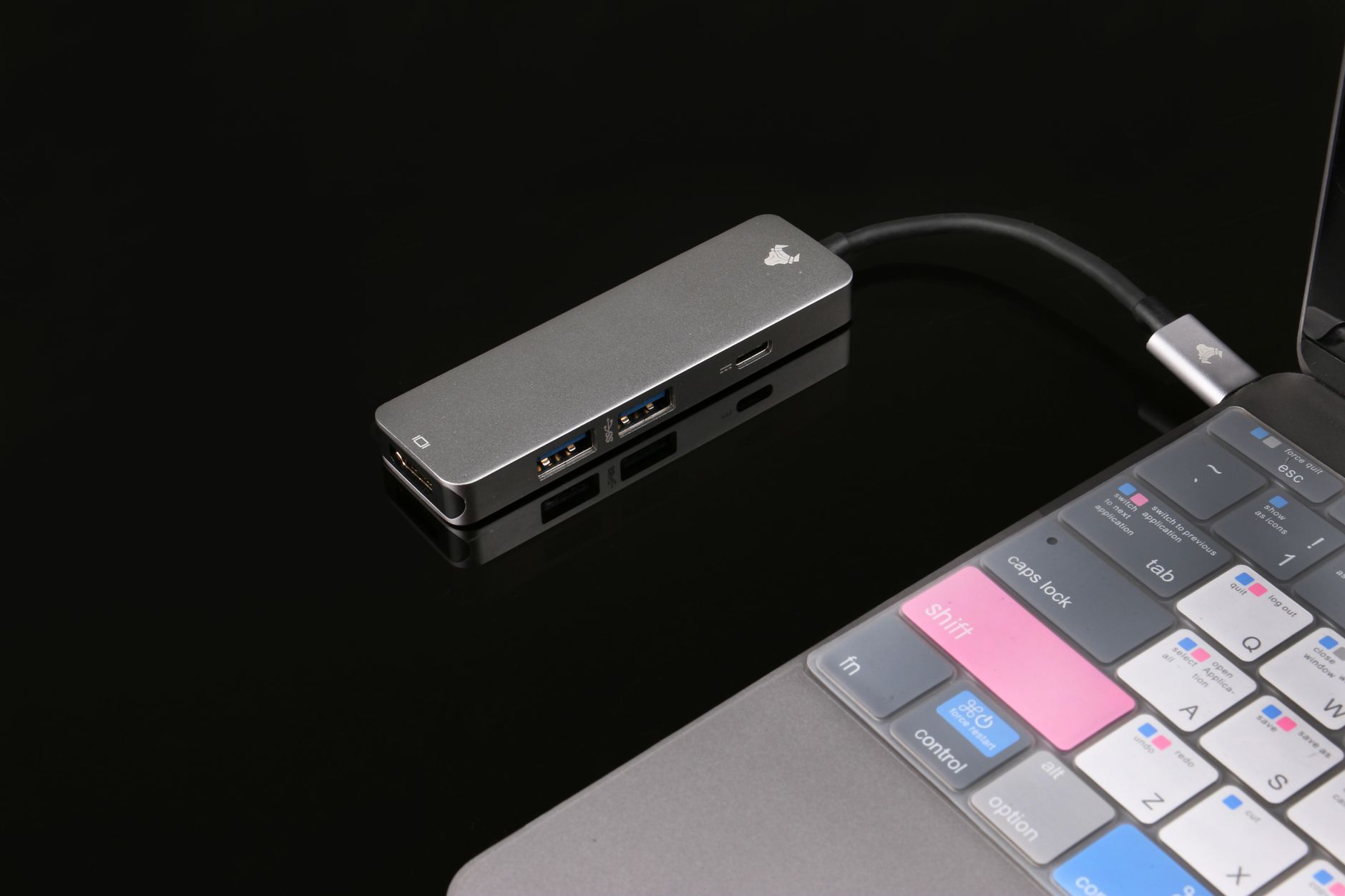
Dongles are small portable devices that connect to computers, tablets, or smartphones to enhance their functionality. They serve various purposes, such as enabling wireless connectivity, providing extra ports, or securing software applications. This article delves into the various types of dongles, their features, and how to set them up effectively.
Understanding what a dongle is and how it works can help you make faster, informed decisions about the tech you use and the add-ons you may need. Whether you’re looking to extend your device’s capabilities or simply connect to a network, there’s a dongle for you.
What Is a Dongle?
A dongle is a hardware device that connects to another device, typically through a USB port, to provide additional functionality. Dongles often serve as security keys, network adapters, or multimedia connectors. They can be stand-alone devices or require some software to work effectively.
Types of Dongles
Dongles can be categorized based on their main functionalities. Here are some common types:
- Network Dongles: These allow for internet connectivity via Wi-Fi, mobile broadband, or Ethernet. They’re useful in situations where built-in connectivity options are unavailable or inadequate.
- USB Dongles: Often used for data transfer or device communication, these dongles can add USB Type-A or Type-C ports to devices without them.
- Audio Dongles: Used to convert audio signals from a device to another format, enabling connections to speakers, headphones, or other audio equipment.
- Security Dongles: These are often used in software licensing or as authentication keys to protect sensitive information.
- Adapter Dongles: Used to convert one type of connection to another, such as HDMI to VGA or USB-C to standard USB.
Features of Dongles
Dongles often come with various features to enhance usability. Some common features include:
- Portability: Dongles are generally small and lightweight, making them easy to carry and plug in whenever needed.
- Plug and Play: Many dongles automatically install themselves when connected, requiring no additional configuration.
- Multi-device Support: Certain dongles can connect multiple devices simultaneously, streamlining functionality.
- Compatibility: Dongles can work across various operating systems and devices, from Windows to macOS, Android to iOS.
- Data Transfer Rate: Network dongles may support high-speed data transfer, ideal for activities that require quick internet access.
How to Set Up a Dongle
Setting up a dongle is typically a straightforward process. Here’s a step-by-step guide to help you get started with a general USB dongle:
- Check Compatibility: Ensure the dongle is compatible with your device’s operating system and hardware requirements.
- Unbox the Dongle: Remove the dongle from its packaging and examine it for any signs of damage.
- Insert the Dongle: Plug the dongle into an available USB port on your device. If it’s a network dongle, confirm the network cable is connected if necessary.
- Install Any Required Software: Some dongles may require specific drivers or applications. If prompted, download the relevant software from the manufacturer’s website or adhere to the installation instructions included with the dongle.
- Connect to a Network (for Network Dongles): If using a network dongle, navigate to your device’s network settings. Search for available networks, and select the one your dongle connects to. Enter any required passwords.
- Test the Connection: Open a web browser or application that utilizes the dongle to confirm it functions correctly.
Troubleshooting Common Dongle Issues
Despite their usability, dongles can encounter issues. Here are solutions for common problems:
- Dongle Not Recognized: Ensure the dongle is properly connected to the device. Try different USB ports or restart your device.
- Software Not Installing: Check that you are using the correct version of the software for your operating system. Ensure your device meets all system requirements.
- Connectivity Issues (for Network Dongles): Check that the network signal is strong and your device’s Wi-Fi is turned on. Reset the dongle and reconnect.
- Slow Data Transfer Rates: Move closer to the signal source and reduce interference. Ensure your connection type supports the speeds you’re aiming for.
Buying Guide for Dongles
Choosing the right dongle can make all the difference in functionality. Here are a few factors to consider when purchasing a dongle:
1. Purpose
Determine what you need the dongle for. Is it to connect to the internet, transfer files, or enhance audio/video features? Focus on dongles that meet your specific requirement.
2. Compatibility
Ensure the dongle is compatible with your devices, operating systems, and any peripheral equipment. Check product documentation for compatibility details.
3. Data Transfer Speeds
Review the data transfer rates supported by the dongle. If you require high-speed internet or extensive audio/video streaming, look for dongles boasting faster standards like USB 3.0.
4. Brand and Reviews
Research reputable brands with solid customer reviews. Look for feedback on performance, durability, and customer service to ensure a good value.
5. Price
Evaluate your budget. While cheaper options exist, they may lack features or reliability. Consider investing in a higher-quality dongle if the need arises, especially for regular or professional use.
Conclusion
Dongles are essential tools that can greatly enhance the functionality of your devices. By understanding the types and features of dongles available, you can make informed purchasing decisions. Whether you are setting up a network connection, requiring additional ports, or securing software, there is likely a dongle suited for your needs.
For further exploration, consider looking at our guides on USB-C connections at What is a USB-C? and networking basics with our article on routers at What is a Router?. These resources can broaden your understanding of connections in the tech world.