
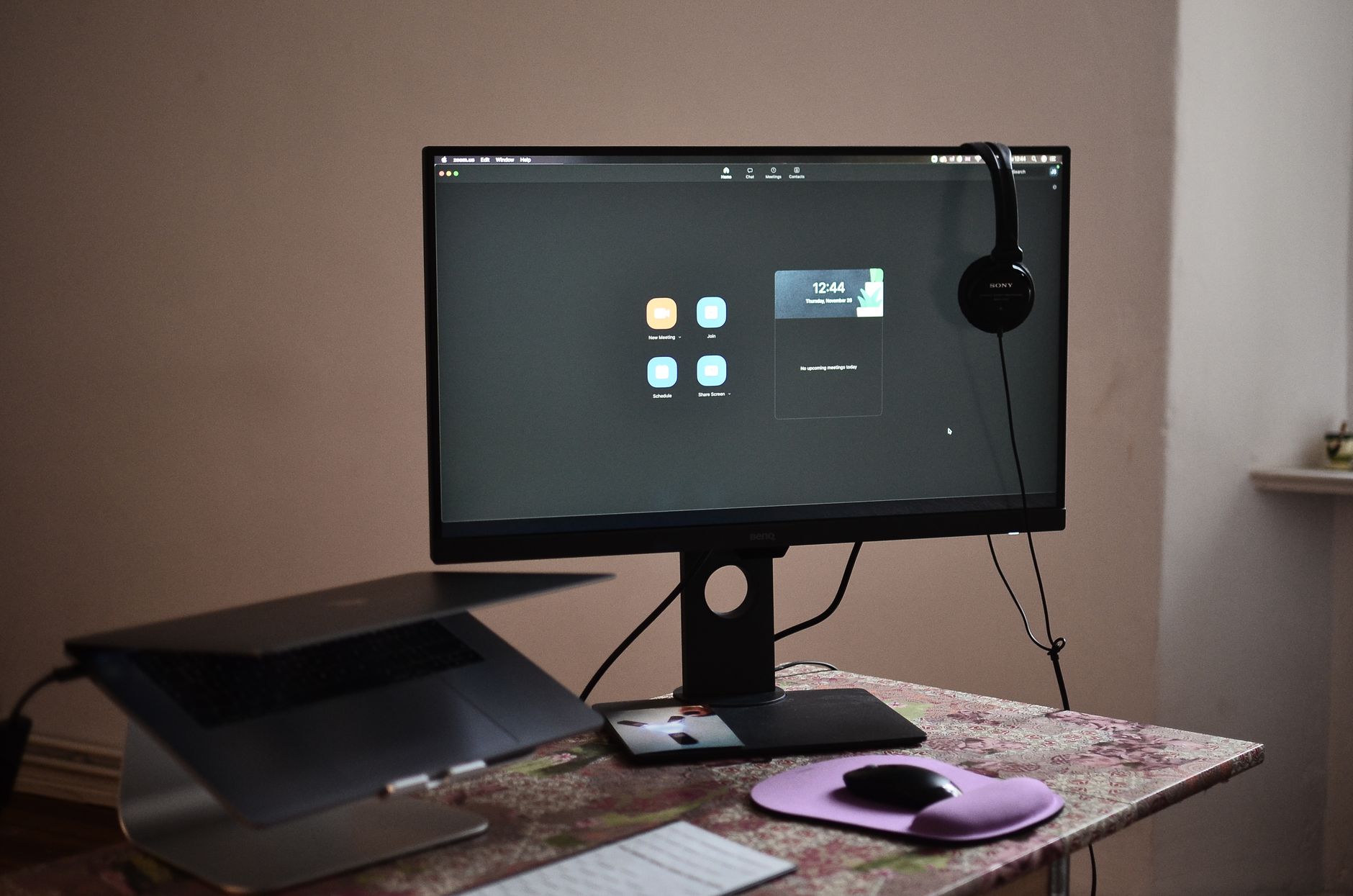
Recording a Zoom meeting can be a valuable tool for both professional and personal uses. Whether you want to capture a conference presentation, share a workshop, or keep notes for later review, knowing how to record a Zoom meeting is essential. This guide will walk you through the steps of recording, discuss permissions, and explain how to save and access your recordings.
In the following sections, we’ll cover the necessary prerequisites, various recording options available depending on your account type, and tips for managing your recorded footage effectively. Let’s get started!
How to Record a Zoom Meeting?
To record a Zoom meeting, you need to ensure you have the necessary permissions, choose your recording method, and configure the recording settings appropriately. Both local and cloud recording methods are available, depending on your Zoom account type.
Prerequisites for Recording Zoom Meetings
Before you start recording, make sure you fulfill the following requirements:
- You need a Zoom account. Free accounts can record locally, while paid accounts can save directly to the cloud.
- Ensure you have the Zoom desktop client or mobile app installed. Make sure it’s updated to the latest version.
- Check your settings to ensure recording is enabled in your account configuration.
- If you are not the host, obtain recording permission from the host before starting.
Types of Zoom Meeting Recordings
There are two primary types of recording options offered by Zoom: local recordings and cloud recordings.
Local Recordings
Local recordings save the recorded meeting files directly to your device. This option is available for free and paid accounts. To enable local recording:
- Sign in to your Zoom account.
- Navigate to “Settings” and locate the “Recording” tab.
- Make sure “Local Recording” is enabled.
- You are now set to record meetings locally on your computer.
Cloud Recordings
Cloud recordings are stored on Zoom’s servers and are accessible via the web. This option is available to Pro, Business, or Enterprise account holders. To enable cloud recording:
- Sign in to your Zoom account.
- Select “Settings” and click on the “Recording” tab.
- Ensure “Cloud Recording” is enabled.
- Choose your preferred settings related to how you want the recording to be saved.
How to Start Recording a Zoom Meeting
Once you have confirmed the prerequisites and chosen the appropriate recording method, follow these steps during a Zoom meeting:
For Local Recording
- Start or join a Zoom meeting.
- When you are ready to record, locate the “Record” button on the toolbar.
- Click “Record” to start the local recording. You will see a small red dot indicator that the recording has begun.
- To stop recording, click the “Stop Recording” button on the toolbar or end the meeting.
- Your recording will be processed and saved to the designated folder on your device.
For Cloud Recording
- Start or join your Zoom meeting.
- Click the “Record” button and choose “Record to the Cloud.”
- A red dot will appear to indicate that the meeting is recording.
- You can stop recording by selecting “Stop Recording” or by ending the meeting.
- Once the meeting ends, the recording will be processed and saved to your Zoom account in the cloud.
Accessing Your Zoom Recordings
After the meeting is over, you will need to access your recordings. Here’s how:
Accessing Local Recordings
- Open the Zoom desktop client.
- Click on “Meetings” and navigate to the “Recorded” tab.
- You will see a list of your recordings. Click on the relevant meeting to view its details.
- From here, you can play the recording or find the folder location on your computer where the files are stored.
Accessing Cloud Recordings
- Log in to your Zoom account at zoom.us.
- Click on “My Account” at the top right corner.
- Select “Recordings” from the left-hand menu.
- You will see all cloud recordings listed by date. Click on the relevant recording to view options including playback, access links, and downloading.
Managing Your Recordings
Once you have recorded your meeting, you may want to manage and organize the recordings for future reference. Here are some tips:
- Label your recordings clearly with descriptive names and dates for easy identification.
- If recording locally, consider creating a dedicated folder on your device for all your Zoom recordings to keep them organized.
- For cloud recordings, Zoom provides options to share links, download files, or even delete any recordings you no longer need.
- Ensure to check the storage limits of your Zoom account plan if you are using cloud storage, as there may be limits based on your subscription.
Permissions and Compliance
Understanding and managing permissions is critical when recording Zoom meetings. It is essential to follow good practices regarding privacy and compliance:
- Always inform participants that the meeting is being recorded. This is not only ethical but may also be legally required depending on your jurisdiction.
- Ensure that you have received consent from all attendees before recording the meeting.
- Be aware of data retention policies relevant to your organization regarding recorded materials.
Troubleshooting Common Recording Issues
Occasionally, you may encounter issues while trying to record a Zoom meeting. Here are some common problems and their solutions:
Problem: The Record Button is Not Visible
This could be due to two reasons: your account type or the permissions set for your role in the meeting.
- If you are not the host, you need permission from the host to record.
- If you are the host, log in to the Zoom web portal and go to “Settings” to ensure that local/cloud recording options are enabled.
Problem: Cannot Find Recorded Files
If you cannot locate your recorded files, here’s what you can do:
- For local recordings, double-check your Zoom settings to determine the designated folder for saving recordings.
- You can also use the Zoom desktop client to navigate to the “Meetings” tab and check under the “Recorded” section for the file locations.
- If you are using cloud recordings, revisit the Zoom website and check your “Recordings” page.
Problem: Recording Stops Unexpectedly
If your recording stops unexpectedly, consider these factors:
- Confirm that your device has enough storage space for the recording before starting.
- Make sure your internet connection is stable, especially for cloud recordings, where connection quality can cause interruptions.
- Investigate whether there are any third-party applications that may interfere with the recording process.
Alternatives for Recording Zoom Meetings
If you find that the built-in Zoom recording options do not meet your needs, consider these alternatives:
- Screen recording software: Programs like OBS Studio, Camtasia, or Snagit can help capture your screen and audio during a Zoom meeting.
- Using hardware solutions such as an external audio recorder can also be effective, especially if you’re concerned about audio quality or require backup recordings.
- Third-party integrations: Some productivity tools may offer enhancements for recording meetings or transcription services afterward.
Best Practices for Zoom Meeting Recordings
To make the most out of your recorded Zoom meetings, follow these best practices:
- Before recording, lay out a clear agenda for what will be discussed during the meeting.
- Encourage participants to ask questions or contribute to discussions for richer content in the recording.
- After the meeting, consider summarizing key points and sharing them with participants alongside the recording link.
- Be consistent with naming conventions when saving and organizing your recordings for easy retrieval later.
Conclusion
Recording a Zoom meeting can be beneficial for documentation, sharing content, or reviewing discussions later. By understanding the various methods, managing permissions, and following best practices, you can efficiently capture and handle your recordings. Always prioritize compliance and ethical standards as you conduct recordings, and make full use of the tools at your disposal for the best outcomes.
For more detailed tutorials related to using Zoom effectively, check out our guide on How to Use Zoom and learn about How to Record Your Screen for additional options that might assist you in creating valuable content.